GPT Image 2 AI Image Generator
GPT Image 2 helps you turn a clear written brief into a detailed visual direction. Use this text-to-image generator to explore product concepts, editorial scenes, campaign ideas, diagrams, and images that need readable on-image text. Choose the frame, quality, output format, and quantity before you generate.
Save Your Creations
Login to save, manage and share all your generated images
Community Showcase
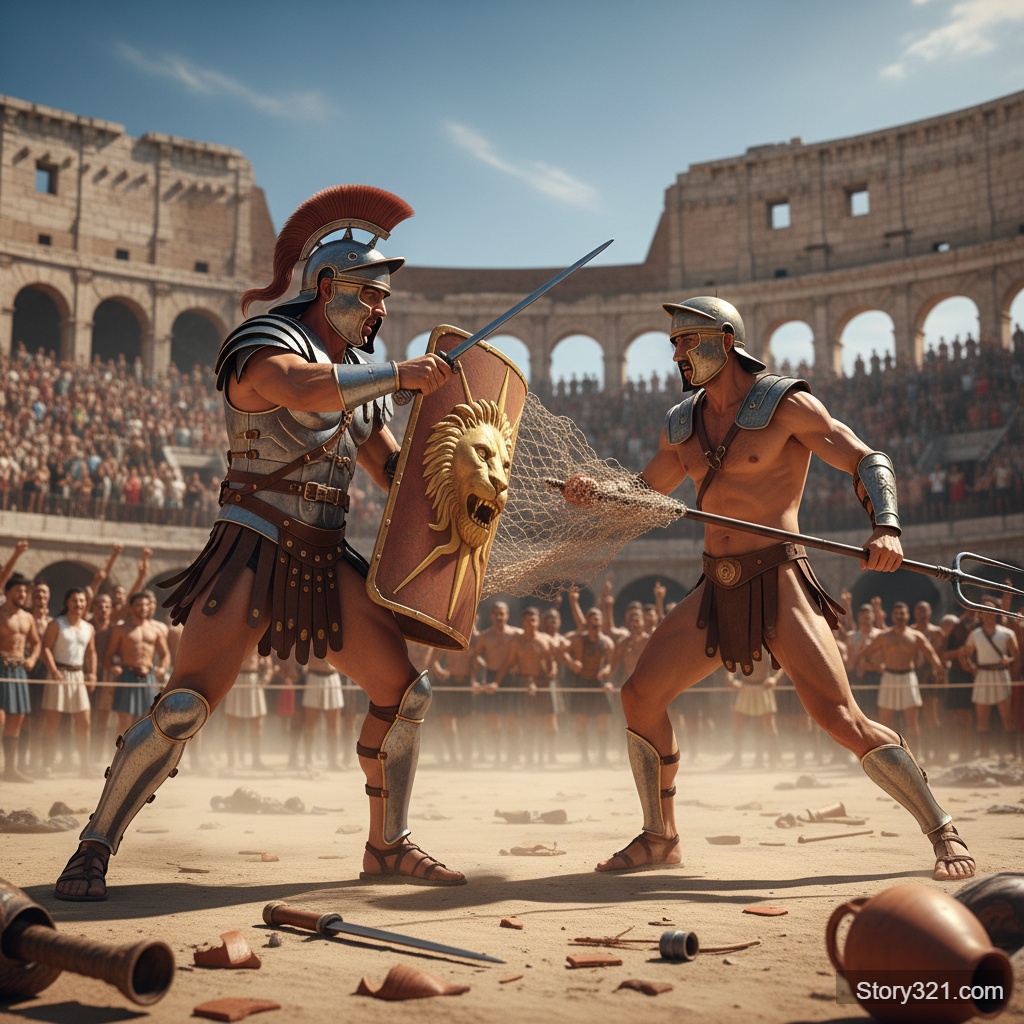
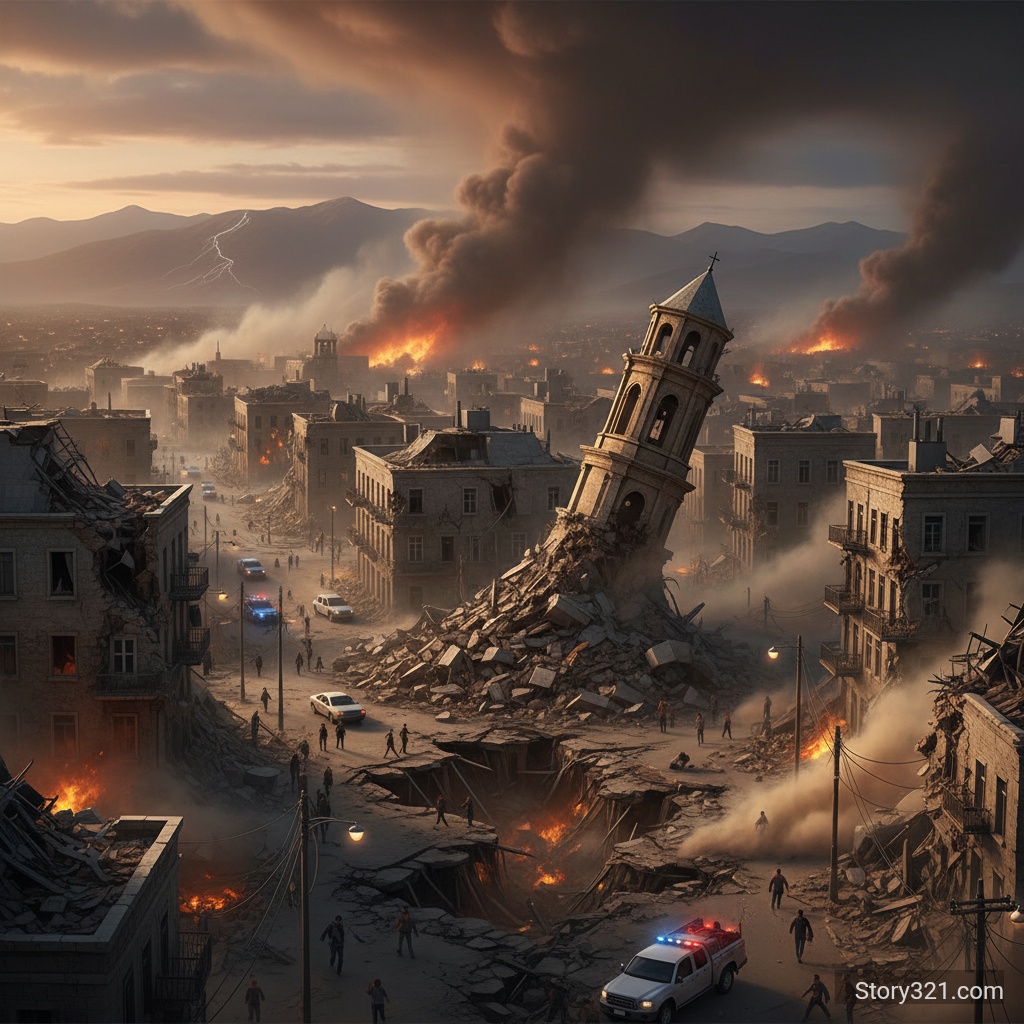
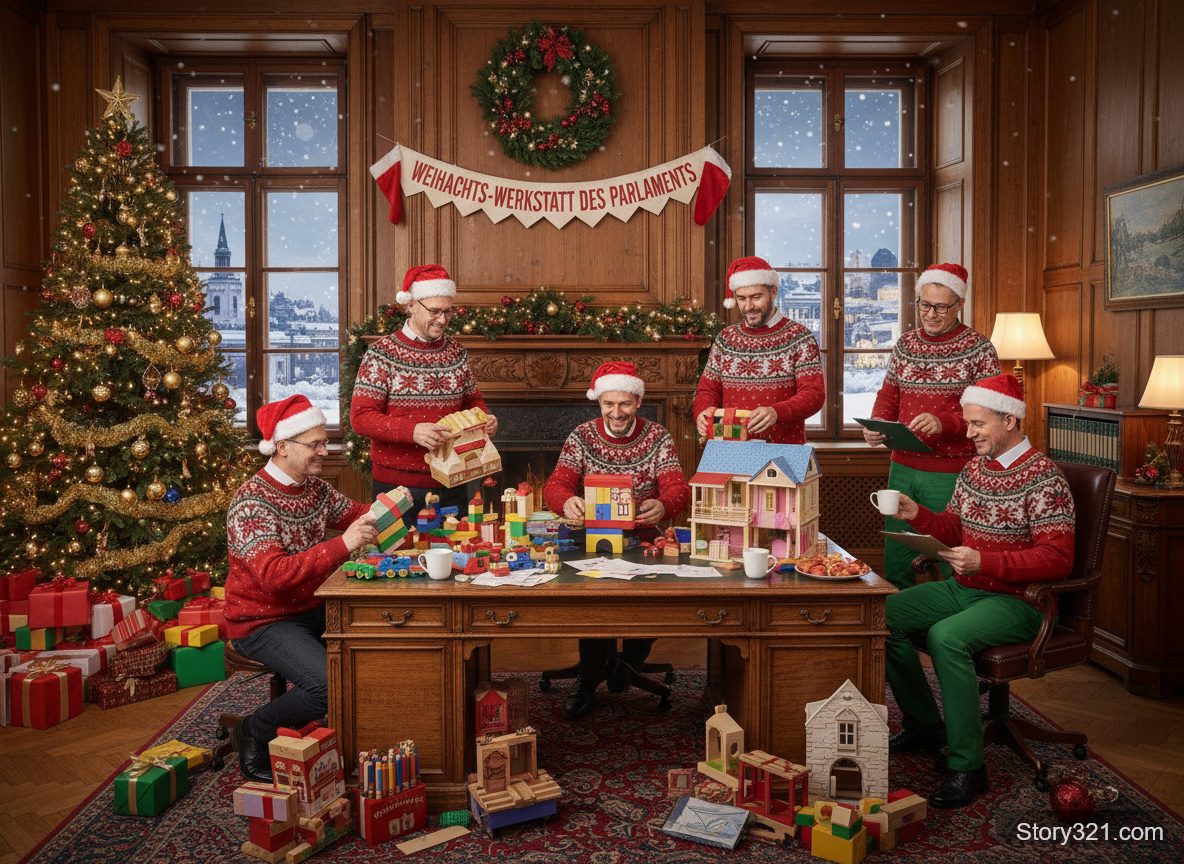
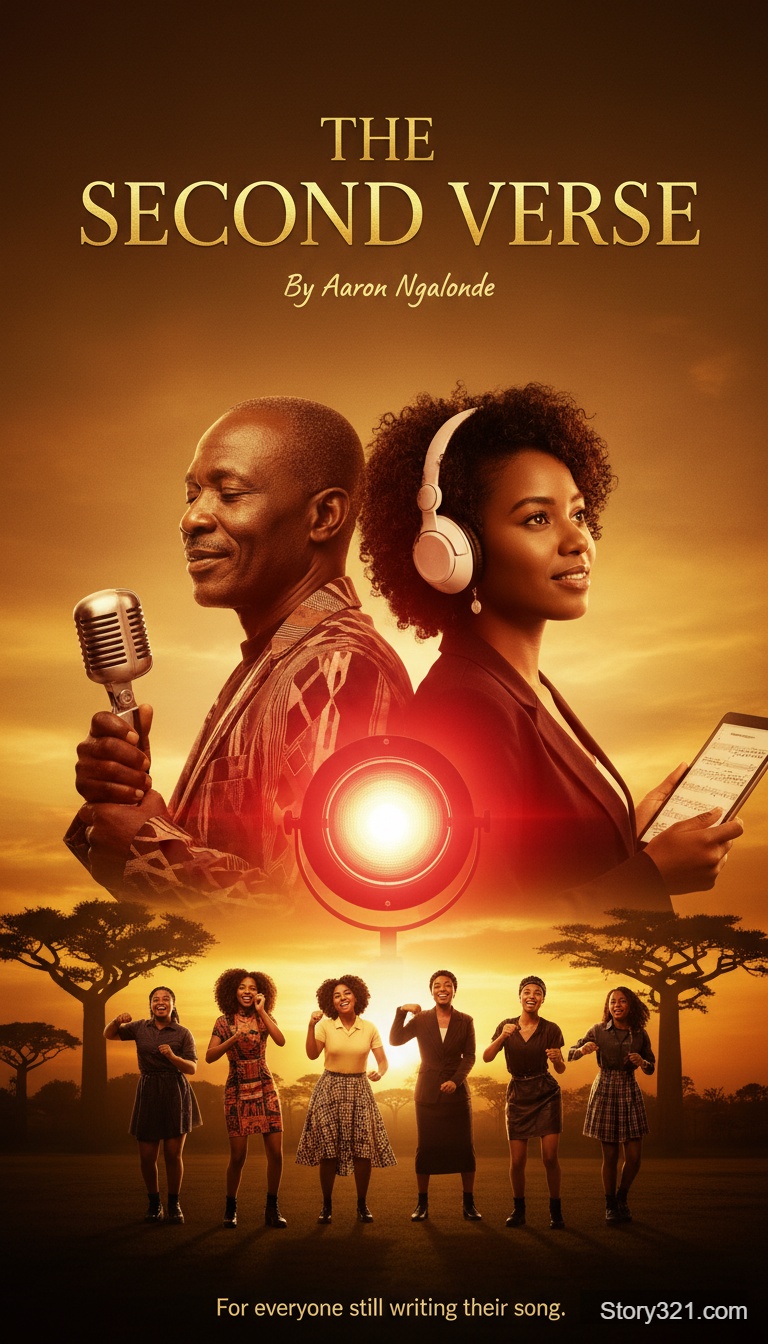
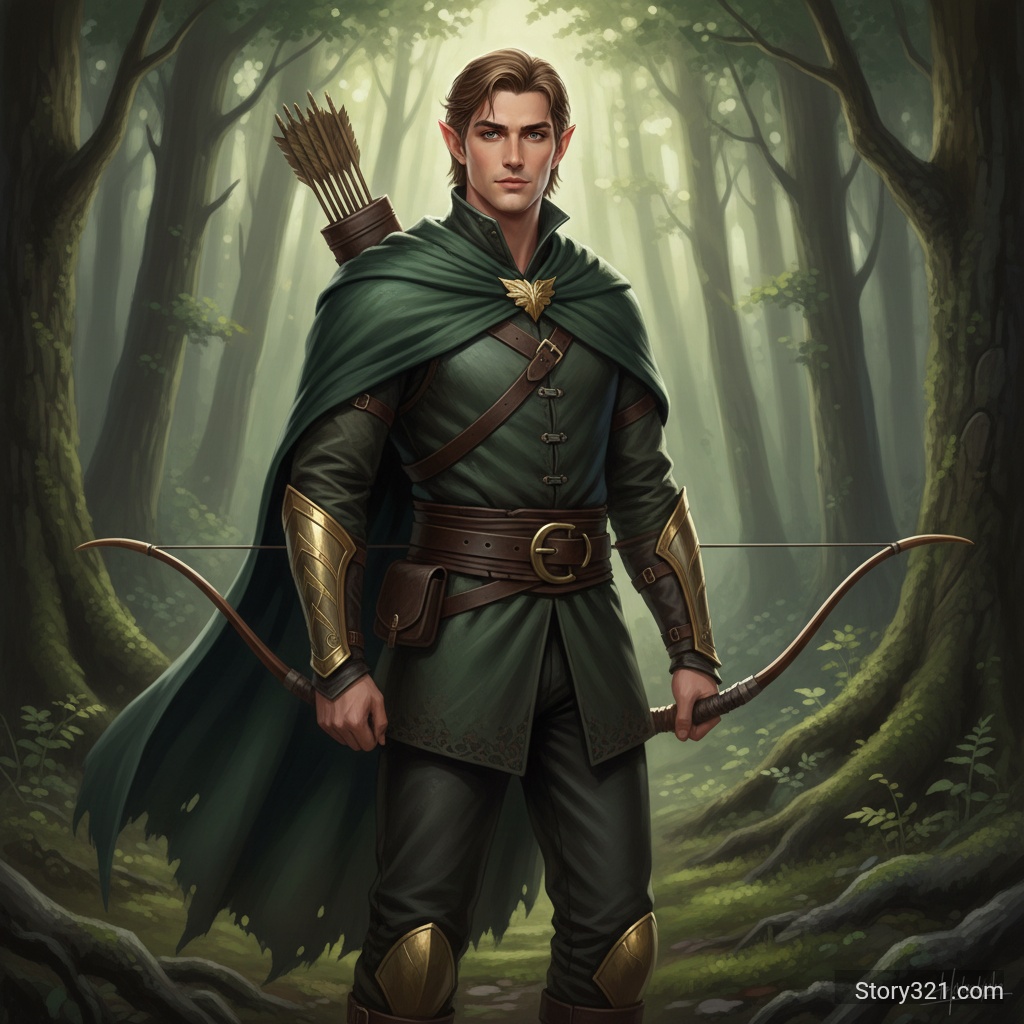
What Can GPT Image 2 Create?
GPT Image 2 Text and Detailed Layouts
GPT Image 2 is built for prompts where the words inside an image matter. Describe a label, poster, menu, interface concept, infographic, or sign with the exact language and hierarchy you want to test. Give the model a clear subject, the intended text, a layout goal, and the setting so you can review a coherent visual draft rather than a generic illustration.
GPT Image 2 Photorealistic Visual Direction
Use GPT Image 2 when your brief calls for realistic materials, natural light, believable environments, or close product detail. It is useful for exploring the look of a campaign before production, shaping a mood board, or creating a reference image for a designer. Strong prompts name the subject, scene, framing, lighting, palette, and the details that must remain prominent.
GPT Image 2 Formats for Real Destinations
GPT Image 2 offers square, portrait, landscape, and automatic image-size presets. Start with the destination in mind: use a wider frame for slides and headers, a vertical frame for mobile-first creative, or a square for a compact social asset. This keeps composition decisions connected to the channel where the final image will appear.
GPT Image 2 Quality and File Control
With GPT Image 2, you can choose Low, Medium, or High quality and export JPEG, PNG, or WebP. Medium is the default for balanced cost and detail. Use lower settings for early prompt exploration and higher quality when your brief needs more polish. The output choice lets your team match the asset to its next step, whether that is review, presentation, web delivery, or design handoff.
Why Use a GPT Image 2 AI Image Generator?
GPT Image 2 Visual Brief Review
GPT Image 2 converts a written creative brief into a concrete image direction that people can discuss. Instead of debating abstract phrases such as premium, playful, technical, or cinematic, you can generate a starting point and identify what should change. This makes prompt-based exploration practical for teams planning an illustration, campaign, product page, or presentation.
GPT Image 2 Product Photography Concepts
For packaging, catalog, and launch ideas, GPT Image 2 can help you test product photography concepts before a full shoot or design cycle. Describe the product, surface, setting, lighting, camera distance, and any copy that should appear on the package. Treat every result as a creative reference and review brand details carefully before publication.
GPT Image 2 Text-to-Image Prompts
A useful GPT Image 2 prompt begins with the main subject, then adds the purpose of the image and the visual constraints. Include required wording in quotation marks, explain its placement, and specify what must not compete with it. Add style and lighting after the essential information so the text-to-image generator has a clear order of importance.
Keep GPT Image 2 Iteration Focused
GPT Image 2 gives you a focused set of choices instead of an overloaded workflow. Adjust one element at a time: the prompt, frame, quality, format, or image quantity. Comparing controlled variations makes it easier to learn which instruction influences the composition, typography, product treatment, or atmosphere you want to refine next.
How to Generate with GPT Image 2
- 1
Write a Specific Brief
Start GPT Image 2 with the subject and intended use. Then add the setting, composition, style, lighting, color direction, and any visible words. For a marketing visual, state the audience and the message. For a product image, name the material, camera angle, background, and label details that deserve attention.
- 2
Select Size, Quality, and Format
Choose a GPT Image 2 image-size preset that matches the placement you have in mind. Select a quality level for the stage of work, then choose JPEG, PNG, or WebP. You can also request several images when you need alternatives for a focused prompt, but keep the brief stable when comparing results.
- 3
Review and Refine the Prompt
Generate with GPT Image 2, inspect the output, and revise one instruction at a time. Check whether the focal subject, text, spacing, proportions, and visual mood match your purpose. If the result misses the goal, clarify the instruction instead of adding unrelated adjectives. Focused revisions produce more useful rounds of AI image generation.
GPT Image 2 Use Cases
Product Pages and Packaging Concepts
Use GPT Image 2 to explore product arrangements, packaging directions, lifestyle contexts, and label concepts. It can help a team see how a product might read at a glance before a detailed design pass. Keep approved logos, legal copy, claims, and brand elements under human review before using any image in a live commercial asset.
Campaign, Social, and Editorial Visuals
GPT Image 2 can create starting points for campaign art, social posts, presentation covers, editorial illustrations, and thumbnail concepts. Select the aspect ratio for the target channel, then write a prompt that describes the message before the decorative style. This approach helps the image support a story, offer, or headline rather than simply fill a space.
Diagrams, Mockups, and Text-Forward Ideas
When an image needs labels, headings, interface-like structure, or dense visual information, GPT Image 2 can support early concept work. Use it to test visual hierarchy for a diagram, instructional image, slide, or mockup. Verify every factual statement, number, spelling, and accessibility requirement before sharing the result outside your working process.
Najczęściej zadawane pytania
What is GPT Image 2?
GPT Image 2 is an OpenAI image model available on Story321 for creating images from text prompts. It is suited to detailed visual concepts, text-aware layouts, photorealistic scenes, and product-oriented creative exploration. You provide the brief, select settings, generate the image, and refine the prompt when you want a different result.
Which image sizes can I choose?
GPT Image 2 supports square, square HD, portrait 4:3, portrait 16:9, landscape 4:3, landscape 16:9, and Auto presets. Choose a frame based on the final placement instead of trying to solve every layout need with one prompt. The selected format gives the composition a useful starting constraint.
What quality and output options are available?
GPT Image 2 provides Low, Medium, and High quality options, with Medium selected by default. It can return JPEG, PNG, or WebP files. Start with a setting that fits the importance of the current round, then increase quality when you are ready to spend more attention on the final visual direction and review the output carefully.
Can GPT Image 2 generate several images from one prompt?
Yes. GPT Image 2 can generate multiple images from a single prompt on Story321, with up to eight images in one request. Use multiple outputs when you want to compare composition, lighting, product placement, or styling. Keep the prompt consistent while comparing variants so you can identify what changes between results.
How should I write prompts for text in an image?
For AI text rendering, write the required text exactly, explain where it belongs, and describe its relationship to the main subject. Keep the message concise and specify a hierarchy such as headline, label, caption, or callout. GPT Image 2 is a creative generation tool, so review all spelling, numbers, and factual details before use.
How much does GPT Image 2 cost on Story321?
GPT Image 2 uses the current Story321 credit settings: Low quality costs 6 credits, Medium quality costs 12 credits, and High quality costs 42 credits per image. Medium is the default selection. A multi-image request is charged according to the selected quantity. Check the displayed total before generation.
GPT Image 2 Pricing
Choose a quality level that fits the purpose of your current creative round.
- Low quality
- 6 credits per image
- Medium quality (default)
- 12 credits per image
- High quality
- 42 credits per image
- Batch quantity
- 1-8 images per request
GPT Image 2 Technical Specifications
| Input | Text prompt |
|---|---|
| Image size presets | Square, portrait, landscape, or Auto |
| Quality | Low, Medium (default), or High |
| Output formats | JPEG, PNG, or WebP |
| Images per request | 1-8 |
| Model | GPT Image 2 by OpenAI |
Create Your Next Visual with GPT Image 2
Start with one clear creative brief, choose the settings that fit your destination, and use GPT Image 2 to turn the idea into a visual direction you can review, refine, and develop with confidence.