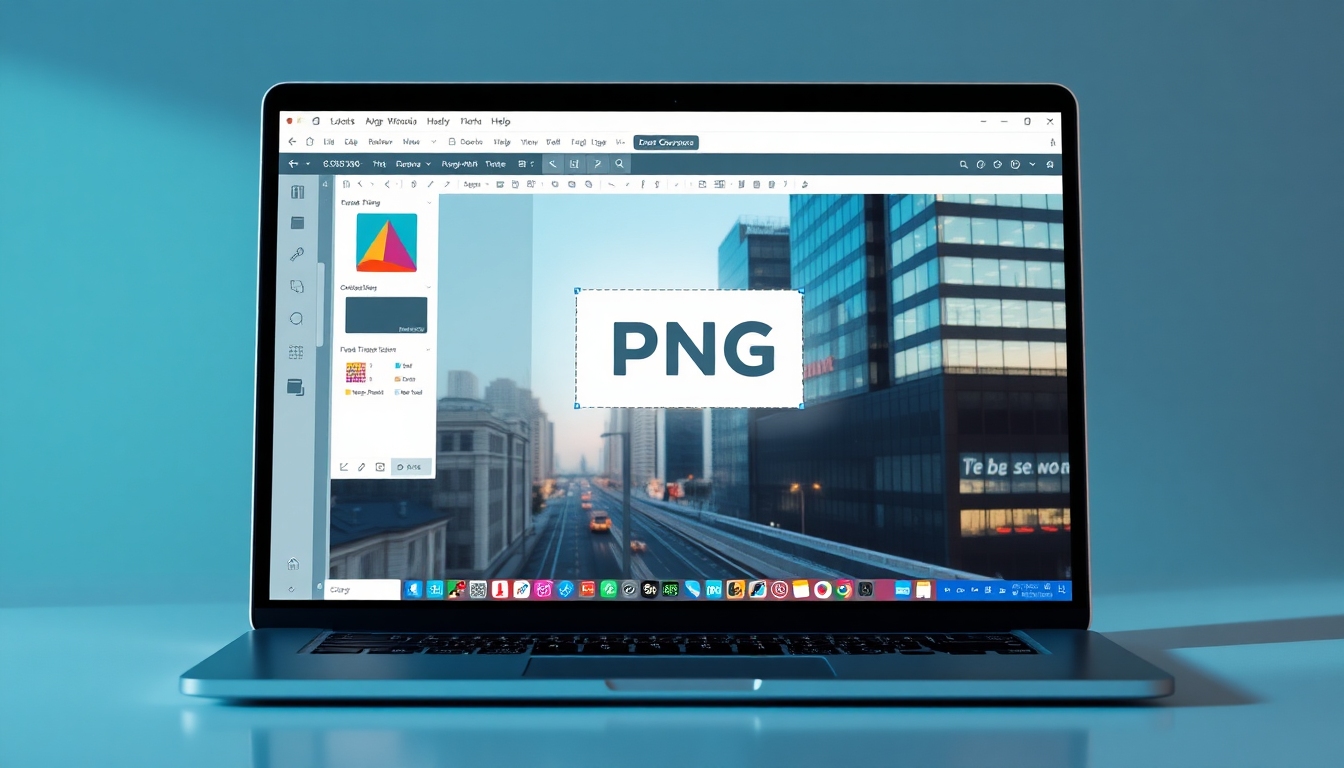
Add Logo to Photo
Fast, precise, and free—Add Logo to Photo without losing quality
Story321 makes it effortless to Add Logo to Photo in seconds—just drag, drop, and fine-tune on a clean, fast canvas. Keep full resolution, control opacity and placement, and export instantly. Whether you watermark a shoot or brand social posts, Add Logo to Photo is now a smooth, reliable step in your workflow.

Add Logo to Photo
What is Add Logo to Photo?
Add Logo to Photo is a streamlined feature on Story321 that lets you place your brand mark onto any image with clarity and control. Upload your photo and logo, adjust size, opacity, rotation, and position, and export brand‑ready visuals in seconds. With Story321, you can Add Logo to Photo online from any device without complicated software. From solo creators to teams who need to Add Logo to Photo at scale, the interface stays intuitive, responsive, and consistent—so your branding looks professional every time.
Drag-and-drop simplicity to Add Logo to Photo in seconds
Smart guides and snapping for pixel-perfect logo placement
Batch mode to Add Logo to Photo across entire folders
Transparent PNG support and background remover for clean edges
High-resolution exports that Add Logo to Photo without quality loss
Features that make Add Logo to Photo effortless
Everything you need to Add Logo to Photo at pro quality—without the learning curve or the price tag.
Drag-and-Drop Canvas
Upload your image and logo, then drag to place with precision. Smart snapping lines make it simple to Add Logo to Photo exactly where it should sit—corners, center, or custom offsets.
Smart Resize, Rotate, and Nudge
Scale smoothly, rotate in degrees, and nudge by arrow keys for fine control. Add Logo to Photo with consistent sizing across sets using numeric inputs for repeatability.
Batch Processing
Apply one setup to hundreds of images in one go. Save a preset and Add Logo to Photo across product catalogs, campaign shots, or event albums with a single click.
Opacity and Blend Controls
Dial in transparency for subtle watermarks or bold branding. Add Logo to Photo that complements the scene with soft light and overlay-inspired looks.
Logo Background Remover
Have a JPG logo with a white box? One-tap AI removal cleans edges so you can Add Logo to Photo with a true transparent mark—no haloing or fuzz.
Placement Presets and Guides
Choose top-left, top-right, bottom corners, or center. Save your favorite layout and Add Logo to Photo with consistent brand alignment, every time.
All Popular Formats
Drop in PNG, SVG, or JPG logos and export JPG or PNG. Add Logo to Photo at native resolution with color management that respects your brand palette.
High-Resolution Exports
Preserve sharpness on retina and print. Add Logo to Photo without compression artifacts and output up to full original size or custom dimensions.
Brand Kits
Store multiple logos and color variants. Quickly swap marks and Add Logo to Photo for different audiences, regions, and seasonal campaigns.
Private, Fast, and Cross-Platform
Works in your browser on desktop and mobile. Add Logo to Photo with secure processing and auto-delete policies designed to keep your assets private.
Where Add Logo to Photo makes a difference
From social posts to product shots, Add Logo to Photo keeps your brand consistent and protected across every channel.
Social Media Branding
Schedule-ready posts in seconds. Add Logo to Photo to keep your brand visible on reels, stories, and carousels without sacrificing style.
E‑commerce Product Galleries
Protect catalog images while promoting your brand. Add Logo to Photo at a tasteful opacity so listings look polished and trustworthy.
Photographer Proofs
Send previews safely. Add Logo to Photo on proofs with batch processing, consistent placement, and quick exports for clients.
Event Recaps and Flyers
Wrap up events with branded highlights. Add Logo to Photo so sponsors and hosts get visibility in every image.
Agencies and Teams
Keep branding uniform across deliverables. Add Logo to Photo using shared presets and brand kits for frictionless collaboration.
Influencers and Creators
Attach your signature mark to UGC. Add Logo to Photo to grow recognition and discourage content theft.
Startups and Small Business
No complex software needed. Add Logo to Photo to ship pitch decks, investor updates, and ads with consistent identity.
Education and Nonprofits
Highlight programs and partners. Add Logo to Photo with templates that save time for lean teams.
How to Add Logo to Photo on Story321
Follow these quick steps to Add Logo to Photo with professional results in minutes.
Upload your image
Drag a photo into the canvas or click Upload. For best clarity when you Add Logo to Photo, use the highest-resolution version available.
Add your logo
Drop in a PNG, SVG, or JPG. If the logo has a background, use Background Remover, then Add Logo to Photo with a clean, transparent mark.
Position and size
Use corner presets or snap to center. Nudge with arrow keys for precision, then Add Logo to Photo with consistent margins.
Adjust opacity and style
Set transparency and blending to fit the scene. Subtle watermarks Add Logo to Photo while keeping the image as the hero.
Export or batch apply
Choose PNG or JPG and resolution. Save a preset to batch Add Logo to Photo across multiple images in one go.
Pro tips for flawless branding
- •Use a vector or high‑resolution PNG so you can Add Logo to Photo without jagged edges.
- •Set a consistent padding grid; it’s easier to Add Logo to Photo uniformly across campaigns.
- •Keep opacity between 30–60% for watermarks when you Add Logo to Photo on busy scenes.
- •Save presets per channel (IG, TikTok, Web) to Add Logo to Photo with correct sizes.
- •Export PNG when you Add Logo to Photo on images with fine gradients or transparency.
- •Name your presets clearly to speed up how you Add Logo to Photo for different clients.
Story321 processes images securely and auto-cleans temporary files. You can confidently Add Logo to Photo without exposing private assets.
Add Logo to Photo: Frequently Asked Questions
Answers to common questions so you can Add Logo to Photo with confidence.
Is it really free to Add Logo to Photo on Story321?
Yes. There’s a robust free plan that lets you Add Logo to Photo with full-quality exports and no signup required.
Will adding a logo reduce image quality?
No. The editor preserves native resolution and color profiles so you can Add Logo to Photo without compression artifacts.
Can I Add Logo to Photo in bulk?
Absolutely. Use batch processing and presets to Add Logo to Photo across hundreds of images in one pass.
What file types are supported?
You can Add Logo to Photo using PNG, SVG, or JPG logos and export as PNG or JPG while preserving clarity.
How do I remove a background from my logo?
Use the built-in Background Remover, then Add Logo to Photo with a clean, transparent logo that blends perfectly.
Can I control opacity and placement precisely?
Yes. Numeric inputs, snapping, and arrow-key nudges help you Add Logo to Photo with pixel-perfect alignment.
Is my data private when I Add Logo to Photo?
Yes. Processing is secure and temporary files are auto-deleted. You can Add Logo to Photo without exposing private content.
Does it work on mobile?
Yes. You can Add Logo to Photo directly in the browser on phones and tablets with the same fast, responsive UI.
Do you offer templates for placement?
Yes. Use corner, center, and safe-area templates to Add Logo to Photo with consistent brand spacing.
Can I save presets for different clients?
Yes. Create brand kits and presets so you can Add Logo to Photo quickly with the correct logo and placement every time.
Ready to Add Logo to Photo in seconds?
Drop your image, upload your mark, and export crisp results today. It’s the fastest way to Add Logo to Photo—free, simple, and professional.
No signup required • High‑resolution exports • Private and secure