GPT Image 2.5 Image Editor
Edit one uploaded image with a focused instruction, preset framing, selected quality, and one to 8 PNG variations.
Save Your Creations
Login to save, manage and share all your generated images
Community Showcase
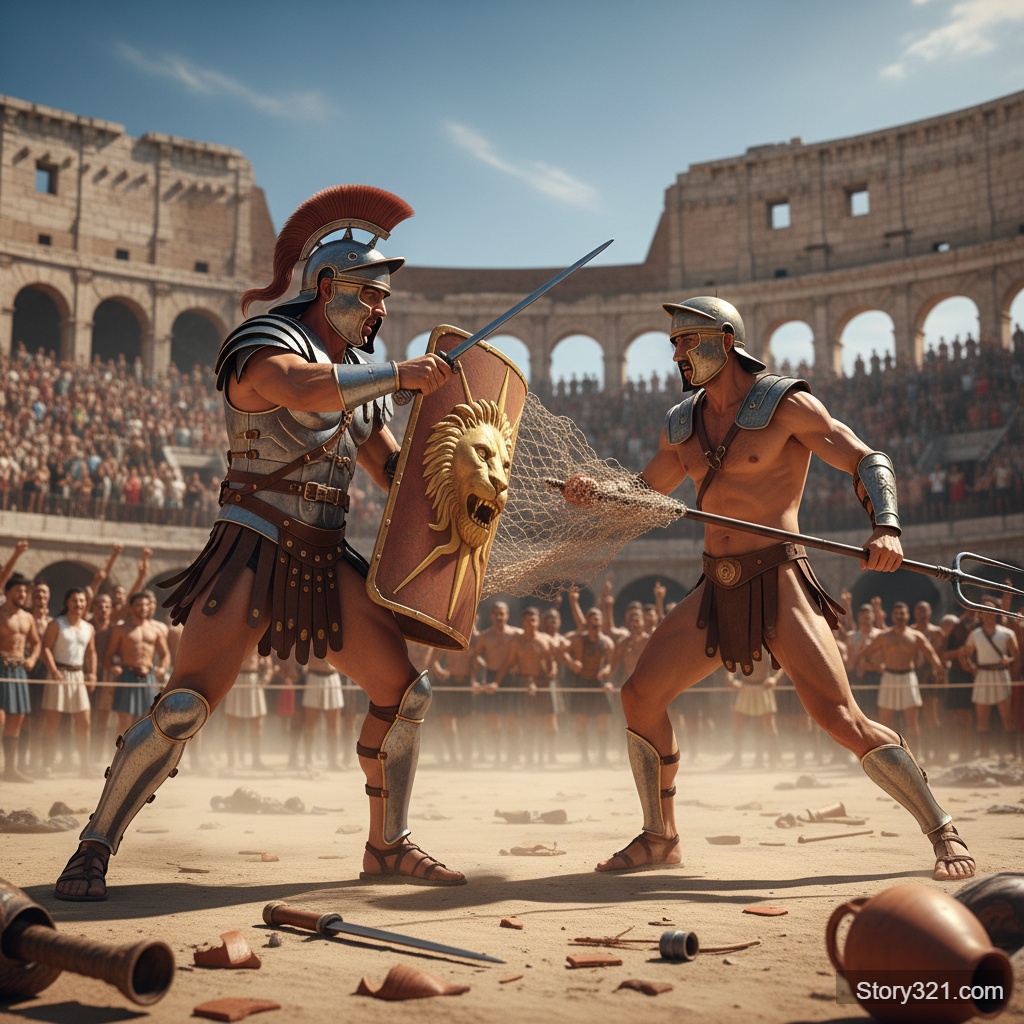
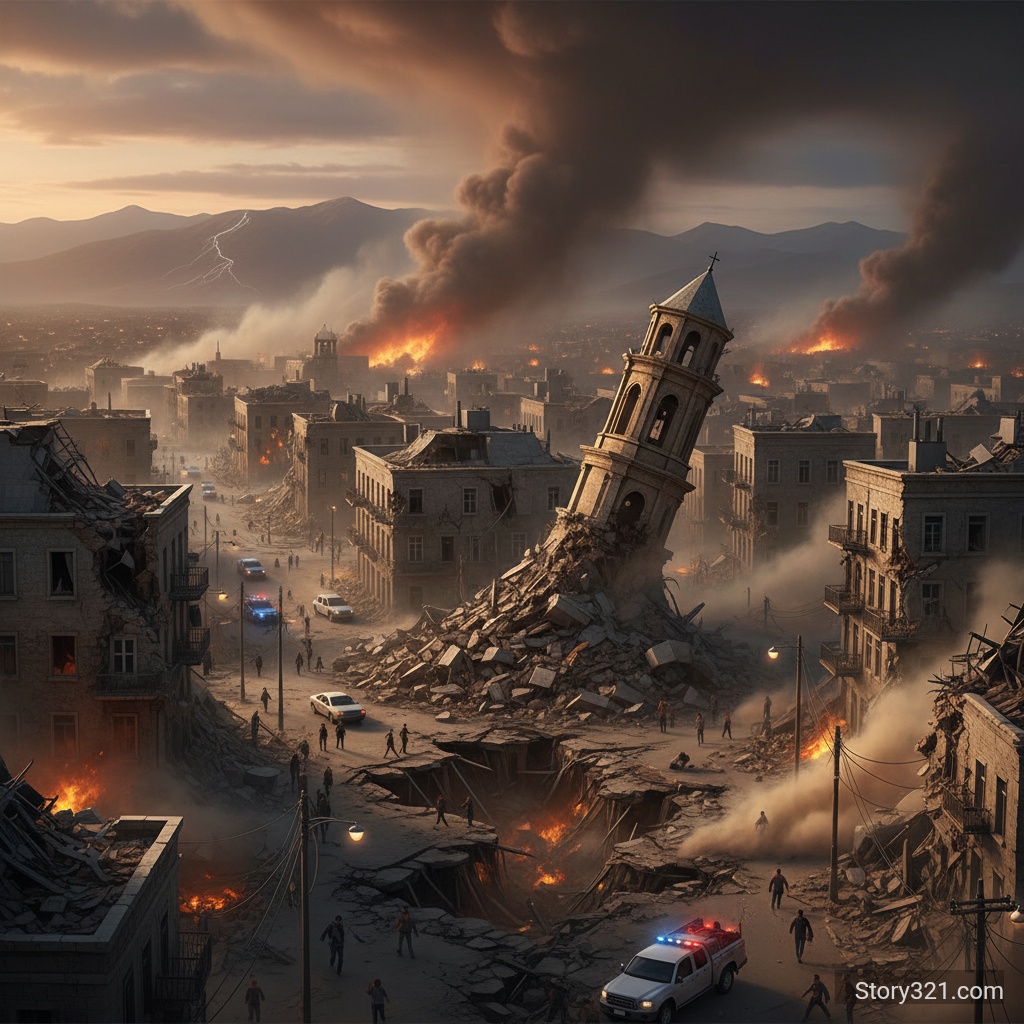
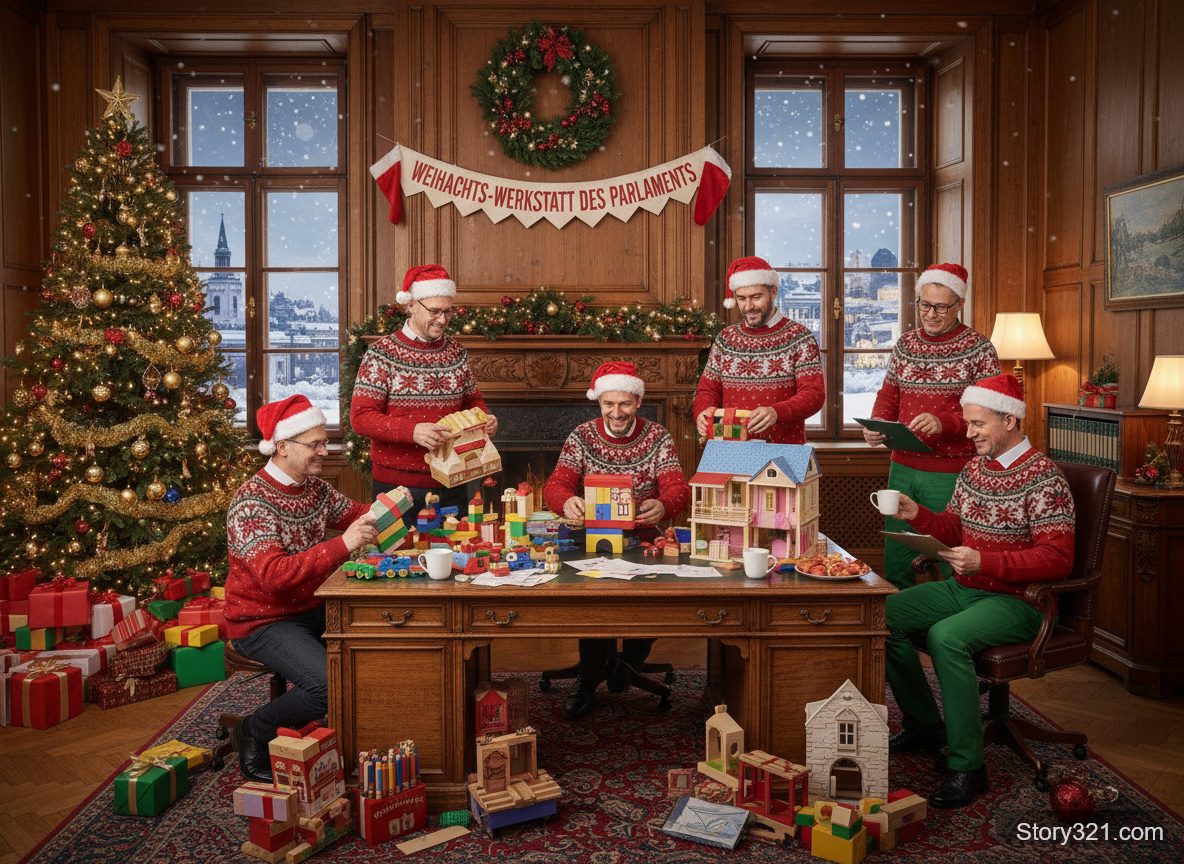
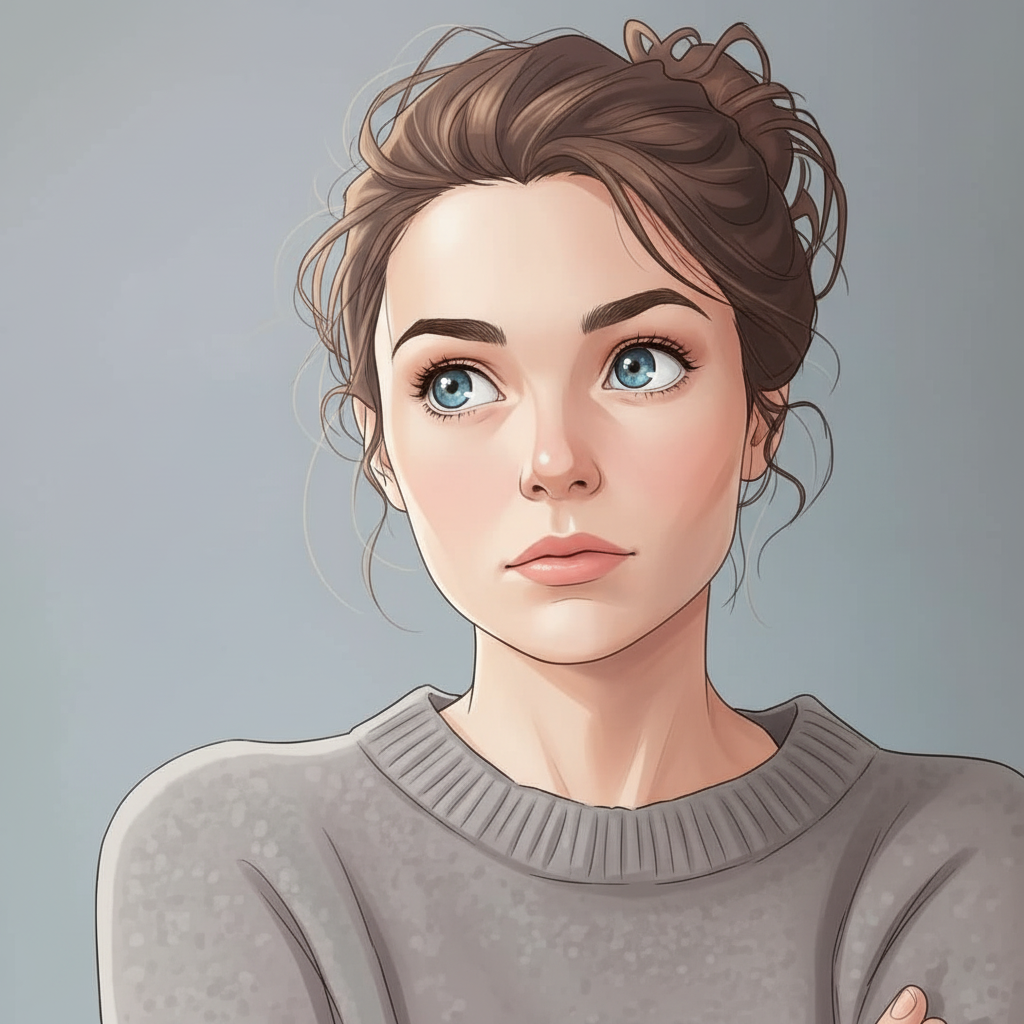
What can GPT Image 2.5 edit on Story321?
GPT Image 2.5 on Story321 edits one uploaded source image from a natural-language instruction. Use it for focused background, object, lighting, color, or style changes while you select a preset frame, quality level, and up to 8 PNG variations. Review every result before publishing.
GPT Image 2.5 controls on Story321
One source image
Use one uploaded image as the reference for a focused edit request.
Preset image sizes
Start at 4:3 landscape or choose square, portrait, and wider landscape presets.
Quality selection
Choose Low, Medium, or High quality in the form before generating.
One to 8 PNG variations
Request alternatives from the same source image and edit instruction, then compare them before choosing a result.
A focused editing workflow
Keep the subject recognizable
Describe the exact change and the details that should remain so your review has a clear target.
Refine a single element
Test a background, product color, prop, lighting, or style direction while retaining the source image as context.
Compare consistent alternatives
Keep the source image, prompt, frame, and quality stable while reviewing variations for a preferred direction.
Prepare a careful handoff
Review the entire generated image before using it in a design, campaign, or production workflow.
How to edit an image with GPT Image 2.5
- 1
Upload one image
Choose the source image you want to edit and confirm you are allowed to use it.
- 2
Write the edit instruction
State the intended change first, then name the subject, composition, and details that should remain.
- 3
Choose output settings
Select a preset frame, Low, Medium, or High quality, and one to 8 PNG variations.
- 4
Review and refine
Inspect the edited area and surrounding image. Revise one instruction at a time when the output misses the brief.
GPT Image 2.5 editing use cases
Product-image updates
Explore a new background, color direction, prop, or seasonal setting while keeping the product as the focal point.
Campaign variations
Adapt a source asset for a different mood or framing while keeping the original direction recognizable.
Lighting and texture studies
Test a lighting, material, or atmosphere direction from an existing source image before committing to a final workflow.
Creative restyling
Try a new illustration treatment, palette, or material direction from an existing source image.
Presentation mockups
Generate visual directions for slides, briefs, and stakeholder review from a concrete image reference.
Web-asset iteration
Choose a suitable frame and generate alternatives before placing the final selected asset in its intended context.
GPT Image 2.5 review notes
- This Story321 editor uses one source image per request and returns PNG output.
- Generative edits are not pixel-perfect retouching; inspect text, logos, faces, hands, proportions, and fine visual details.
- The selected quality and variation count affect credits; verify the displayed total before generating.
- Use only source images you are allowed to edit and validate every output for your legal, brand, and publishing requirements.
Continue your image workflow
GPT Image 2.5 Generator
Start from a written brief when you do not need a source image.
Open GPT Image 2.5 GeneratorAI Image-to-Image Tools
Compare Story321 image editing models and their current controls.
Compare image editorsStory321 Pricing
Review credit options before planning repeated image-editing tests.
View pricing
Frequently Asked Questions
How do I edit an image with GPT Image 2.5?
Upload one source image, state the change you want, and name the details that should remain. Then select output settings and inspect the generated result.
How many source images can I upload?
This Story321 editor accepts one source image per request.
Which image sizes can I choose?
The form starts at 4:3 landscape and also offers square, portrait, and wider landscape presets.
Which output format is used?
GPT Image 2.5 image editing on Story321 returns PNG output.
How many edited images can I generate at once?
You can request one to 8 output variations per request with the same source image and instruction.
Will GPT Image 2.5 preserve every detail?
No. Treat each result as a generative edit and review the complete image before publication.
GPT Image 2.5 editing credits
Choose the quality level that fits the stage of your edit.
- Low quality
- 6 credits per image
- Medium quality
- 12 credits per image
- High quality
- 42 credits per image
GPT Image 2.5 editing specifications
| Input | One uploaded image and a text prompt |
|---|---|
| Image size | 4:3 landscape by default, plus square, portrait, and landscape presets |
| Quality | Low, Medium, or High |
| Output format | PNG |
| Output variations | 1 to 8 per request |
Official model reference
Introducing ChatGPT Images 2.5“Sharper details, faster generation, more precise editing.”
Edit your image with GPT Image 2.5
Upload one source image, describe the change you need, and generate focused edits for review.
Open GPT Image 2.5