Nano Banana Image Editor
Edit one uploaded image with a natural-language instruction and choose Auto or a destination-specific aspect ratio.
Save Your Creations
Login to save, manage and share all your generated images
Community Showcase
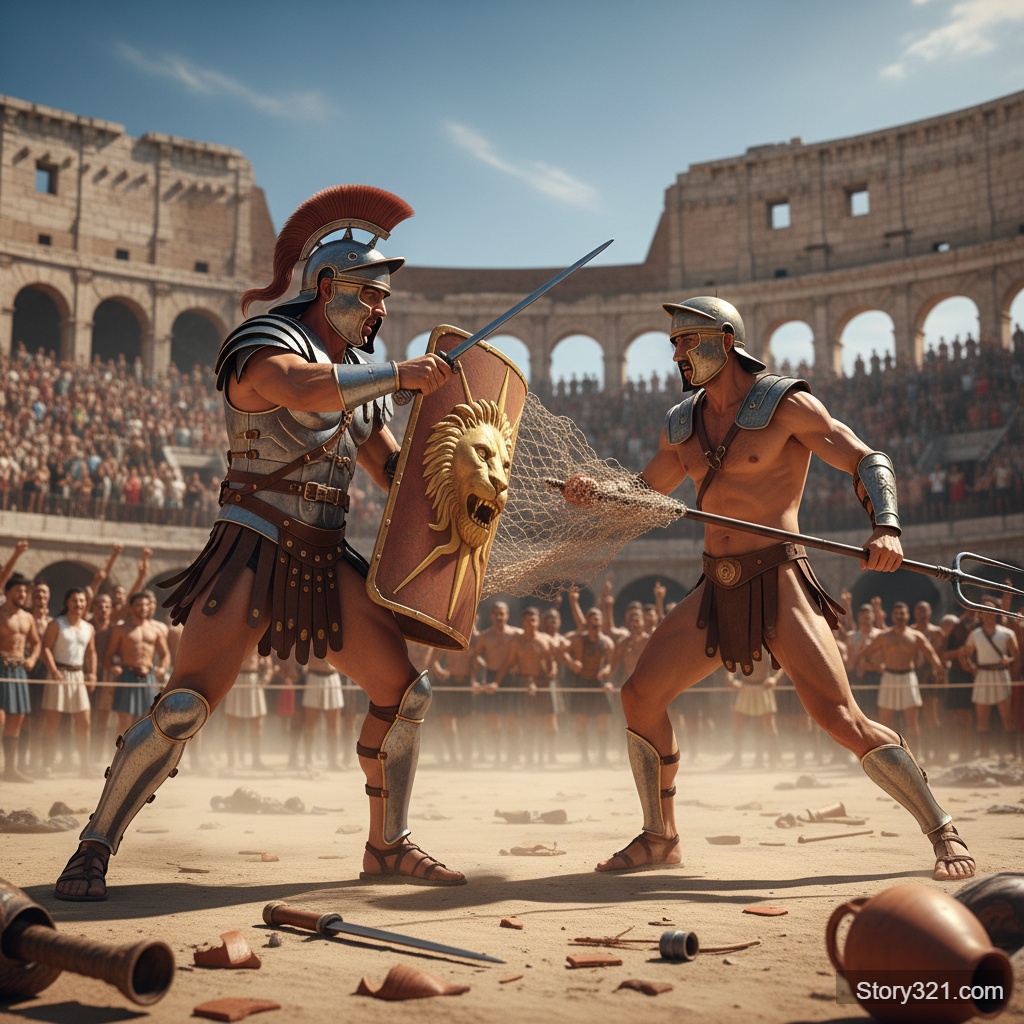
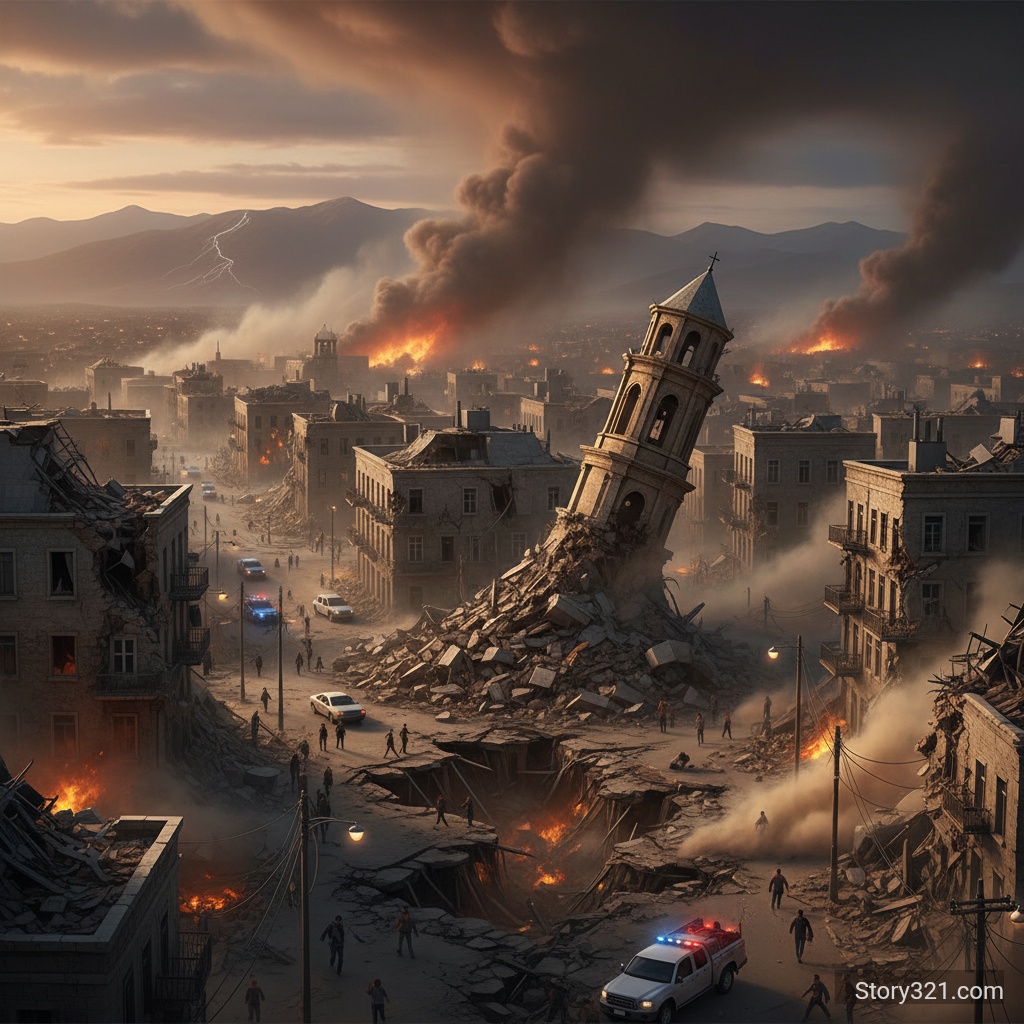
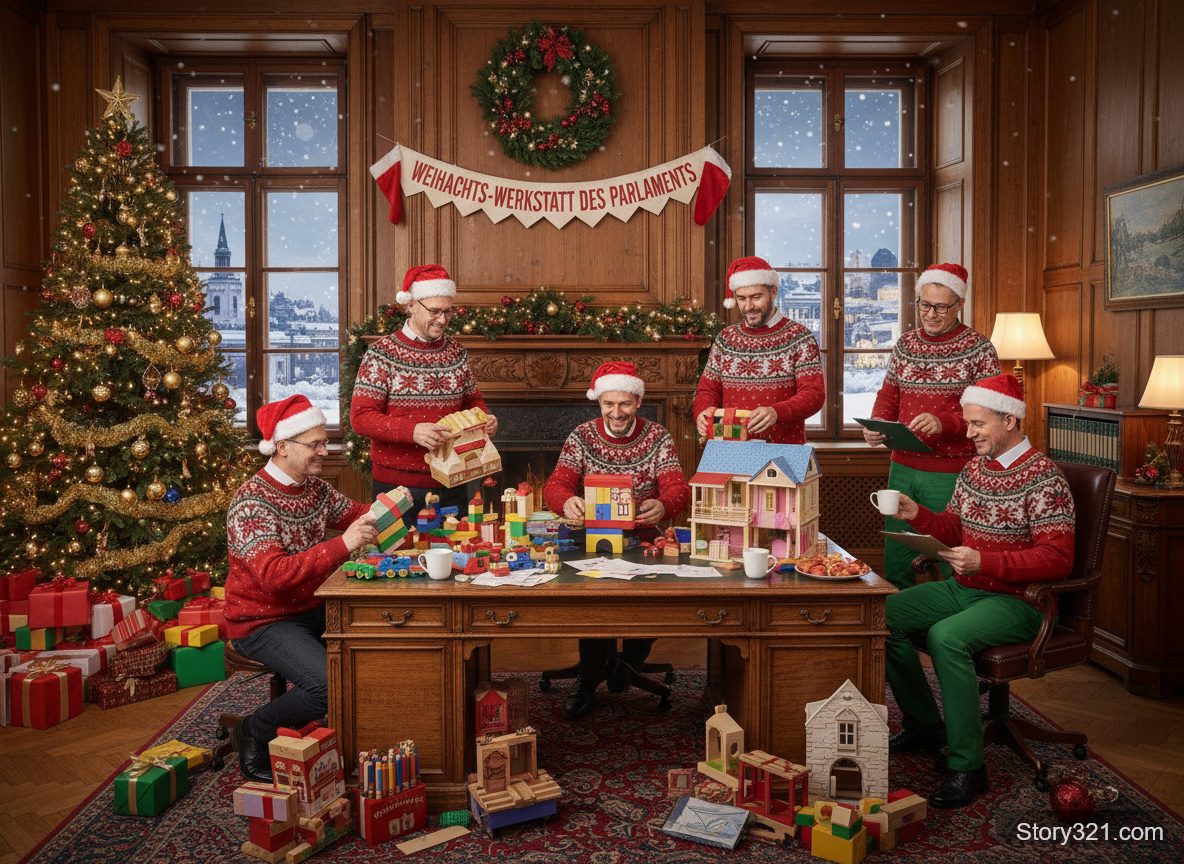

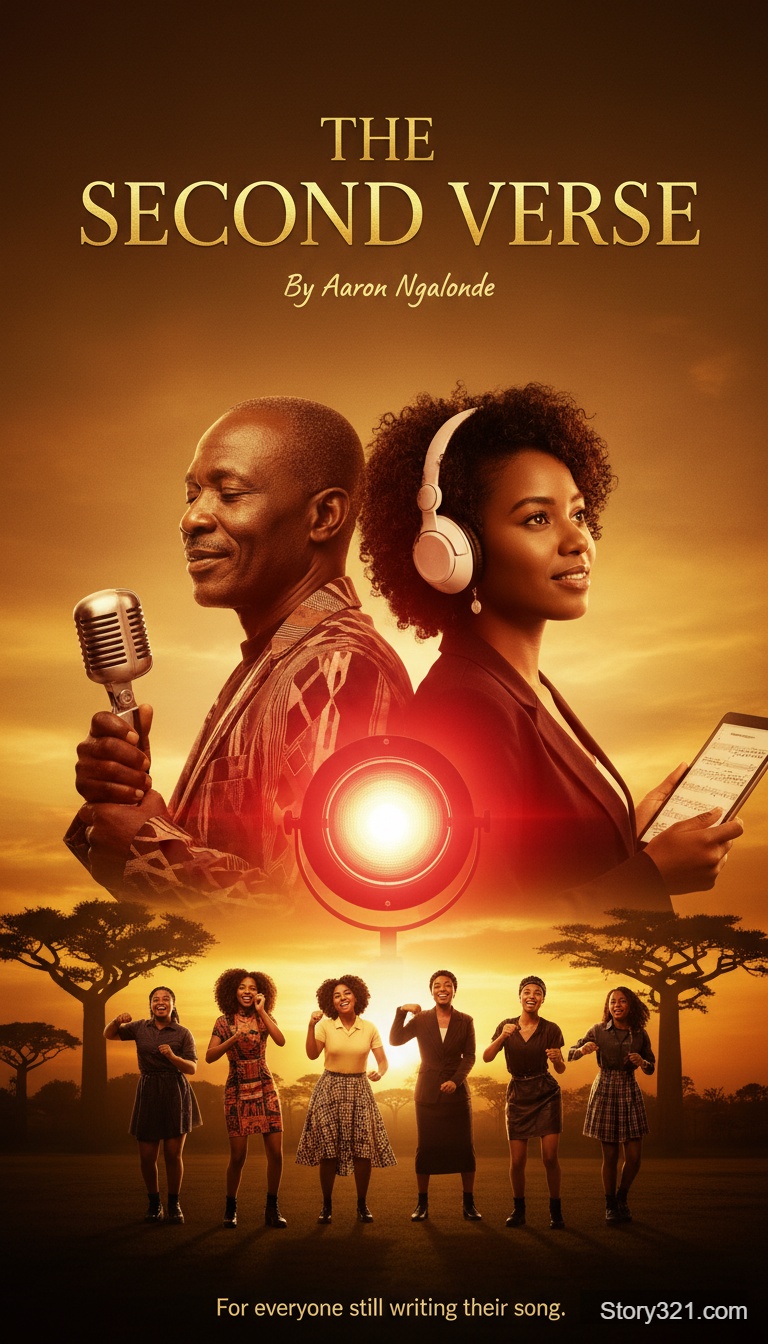
When should I use Nano Banana for an image edit?
Use Nano Banana when you want to test a visual change from one source image with a natural-language prompt and flexible framing. Keep the instruction focused, then inspect the full output because generative editing can alter details beyond the requested change.
Nano Banana controls on Story321
One source image
Use one uploaded image as the reference for your edit instruction.
Natural-language instructions
Describe a background, color, object, lighting, or style change in the prompt.
Flexible framing
Select Auto or choose from square, portrait, landscape, and wider aspect-ratio options.
Focused iterations
Keep the source image and most of the prompt stable while testing a single revised detail.
How to edit with Nano Banana
- 1
Upload the source image
Choose an image you are allowed to edit.
- 2
Choose framing
Start with Auto to retain a source-led frame, or select an aspect ratio for a defined destination.
- 3
Write a clear instruction
Name the intended change and the visual details that should remain.
- 4
Inspect and refine
Review the image as a whole and revise one instruction at a time if needed.
Nano Banana editing use cases
Creative directions
Explore a new palette, style, atmosphere, or material direction from an existing image.
Social crops
Test portrait, square, or wider framing for an image that must fit a particular placement.
Background concepts
Try a setting change while using the original image as the visual reference.
Review alternatives
Generate a draft direction to discuss before committing to a manual retouch or final asset.
Nano Banana review notes
- Story321 currently exposes a one-source-image workflow; provider capabilities may be broader than the controls shown here.
- Generative edits may affect nearby details, text, logos, faces, or proportions.
- Confirm the current controls and credit amount in the form before generating.
Compare image editors
Image-to-Image Tools
Compare available Story321 editing models.
Compare modelsNano Banana Pro
Use selectable resolution and output-format controls.
Open Nano Banana ProFLUX.2 [flash]
Use a prompt-directed edit with five framing presets.
Open FLUX.2 [flash]
Frequently Asked Questions
Which aspect ratios can I choose?
Story321 offers Auto plus 21:9, 16:9, 3:2, 4:3, 5:4, 1:1, 4:5, 3:4, 2:3, and 9:16.
How much does a Nano Banana image edit cost?
A Nano Banana image edit is 11 credits on Story321. Confirm the displayed amount before generating.
Can I upload multiple source images?
This Story321 page uses one uploaded source image per edit request.
What should my prompt say?
State the desired change, then identify the subject, framing, and details to preserve. Review the full image after each result.
Nano Banana image editing credits
- Image edit
- 11 credits per image
Nano Banana workflow specifications
| Input | One uploaded image and an edit prompt |
|---|---|
| Aspect ratio | Auto plus square, portrait, landscape, and wide presets |
| Resolution control | Not exposed in this Story321 form |
| Output format control | Not exposed in this Story321 form |
Official model reference
Nano Banana model documentation“Gemini 2.5 Flash Image is also known as Nano Banana.”
Edit an image with Nano Banana
Upload one source image, choose a frame, and describe the visual change you want to explore.
Open Nano Banana