Grok Imagine Image 2 Image to Image Editor
Grok Imagine Image 2 image to image turns one source image and a clear instruction into a fresh, controlled edit. Upload your image, describe the change, choose an output size and quality, then create one polished result in the workspace.
Save Your Creations
Login to save, manage and share all your generated images
Community Showcase
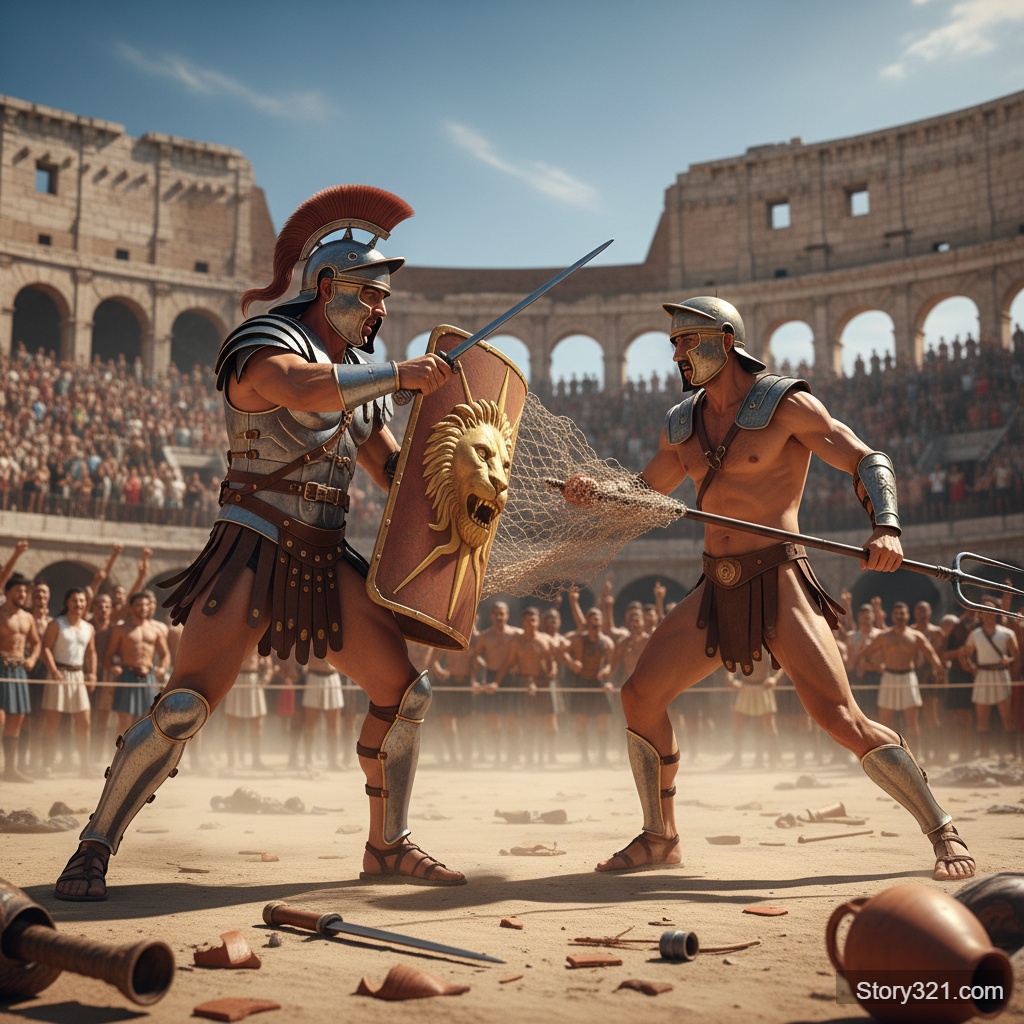
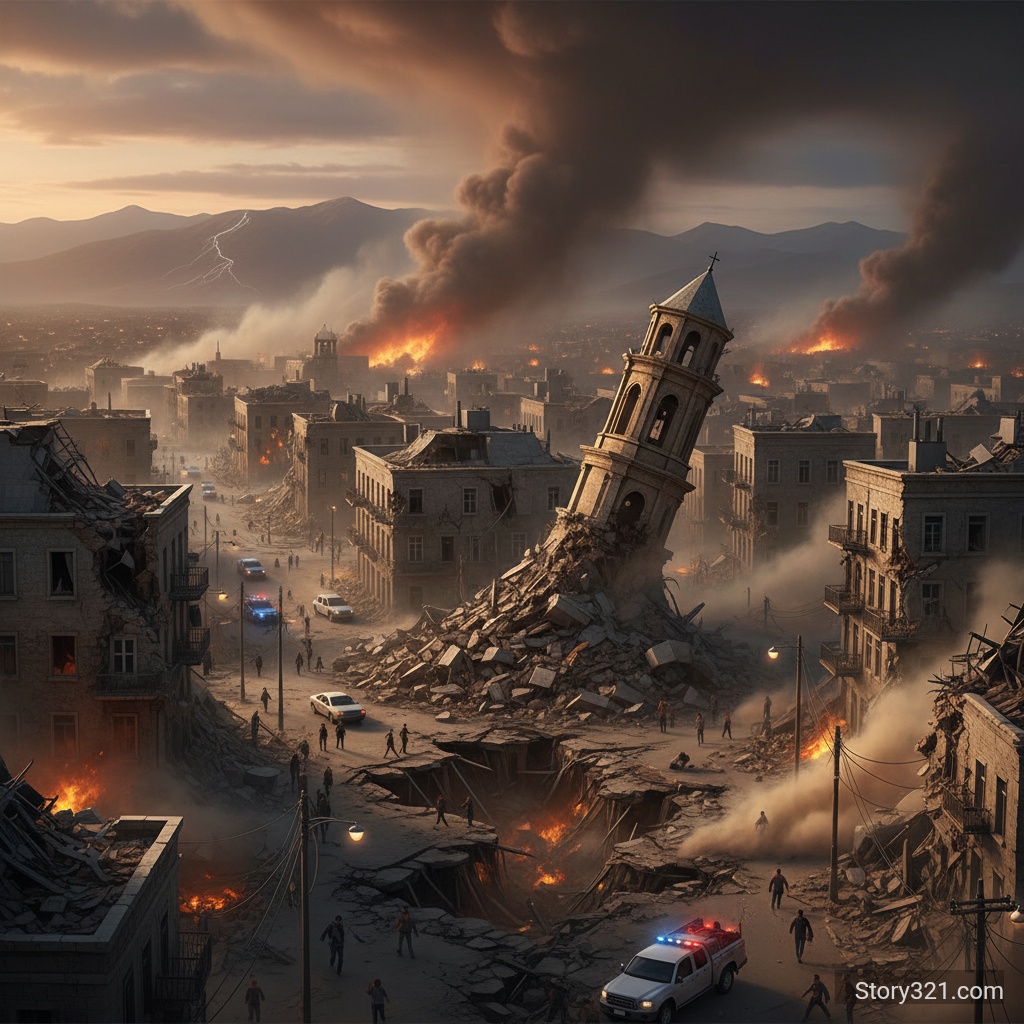
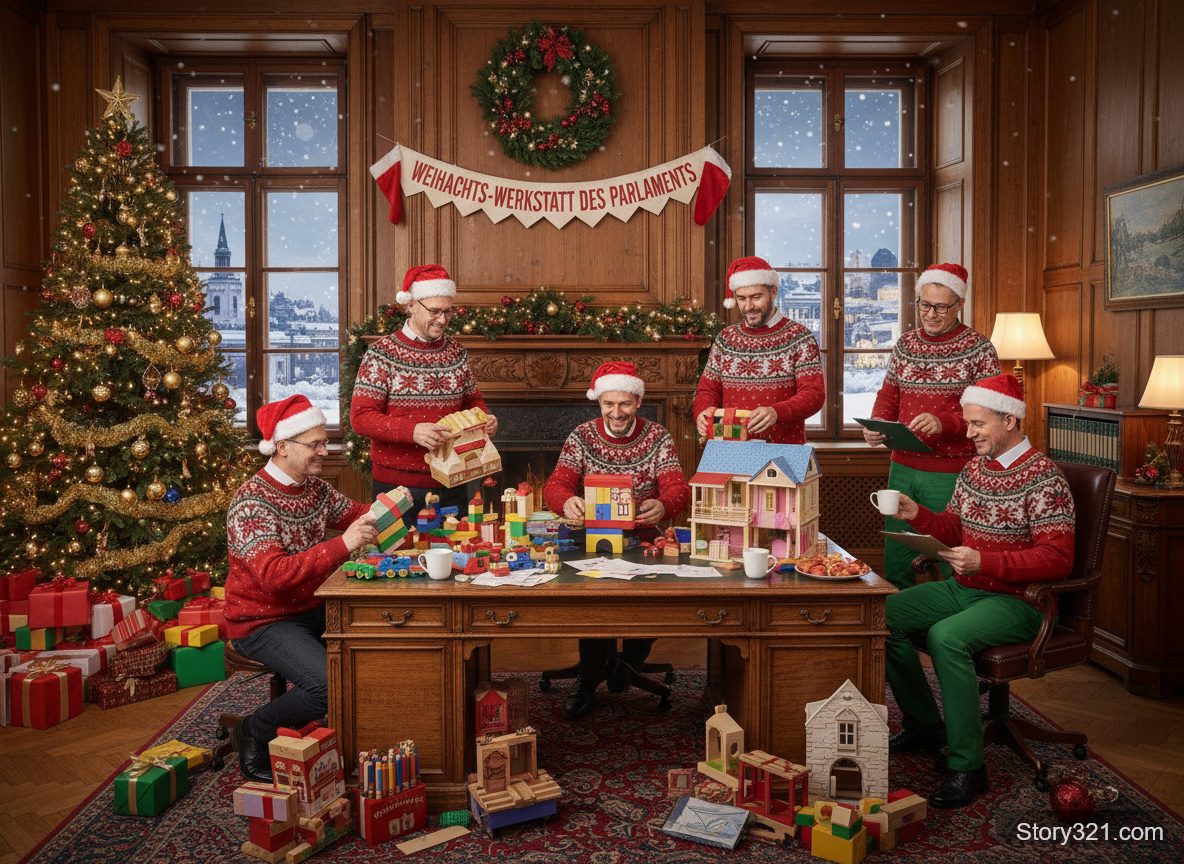
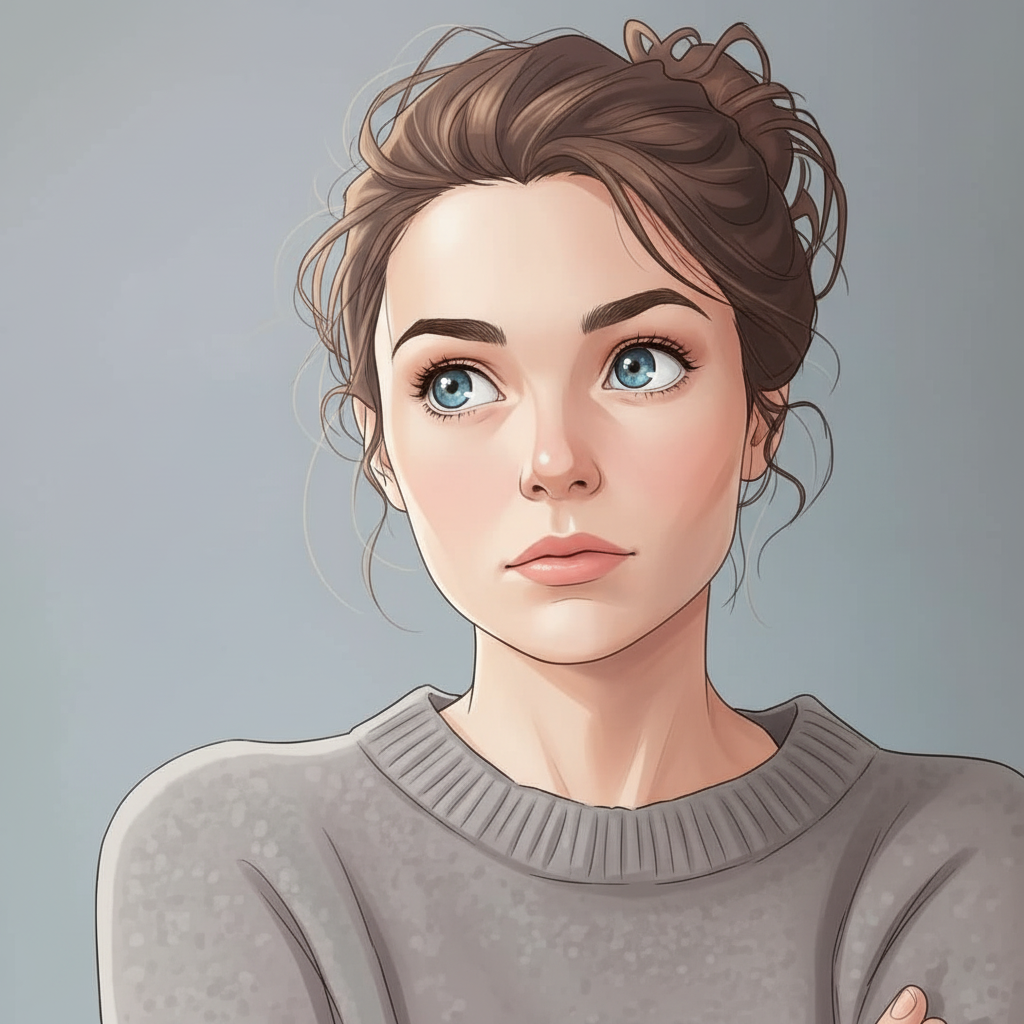
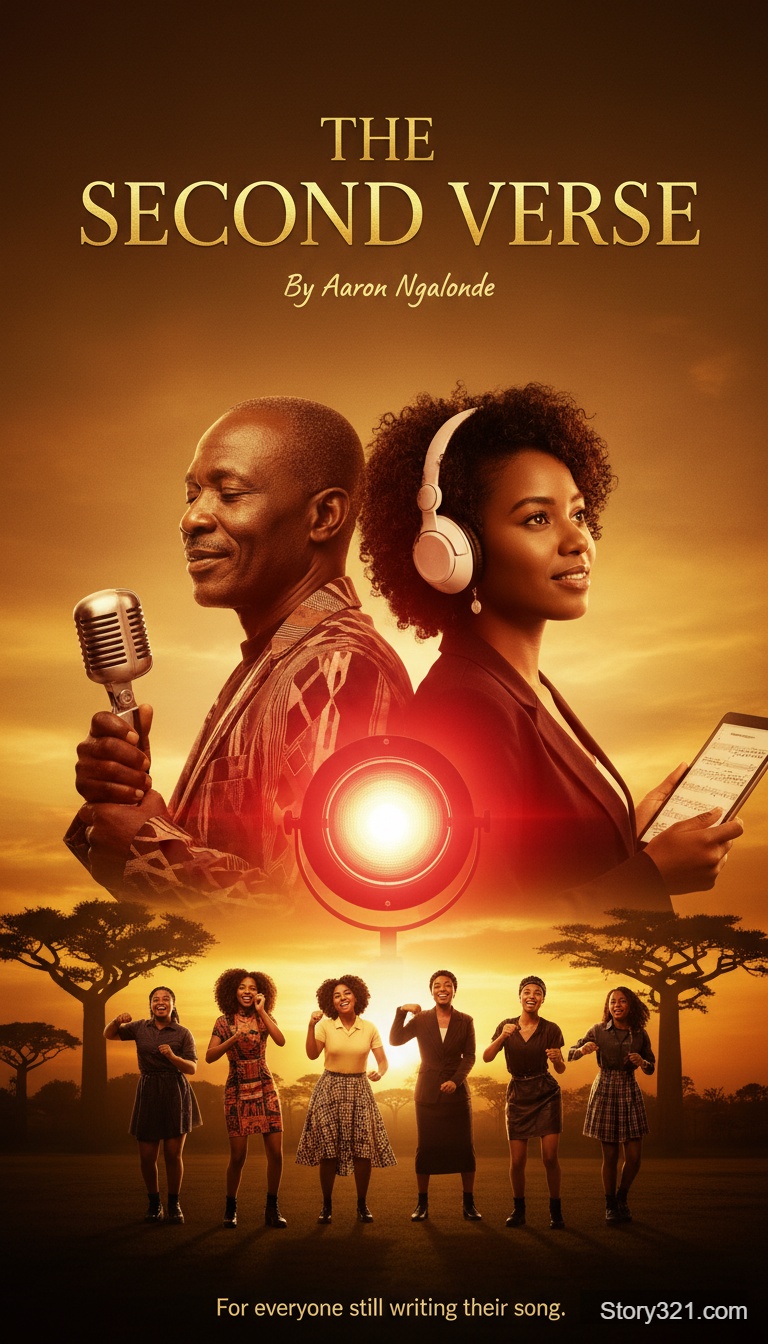
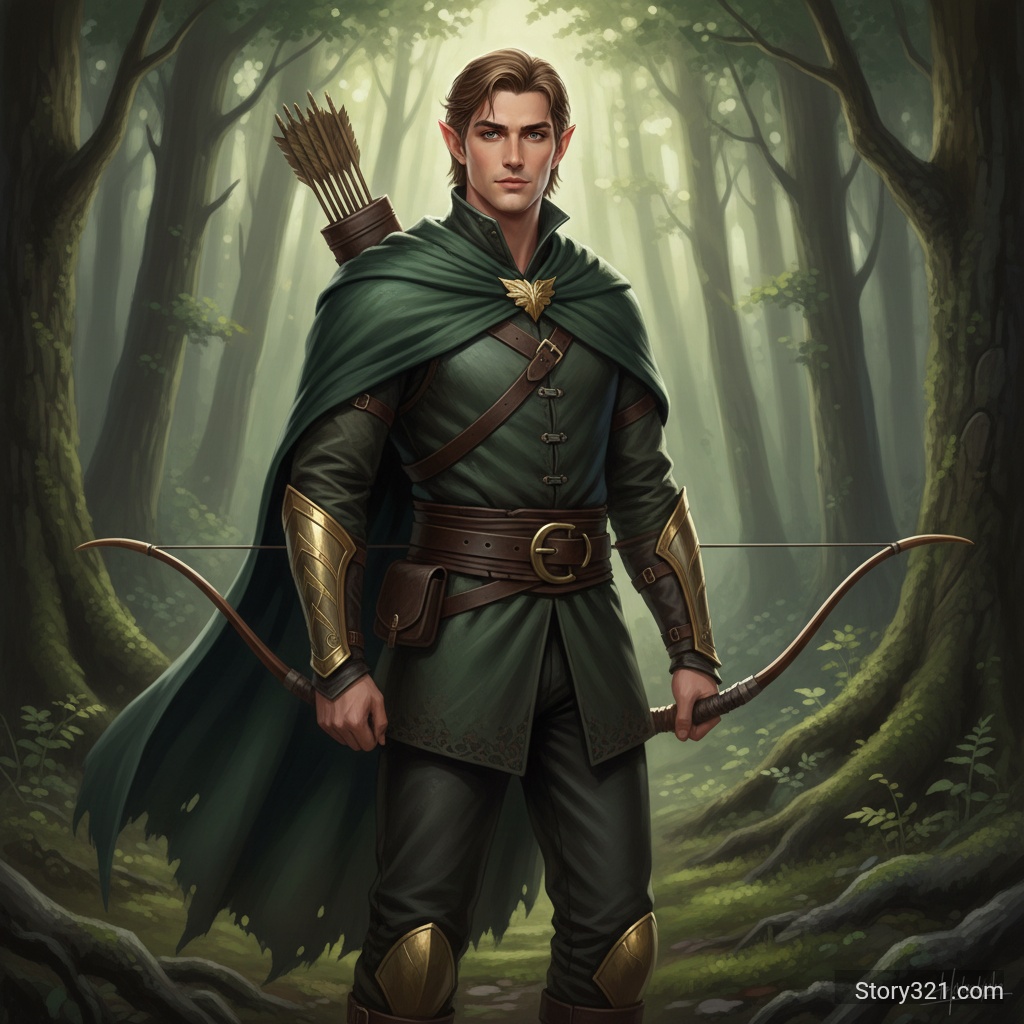
What is Grok Imagine Image 2 image to image?
Grok Imagine Image 2 image to image edits one existing picture from a natural-language instruction. Preserve the source subject or composition while changing setting, style, details, mood, or framing. Story321 accepts one upload and returns one generated image.
Grok Imagine Image 2 image to image controls
Edit from one source
Upload one source image. Grok Imagine Image 2 image to image uses it as visual reference for a deliberate revision.
Choose practical output settings
Keep Auto framing or select a supported ratio. Choose 1K or 2K, then export JPEG, PNG, or WebP.
Set the quality level
Low is the default for fast exploration, while Medium offers a more polished result. The editor shows credits for the selected resolution and quality.
Why use this image editor
Direct instructions
Grok Imagine Image 2 image to image follows plain-language requests for a background, lighting, product, or detail change.
Clear cost choices
Grok Imagine Image 2 image to image pairs four resolution-and-quality combinations with fixed per-image credits.
Flexible delivery
Grok Imagine Image 2 image to image offers ratios and formats for social posts, listings, slides, and web assets.
Focused workflow
Grok Imagine Image 2 image to image accepts one input and returns one output for a traceable revision.
How to edit an image
- 1
Upload one image
Choose the photo, illustration, mockup, or design you want to revise. Use an image you have permission to edit and share.
- 2
Write the edit
State what should change and what should remain recognizable. For example, name the object, the desired setting, lighting, palette, material, or visual style.
- 3
Pick output controls
Leave the ratio on Auto or set a supported ratio. Select 1K or 2K, JPEG, PNG, or WebP, and Low or Medium quality.
- 4
Generate and review
Grok Imagine Image 2 image to image creates one result. Review it beside your source, then refine the instruction or settings for another independent edit.
Grok Imagine Image 2 image to image use cases
Product imagery
Grok Imagine Image 2 image to image can place a product in a new environment or create a seasonal variation from the source.
Marketing concepts
Turn an existing campaign visual into alternative moods, color directions, or compositions for early creative review.
Social assets
Adapt a source for portrait, square, or wide placements and export a format suitable for the destination workflow.
Design exploration
Try wardrobe, interior, landscape, packaging, or illustration changes before committing to a larger production process.
Photo revisions
Use a precise prompt to request environmental, stylistic, or detail-level adjustments to a photo you are authorized to modify.
Limits to keep in mind
- Grok Imagine Image 2 image to image accepts exactly one source image and generates exactly one image per request on Story321.
- A model can reinterpret small details. Specify the important subject, text, logo-free areas, composition, and changes clearly, then review the result before publishing.
- The available controls are supported aspect ratios, 1K or 2K resolution, JPEG, PNG, or WebP output, and Low or Medium quality; extra API options are not exposed.
- Use only images and prompts you have the rights and permission to use. Do not rely on generated output as a substitute for required professional, legal, or factual review.
Explore related Grok Imagine Image 2 image to image tools
Frequently Asked Questions
How does Grok Imagine Image 2 image to image work?
Upload one source image, write an edit prompt, choose your settings, and generate one revised image. The source gives the model visual context while the prompt describes the intended change.
Can I upload multiple reference images?
No. This Story321 workflow is intentionally limited to one input image and one generated output per request.
What are the default settings?
The defaults are Auto aspect ratio, 1K resolution, PNG output, and Low quality. You can change each available control before generating.
How many credits does an edit cost?
Grok Imagine Image 2 image to image costs 12 credits for 1K Low, 16 for 1K Medium, 16 for 2K Low, and 20 for 2K Medium. The server calculates the final cost from the selected settings.
Which aspect ratios and formats can I use?
Choose Auto or a supported wide, square, portrait, or tall ratio. Output formats are JPEG, PNG, and WebP.
How can I get a more reliable edit?
Name the source subject, identify what must remain, and describe the requested changes concretely. If precision matters, review every output and refine with a new prompt.
Grok Imagine Image 2 image to image pricing
Credits are calculated on the server from the selected resolution and quality. One input image is included in each listed edit price.
- 1K · Low
- 12 credits per image
- 1K · Medium
- 16 credits per image
- 2K · Low
- 16 credits per image
- 2K · Medium
- 20 credits per image
Grok Imagine Image 2 image to image specifications
| Model | Grok Imagine Image 2 |
|---|---|
| Provider | xAI |
| Input | One image and one edit prompt |
| Output | One generated image |
| Aspect ratio | Auto plus 13 supported ratios |
| Resolution | 1K or 2K |
| Format | JPEG, PNG, or WebP |
| Quality | Low or Medium |
Official model references
xAI image editing guide“Edit an existing image by providing a source image along with your prompt.”
xAI Imagine overview“Image edits are billed for both the input image and the generated output image.”
Try Grok Imagine Image 2 image to image
Bring one source image and a clear creative instruction. Grok Imagine Image 2 image to image gives you controlled settings for a focused AI revision.
Start Editing