Nano Banana Pro Image Editor
Edit one uploaded image with a detailed prompt, selected 1K, 2K, or 4K output, aspect ratio, and output format.
Save Your Creations
Login to save, manage and share all your generated images
Community Showcase
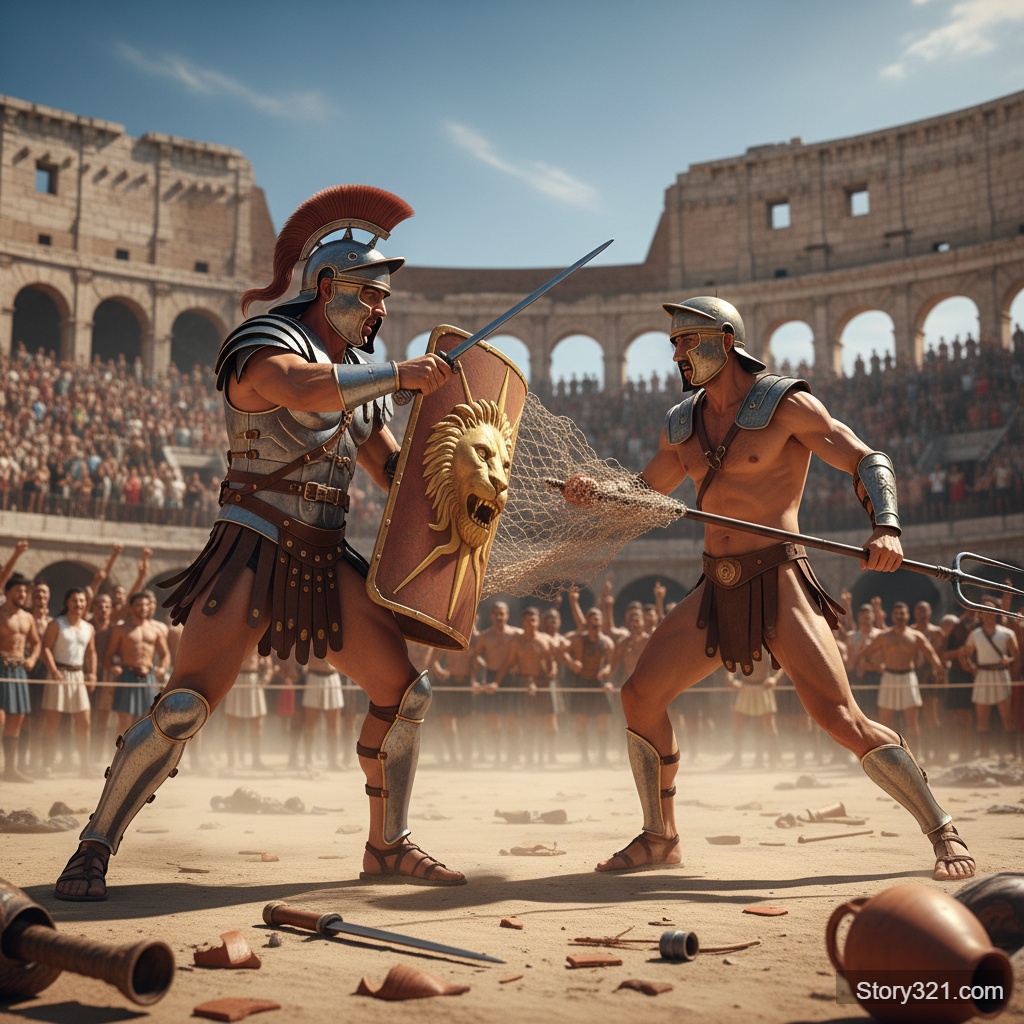



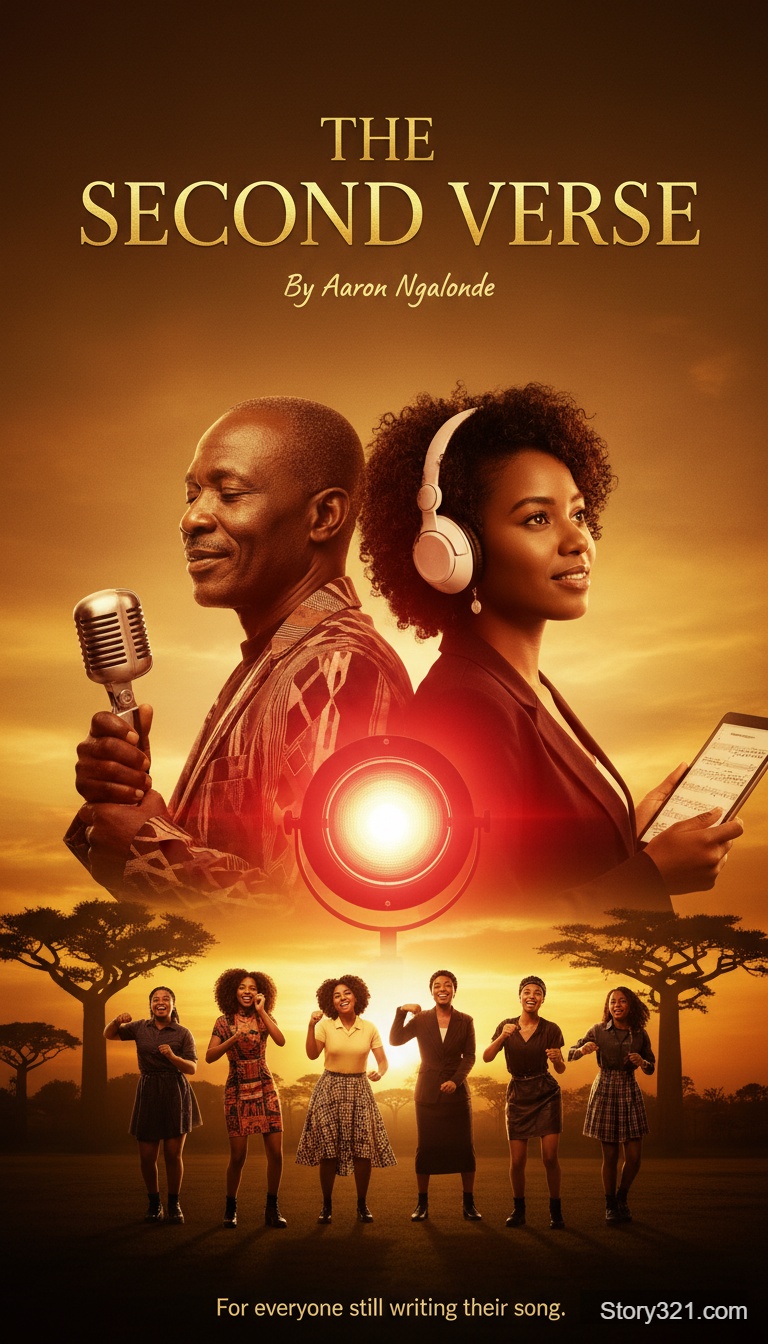
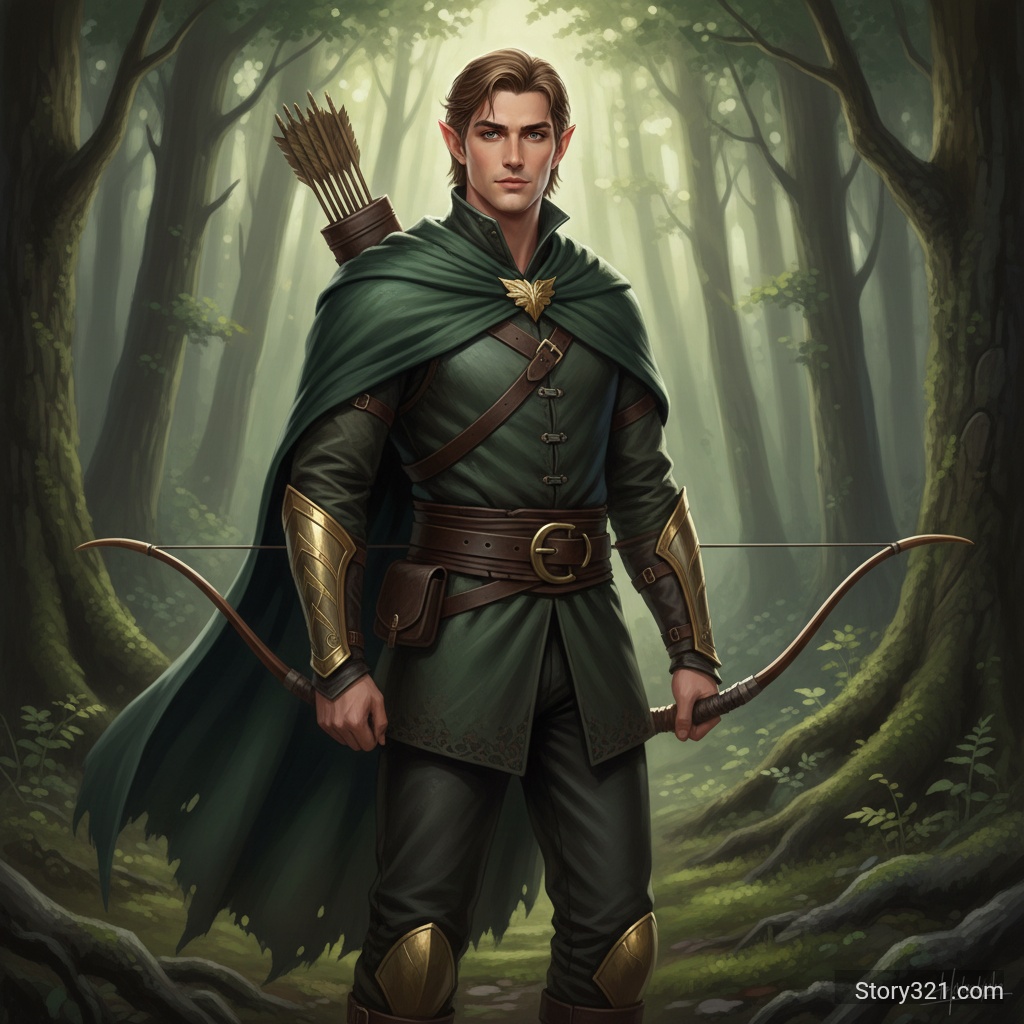
When should I use Nano Banana Pro for an image edit?
Use Nano Banana Pro when you need to select the output resolution, aspect ratio, and output format for an edit based on one source image. Choose 1K, 2K, or 4K according to the intended use, then inspect every generated detail before publishing.
Nano Banana Pro controls on Story321
Selectable resolution
Choose 1K, 2K, or 4K output before generation.
Destination-specific framing
Select Auto or a square, portrait, landscape, or wider aspect ratio.
Output format choice
Choose JPEG, PNG, or WebP in the current Story321 form.
Detailed edit brief
State what changes, what stays, and the composition required by the final placement.
How to edit with Nano Banana Pro
- 1
Upload a source image
Choose one image you are allowed to edit.
- 2
Set resolution, frame, and format
Pick the output settings that suit the final delivery context.
- 3
Describe the change
Name the edit first, then specify subject details and visual elements to preserve.
- 4
Review the output
Inspect the entire image, including text, edges, proportions, and important product details.
Nano Banana Pro editing use cases
Large-format directions
Explore an image direction at a selected resolution before preparing a final delivery asset.
Brand-layout studies
Test an alternate composition, color direction, or visual setting from an existing source image.
Product concept variants
Explore a different background, context, or styling direction while retaining the source as reference.
Format-ready drafts
Choose a frame and export format that better matches the intended review or placement.
Nano Banana Pro review notes
- This Story321 page uses one source image per request, regardless of broader provider capabilities.
- A selected 4K output does not guarantee that every generated text, logo, edge, or fine detail will be correct.
- Credits change by resolution; verify the displayed total before generating.
Compare image editors
Image-to-Image Tools
Compare all Story321 image editing workflows.
Compare modelsNano Banana
Use a simpler one-source-image workflow with flexible framing.
Open Nano BananaGPT Image 2.5
Use preset framing, quality, and variation controls.
Open GPT Image 2.5
Frequently Asked Questions
Which resolutions can I choose?
The Nano Banana Pro form offers 1K, 2K, and 4K output selections.
How are credits calculated?
1K and 2K edits are 32 credits per image, while 4K edits are 60 credits per image. Confirm the displayed amount before generating.
Which output formats are available?
Story321 exposes JPEG, PNG, and WebP output format choices for Nano Banana Pro.
Does higher resolution remove the need for review?
No. Review text, logos, fine details, proportions, and the complete composition before using the output.
Nano Banana Pro image editing credits
- 1K image edit
- 32 credits per image
- 2K image edit
- 32 credits per image
- 4K image edit
- 60 credits per image
Nano Banana Pro workflow specifications
| Input | One uploaded image and an edit prompt |
|---|---|
| Output resolution | 1K, 2K, or 4K |
| Aspect ratio | Auto plus square, portrait, landscape, and wide presets |
| Output format | JPEG, PNG, or WebP |
Official model reference
Gemini image generation guide“Nano Banana Pro is designed for complex instructions and professional asset production.”
Edit an image with Nano Banana Pro
Upload one source image, choose the resolution, framing, and format that fit your intended output, then write a focused edit brief.
Open Nano Banana Pro