Why This Guide on How to Use Nano Banana Pro Matters#
If you’re a content creator—video editor, designer, writer, educator, marketer, or voice actor expanding into visual content—you need dependable visuals fast. This guide shows you precisely how to use Nano Banana Pro to generate high-quality images with simple steps and creative best practices. Whether you’re making YouTube thumbnails, pitch decks, character sheets, product renders, or social media graphics, you’ll learn how to use Nano Banana Pro effectively from day one.
We’ll focus on two streamlined workflows available on Story321:
- Text to Image: Generate visuals from a written prompt.
- Image to Image: Upload a reference to guide the look, composition, and style.
You’ll also get prompt formulas, brand consistency techniques, commercial-ready workflows, and a troubleshooting section—all designed to help you work smarter.
What Is Nano Banana Pro?#
Nano Banana Pro is an advanced AI image generation model designed for quality, speed, and style flexibility. In practice, learning how to use Nano Banana Pro means mastering three levers:
- Your prompt (what and how you describe the target image)
- Your reference image (optional, for style/pose/brand alignment)
- Your output settings (resolution and aspect ratio)
The model is well-suited for:
- Photorealistic and cinematic scenes
- Product and packaging renders
- Character and concept art
- Stylized graphics and brand-aligned visuals
Quick Start: How to Use Nano Banana Pro in Two Minutes#
- For text-only generation: Use the Text to Image flow.
- For style-guided or composition-guided results: Use Image to Image with a reference.
In both cases, choose the highest resolution your project needs (up to 4K) and the aspect ratio that matches your final use (e.g., 16:9 for video, 1:1 for Instagram, 9:16 for Shorts/Reels).
How to Use Nano Banana Pro (Text to Image): Step-by-Step#
Follow this exact sequence to produce your first image without guesswork.
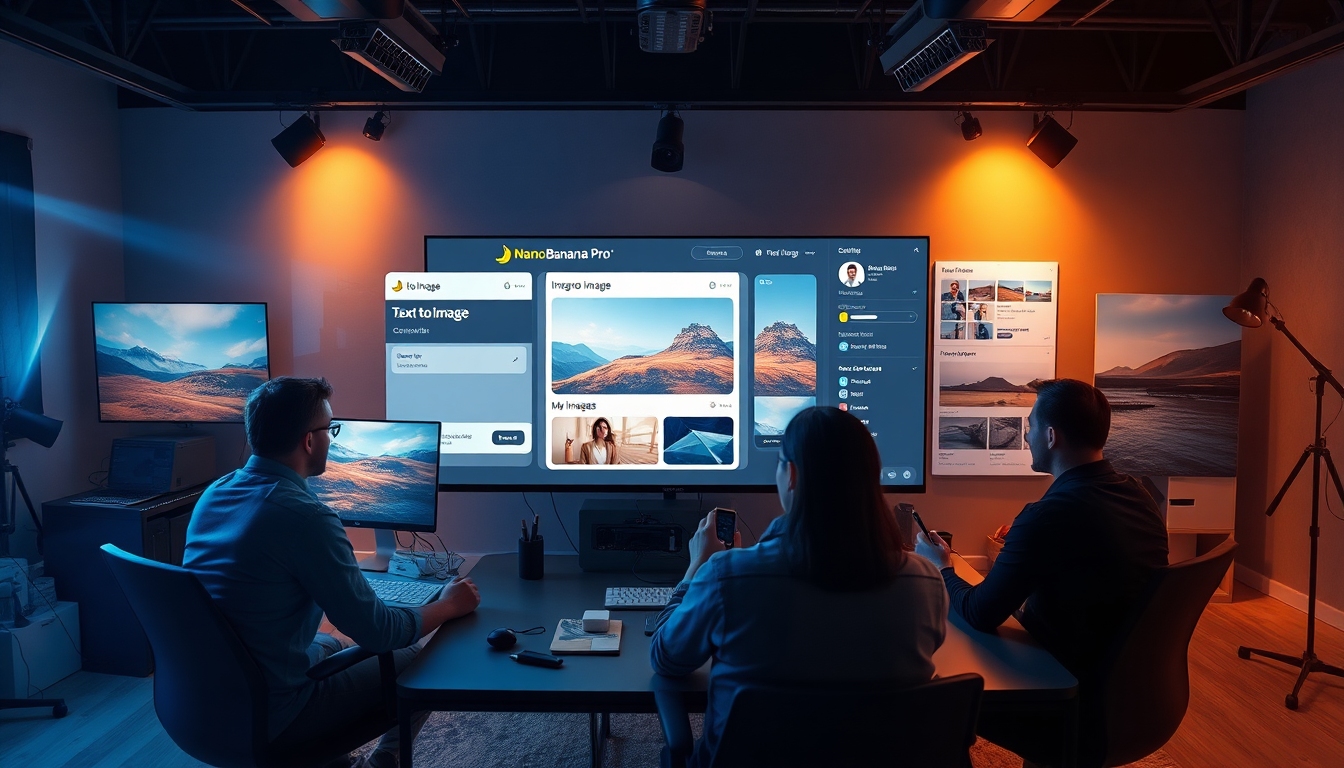
- Go to https://story321.com/image/text-to-image/nano-banana-pro
- Enter your prompt
- Select Resolution (maximum 4K)
- Select Aspect Ratio
- Click Generate
- Wait for the generated result in the “My Images” list on the right
- After generation, the image will appear as the first item in the “My Images” list on the right. Click the image thumbnail to open a pop-up window to view, download, and share the image.
That’s the essential flow. If your goal is learning how to use Nano Banana Pro quickly for thumbnails or concept frames, this is all you need to get going. The rest of this guide will help you get predictable, on-brand output with fewer retries.
Prompt Blueprint for Text to Image#
Use a clear structure to reduce randomness:
- Subject: What is the main focus?
- Attributes: Age, style, mood, era, clothing, materials
- Composition: Camera angle, lens, framing, depth of field
- Lighting: Softbox, golden hour, neon, rim light, studio lighting
- Environment/Background: Location, time, weather, set dressing
- Style/Intent: Photorealistic, cinematic, watercolor, product render, flat vector
- Quality Signals: 4K, detailed textures, high dynamic range, sharp focus
Example prompts you can paste when exploring how to use Nano Banana Pro:
- “Cinematic portrait of an explorer wearing a weathered leather jacket, close-up, 85mm lens, golden hour rim light, dramatic shadows, shallow depth of field, photorealistic, 4K detail.”
- “Minimalist product render of a matte-black wireless microphone on a clean white acrylic surface, soft studio lighting, subtle reflections, centered composition, 1:1, ultra-detailed 4K.”
- “Fantasy landscape with floating islands, cascading waterfalls, misty atmosphere, warm sunrise, painterly style with rich textures, wide-angle composition, 16:9.”
Tip: Keep important descriptors early in your prompt. When mastering how to use Nano Banana Pro, front-loading critical details often improves alignment.
How to Use Nano Banana Pro (Image to Image): Step-by-Step#
Use this route when you want a specific look, pose, layout, or brand feel.
- Go to https://story321.com/image/image-to-image/nano-banana-pro
- Select/upload an image
- Enter your prompt
- Select Resolution (maximum 4K)
- Select Aspect Ratio
- Click Generate
- Wait for the generated result in the “My Images” list on the right
- After generation, the image will appear as the first item in the “My Images” list on the right. Click the image thumbnail to open a pop-up window to view, download, and share the image.
When to Prefer Image to Image#
- You want consistency: characters, logos, product angles, or brand textures.
- You need to keep composition from a sketch or a previous render.
- You have a moodboard image and want Nano Banana Pro to output a matching look while changing the subject or setting.
Prompt Strategies for Image to Image#
When you’re learning how to use Nano Banana Pro with references, prompts should clarify “what to keep” and “what to change.” For example:
- “Maintain the clean studio lighting and perspective of the reference image; change product color to midnight blue, add brushed metal texture, keep minimal background, photorealistic 4K.”
- “Keep the pose and hairstyle; change clothing to futuristic streetwear with iridescent materials, neon city background, cinematic, 16:9.”
Resolution and Aspect Ratio: Make the Right Call#
If your goal is efficient output while you learn how to use Nano Banana Pro, pick the output that matches your distribution channel:
- YouTube thumbnails: 16:9 (e.g., 2560×1440 or 3840×2160)
- Shorts/Reels/TikTok: 9:16 (e.g., 1080×1920 or 2160×3840)
- Instagram grid: 1:1 (e.g., 2048×2048 or 4096×4096)
- Pitch decks or print: Use the aspect ratio of your slide or print size; consider 4K for crispness.
Higher resolution increases detail and flexibility for cropping, but may take longer. If you’re testing how to use Nano Banana Pro for the first time, start mid-resolution for speed, then switch to 4K for finals.
Advanced Prompt Techniques for Creators#
As you practice how to use Nano Banana Pro, level up your prompts with the following techniques.
- Role + Task Prompts
- “As a film DP, compose a moody night exterior with practicals in frame, 35mm lens, rain-soaked street, bokeh highlights.”
- Visual Grammar Tokens
- “Top-down product lay, softbox overhead, specular highlights, glossy acrylic, drop shadow.”
- Materials and Surface Detail
- “Brushed aluminum, microtexture plastic, frosted glass, warm walnut, soft felt, matte ceramic.”
- Cinematography and Photography Terms
- “Split lighting, Rembrandt lighting, anamorphic flare, shallow DOF, tilt-shift, backlight haze, bounced fill.”
- Art and Design Dialects
- “Bauhaus-inspired geometry, Swiss grid, Memphis color blocking, Ukiyo-e linework, watercolor bleeds, risograph texture.”
- Negative Intent (if the platform supports “what to avoid” in your prompt)
- “Avoid exaggerated fingers, avoid text in the image, avoid busy backgrounds.”
Note: If you don’t see a dedicated negative prompt field, simply include “avoid …” language in your prompt.
Consistency Workflows: Characters, Products, and Brand Style#
A common reason to learn how to use Nano Banana Pro is repeatable output. Try these:
-
Anchor with Image to Image
Upload your previous best result to carry forward style, color, and composition. Then modify only what needs to change (pose, outfit, background). -
Brand Style Injection
Mention brand colors, lighting, and textures: “Use brand palette (navy #0A2540, electric blue #2C6BFF, warm gray #D1D5DB), minimalist layout, soft studio lighting.” -
Controlled Variation
Duplicate your earlier image, change two variables at a time (e.g., “new background + new focal length”), keep everything else constant. -
Product Angle Library
Generate front, three-quarter, top-down, and macro detail shots using separate prompts. This helps when you’re exploring how to use Nano Banana Pro for e-commerce or pitch decks.
Use Cases by Creator Type#
If you’re optimizing how to use Nano Banana Pro for real production, align your flow with your needs:
-
Video Creators
Create polished thumbnails, scene moodboards, and B-roll stills for motion graphics. Use 16:9 and cinematic prompts. -
Designers
Rapidly iterate on hero images, product mockups, and landing-page hero backgrounds. Use 1:1 or 16:9 and brand-specific prompts. -
Writers and Educators
Commission chapter openers, diagrams, and illustrative scenes to support narratives and scripts. -
Voice Actors and Podcasters
Design cover art, episode thumbnails, and social promo cards with consistent branding. -
Marketers
Generate ad concepts, social carousels, and A/B variants with minimal time investment.
Commercial Use Tips#
If commercial output is part of how you use Nano Banana Pro:
- Check your platform’s license terms for AI-generated content and commercial usage.
- Avoid uploading proprietary or confidential assets unless you have proper rights and a secure workflow.
- Save your prompts and settings with each approved visual for compliance and repeatability.
- Maintain a style guide prompt that all team members use to ensure brand consistency.
Limitations and Workarounds#
Even after you learn how to use Nano Banana Pro, you may hit common AI image hurdles:
-
Text in images can be inconsistent
Workaround: Add text later in your design app, or try simple logos only. -
Hands, fine jewelry, crowded scenes can be tricky
Workaround: Generate clean base images and composite details in post. Use Image to Image for targeted fixes. -
Ultra-specific likeness or protected IP
Workaround: Avoid generating protected likenesses/IP. Build original character sheets via iterative Image to Image. -
Complex compositions
Workaround: Break a complex scene into layers (background, midground subject, foreground elements), then composite.
Speed and Productivity Tips#
-
Batch Generation
Queue multiple prompts and review results in the “My Images” panel on the right; pick the best variant and refine. -
Prompt Versioning
Create a running list of prompt versions. Label what changed and keep your top performers. -
Resolution Strategy
Prototype at medium resolution; finalize at 4K for printables, thumbnails, and hero images. -
Aspect Ratio First
Choose aspect ratio upfront to reduce cropping later. If you’re learning how to use Nano Banana Pro for social workflows, pre-plan 9:16 and 1:1 variants.
Comparing Nano Banana Pro to Other Generators (High-Level)#
If you know how to use Nano Banana Pro well, you’ll find it competitive with general-purpose image models in:
- Speed to good results
- Photorealism and cinematic lighting
- Product-style renders and clean studio looks
Other models may offer niche strengths (e.g., built-in style presets or specialized text rendering), but for creators who need reliable, brandable visuals fast, learning how to use Nano Banana Pro is an excellent, pragmatic choice.
Troubleshooting: Fast Fixes#
-
Results too generic
Add more specific materials, lighting, and composition terms; front-load key details in the prompt. -
Wrong aspect ratio
Re-run with the exact ratio you need (16:9, 1:1, 9:16). Don’t rely on cropping. -
Overly stylized or not stylized enough
Explicitly say “photorealistic” or “flat vector style” and name materials or art movements. -
Inconsistent character
Switch to Image to Image with your best prior image as reference; describe what to keep. -
Soft or blurry output
Use higher resolution and terms like “sharp focus,” “high dynamic range,” or “crisp details.” -
Slow generation or queue delays
Lower resolution during exploration, then upscale later; batch jobs during off-peak hours if possible.
End-to-End Example: From Idea to Share-Ready Image#
Use this mini walkthrough to internalize how to use Nano Banana Pro.
Goal: YouTube thumbnail of a tech reviewer holding a sleek microphone, dramatic studio lighting, 16:9.
Text to Image flow:
- Go to https://story321.com/image/text-to-image/nano-banana-pro
- Prompt: “Tech reviewer in a modern studio holding a matte-black microphone, 35mm close-up, dramatic rim light, neon accent, shallow depth of field, photorealistic, 16:9, 4K detail.”
- Resolution: 3840×2160 (4K)
- Aspect Ratio: 16:9
- Generate
- Open the first image in “My Images” on the right
- Download and add your text overlay in your design app
If you want the same look with a different pose, switch to Image to Image:
- Go to https://story321.com/image/image-to-image/nano-banana-pro
- Upload the best result from the first run
- Prompt: “Keep lighting and studio feel; change pose to three-quarter angle, add subtle depth haze, maintain photorealistic style, 16:9.”
- Set resolution/ratio, Generate, then download from “My Images.”
This loop—test, select, refine—is the core of how to use Nano Banana Pro like a pro.
FAQ: How to Use Nano Banana Pro#
Q1) Is there a free way to try it?
A) Availability varies by platform and account. Some services offer free credits or trials. Check your Story321 account for current options and limits.
Q2) What’s the maximum resolution?
A) Up to 4K output is supported in the flows described above. Use 4K for final assets when you need crisp detail or cropping flexibility.
Q3) What aspect ratio should I use?
A) Match the final destination: 16:9 for thumbnails and video frames, 1:1 for Instagram grid, 9:16 for Shorts/Reels/TikTok.
Q4) Can I use the outputs commercially?
A) Review the platform’s licensing terms and ensure you have rights to all uploaded references. When in doubt, consult legal counsel, especially for regulated industries or sensitive content.
Q5) How detailed should my prompts be?
A) Include subject, materials, lighting, composition, and style. Keep crucial descriptors early. Iteration beats perfection on the first pass.
Q6) How do I get consistent characters or products?
A) Use Image to Image with your best prior image as a reference and specify what to keep versus change. Maintain a style guide prompt for your brand.
Q7) Why does text inside the image look odd?
A) Text rendering is a known limitation. Add titles and labels in your design software after generating the image.
Q8) How do I speed up my workflow?
A) Prototype at lower resolutions, finalize at 4K, batch prompts, and keep a prompt library. Knowing how to use Nano Banana Pro efficiently is mostly about iteration and smart defaults.
Q9) Can I control negatives like “no text” or “no busy background”?
A) If there’s no explicit negative field, include “avoid …” instructions in your main prompt.
Q10) What if my results look too similar across runs?
A) Vary the lens, lighting, materials, or environment. For strong shifts, switch to Image to Image with a new reference.
Learning how to use Nano Banana Pro is about pairing solid prompts with clear intent and the right settings. Start with the step-by-step flows, then add your creative flavor through references, brand cues, and iteration. With these techniques, you’ll turn ideas into polished, share-ready visuals—consistently, and at speed.