Muse Image Text to Image Generator
Muse Image turns a written visual brief into one to ten image directions. Choose Auto or a specific frame, select an output format, and review each result before using it.
Save Your Creations
Login to save, manage and share all your generated images
Community Showcase
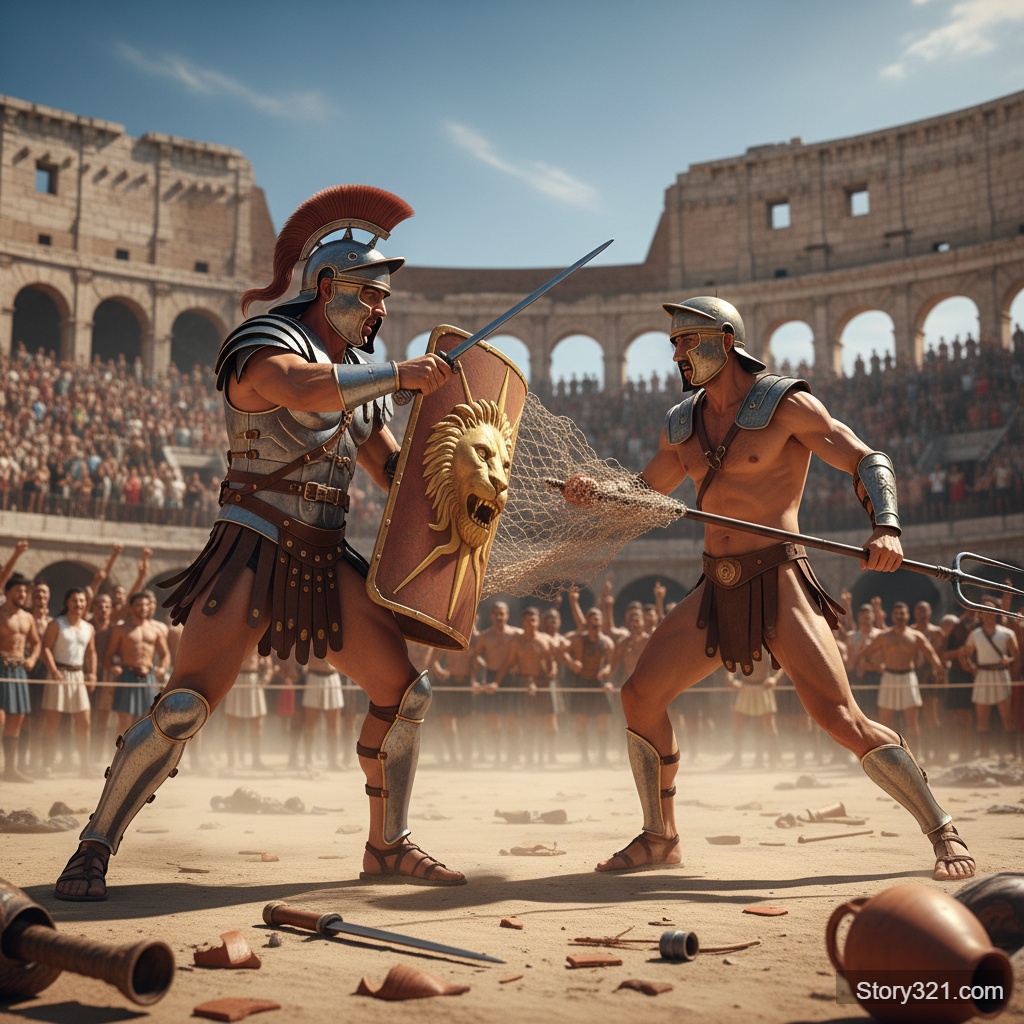
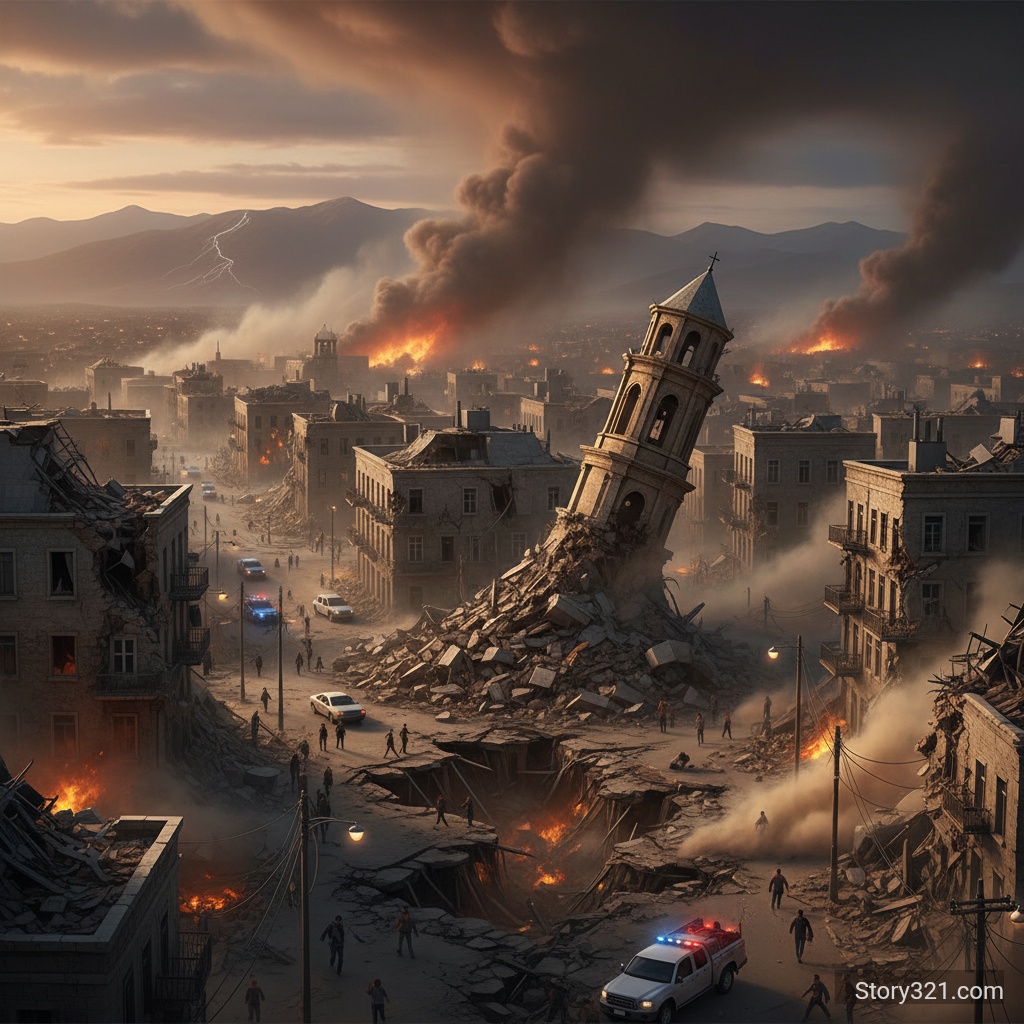
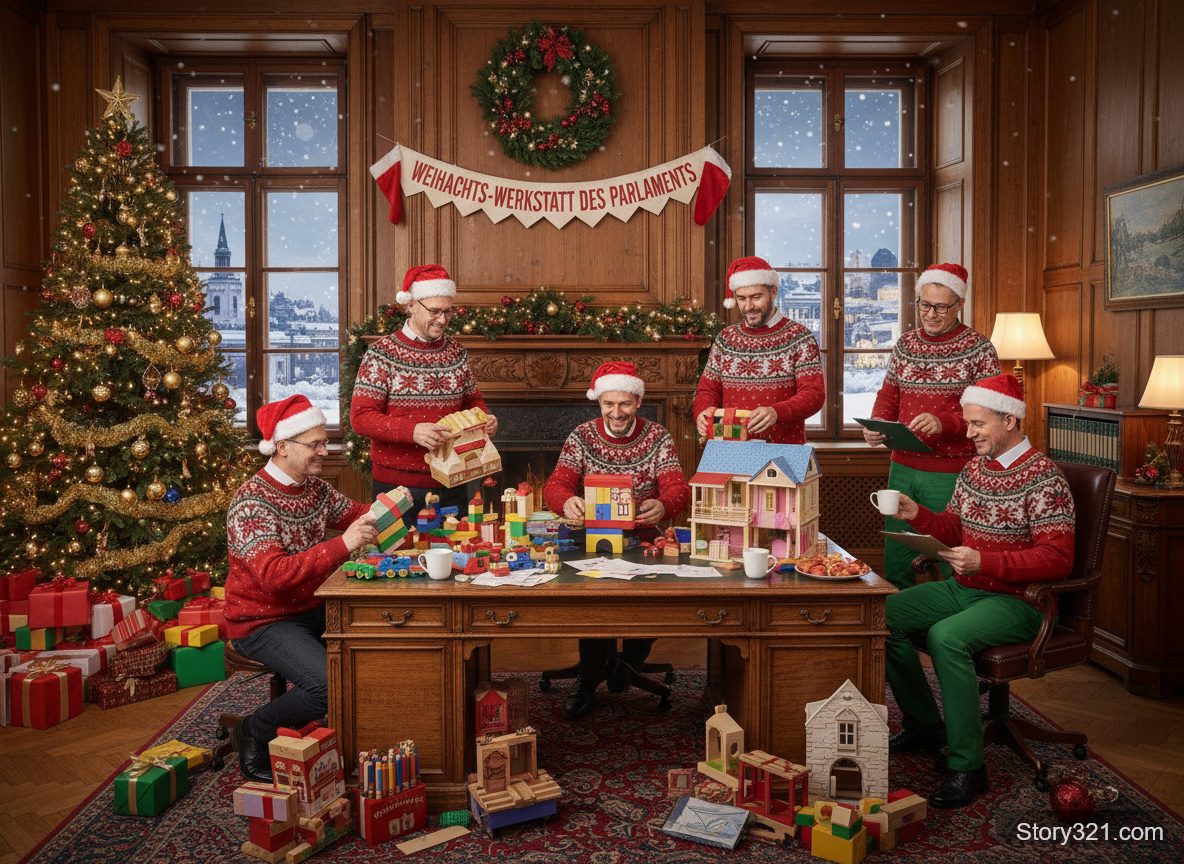
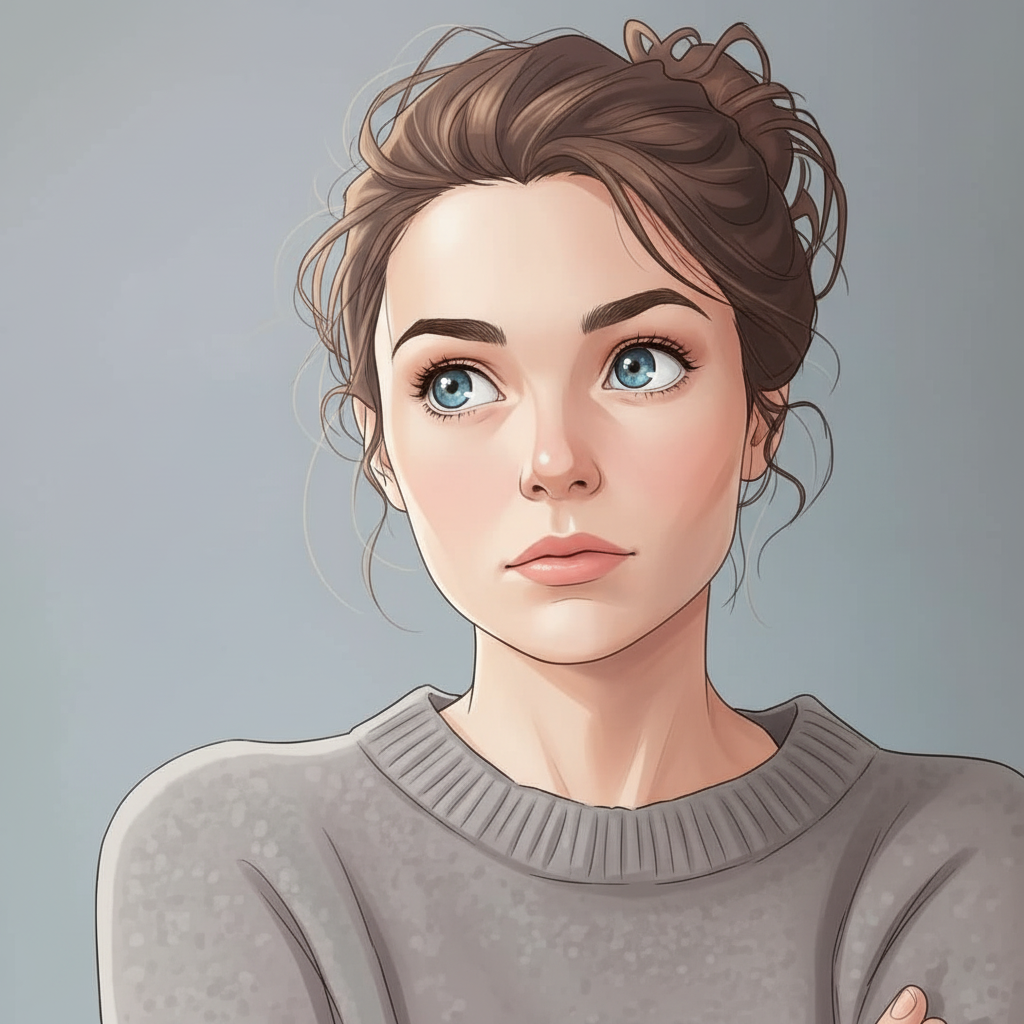
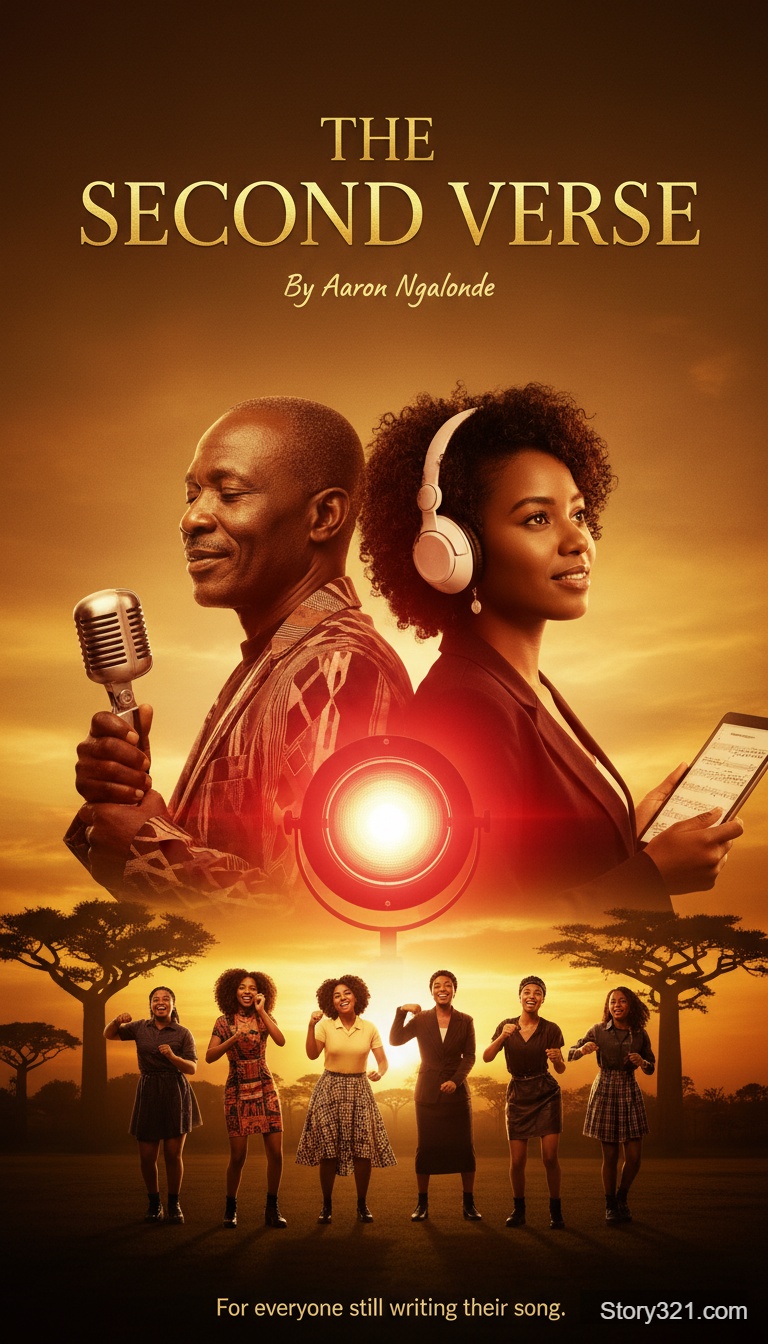
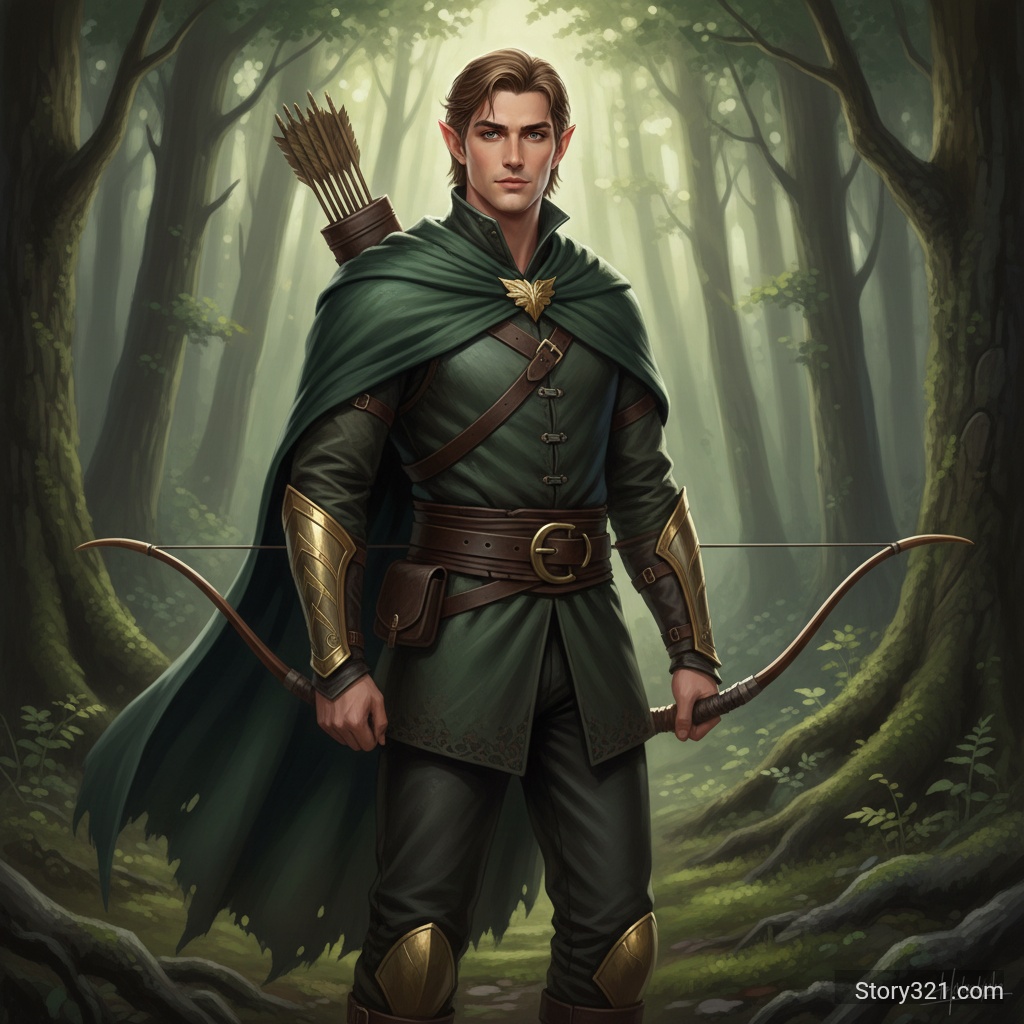
What is Muse Image text to image?
Muse Image text to image on Story321 is a prompt-led image workflow. Describe the subject, setting, composition, style, lighting, and intended use; then let Muse choose the frame automatically or select a supported aspect ratio yourself.
Muse Image Generation Controls
Auto or Nine Framing Choices
Leave framing on Auto when the brief should guide the composition, or choose 21:9, 16:9, 4:3, 3:2, 1:1, 2:3, 3:4, 9:16, or 9:21 before generating.
One to Ten Results
Generate one focused draft or up to ten alternatives from the same brief. Several results can help you compare subject placement, visual hierarchy, color, and framing before refining an idea.
JPEG, PNG, or WebP
Choose the output format that fits the next step in your workflow. WebP is the default; JPEG and PNG are available when your destination or editing workflow needs them.
Direct Prompt Workflow
Write a concise visual brief of up to 800 characters. Muse Image uses the text you provide, so put the main subject and the details that matter most near the beginning.
Why Use Muse Image on Story321?
Make Creative Directions Easier to Review
Turn a written idea into visual options for a campaign, story, product concept, presentation, or mood board. Compare the result with the original brief before committing to production work.
Start With the Intended Placement
Choose a wide frame for a banner, a square frame for a profile or product direction, or a vertical frame for a mobile-first placement. Auto is useful when the composition is more important than a fixed canvas.
Know the Price Before You Generate
Muse Image costs 4 credits per result on Story321. A request for several images is charged at the same 4-credit rate for every image, with no batch discount.
Iterate With One Clear Change
After reviewing a draft, change one instruction at a time: the subject, setting, framing, material, color palette, lighting, or mood. This makes it easier to learn which instruction changed the output.
How to Use Muse Image Text to Image
- 1
Write a Visual Brief
Name the main subject first, then add the setting, action, composition, style, lighting, colors, materials, and intended use. Keep the request focused enough to evaluate against the result.
- 2
Choose Frame, Format, and Quantity
Use Auto or select one of nine aspect ratios, choose WebP, JPEG, or PNG, and request one to ten images. The default is Auto framing, WebP output, and one image.
- 3
Generate and Check the Result
Review the complete image for composition, crop, spelling, numbers, logos, proportions, and any detail required by your brief. Revise the prompt before using a result publicly or in production.
Muse Image Text to Image Use Cases
Campaign and Product Concepts
Explore a campaign setting, product mood board, package direction, or launch visual. Use several images when you need options to discuss with stakeholders before design production.
Editorial and Presentation Visuals
Create a starting image for an article, cover, pitch, slide, or social post. Select a frame that matches the layout, then check whether the visual supports the message around it.
Characters, Scenes, and World Building
Test characters, environments, props, and atmosphere for a story or concept. State what must be visible in the first frame so the result can be reviewed against the narrative moment.
What to Review Before Using a Muse Image Result
- Generated images can miss spelling, numbers, proportions, small details, or requested relationships. Review every result before sharing it publicly.
- Use only prompts and output rights that fit your intended use, organization policies, and applicable model terms.
- Treat generated output as a creative draft when legal claims, product specifications, accessibility, factual accuracy, or brand consistency matter.
- This page creates a new image from text. Use Image to Image when you need to revise an uploaded source image.
Muse Image Related AI Tools
Text to Image
Compare available text-to-image workflows.
Browse generatorsImage to Image
Edit an uploaded source image with a written instruction.
Open editorAI Image Tools
Browse Story321 image workflows.
Browse toolsPricing
Review Story321 credits.
View pricing
Frequently Asked Questions
What is Muse Image text to image?
Muse Image text to image is Story321's prompt-led workflow for creating new image directions from written descriptions. You can use Auto framing or select a supported aspect ratio, choose an output format, and generate one to ten results.
Which aspect ratios can I use with Muse Image?
Story321 offers Auto plus 21:9, 16:9, 4:3, 3:2, 1:1, 2:3, 3:4, 9:16, and 9:21. Auto leaves the output dimensions to Muse Image; use a selected ratio when the destination requires a fixed frame.
How many images can Muse Image generate at once?
Muse Image supports one to ten images in a request on Story321. Use one image for a focused test or several alternatives when you need to compare different interpretations of the same visual brief.
Which output formats are available?
You can choose WebP, JPEG, or PNG. WebP is the default; select JPEG or PNG when the next step in your workflow needs one of those formats.
How much does Muse Image cost on Story321?
Muse Image costs 4 credits per generated image. Requests with more than one image are charged 4 credits for each result, with no batch discount. Confirm the displayed total before generating.
Does Muse Image guarantee accurate text or details?
No. Treat every generated image as a draft and review text, numbers, logos, anatomy, proportions, and requested details before publishing or using the result in a production workflow.
Muse Image Pricing
Choose one to ten images and review the displayed credit total before generation.
- Muse Image text-to-image
- 4 credits per image
- Batch quantity
- 1-10 images per request; charged per image
Muse Image Technical Specifications
| Input | Text prompt (1-800 characters) |
|---|---|
| Images per request | 1-10 |
| Aspect ratios | Auto plus 21:9, 16:9, 4:3, 3:2, 1:1, 2:3, 3:4, 9:16, and 9:21 |
| Output formats | WebP, JPEG, or PNG |
| Model | Muse Image by Meta |
Create Your Next Visual With Muse Image
Use Muse Image text to image to create a visual direction you can review, refine, and adapt to the next step in your workflow.
Generate an image