Grok Imagine Image 2 Text to Image Generator
Grok Imagine Image 2 turns a written visual brief into one to four AI image directions. Choose the frame, resolution, output format, and quality that fit the creative decision you need to make.
Save Your Creations
Login to save, manage and share all your generated images
Community Showcase
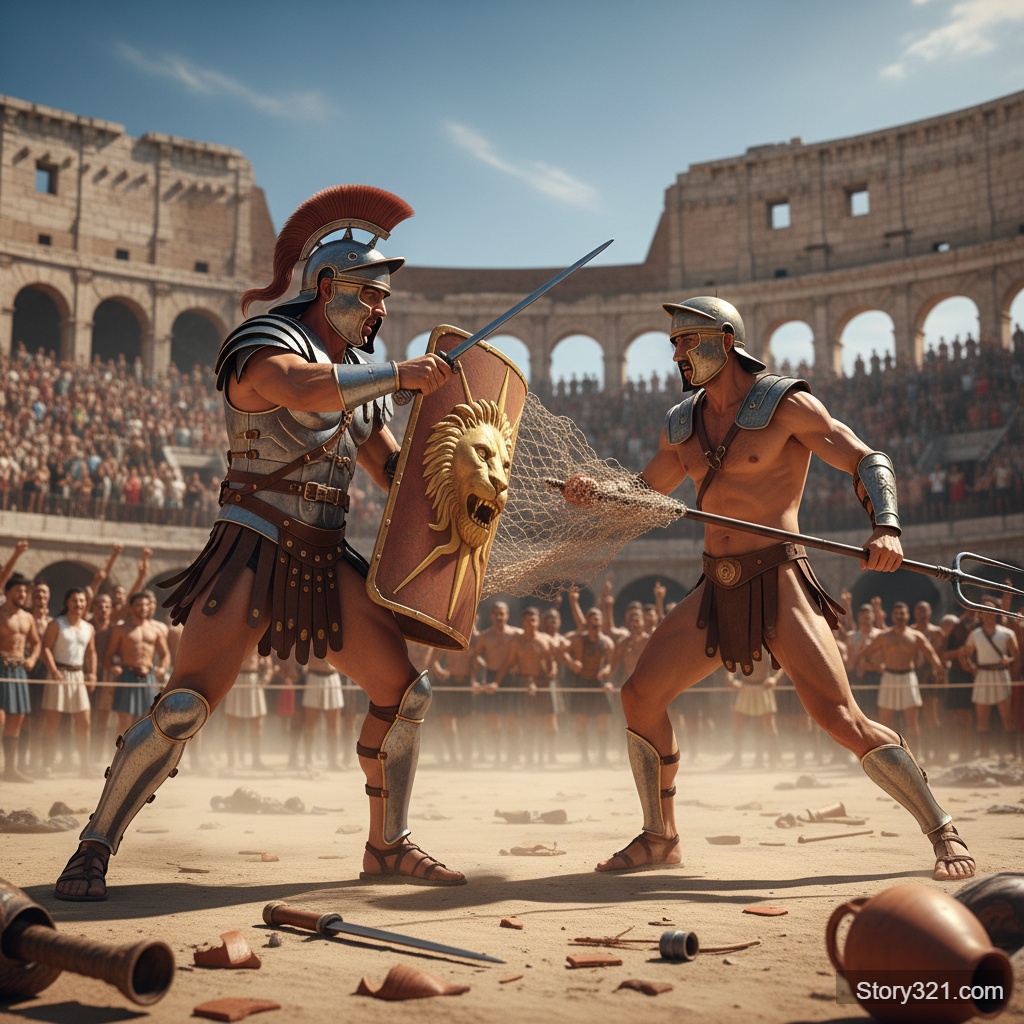
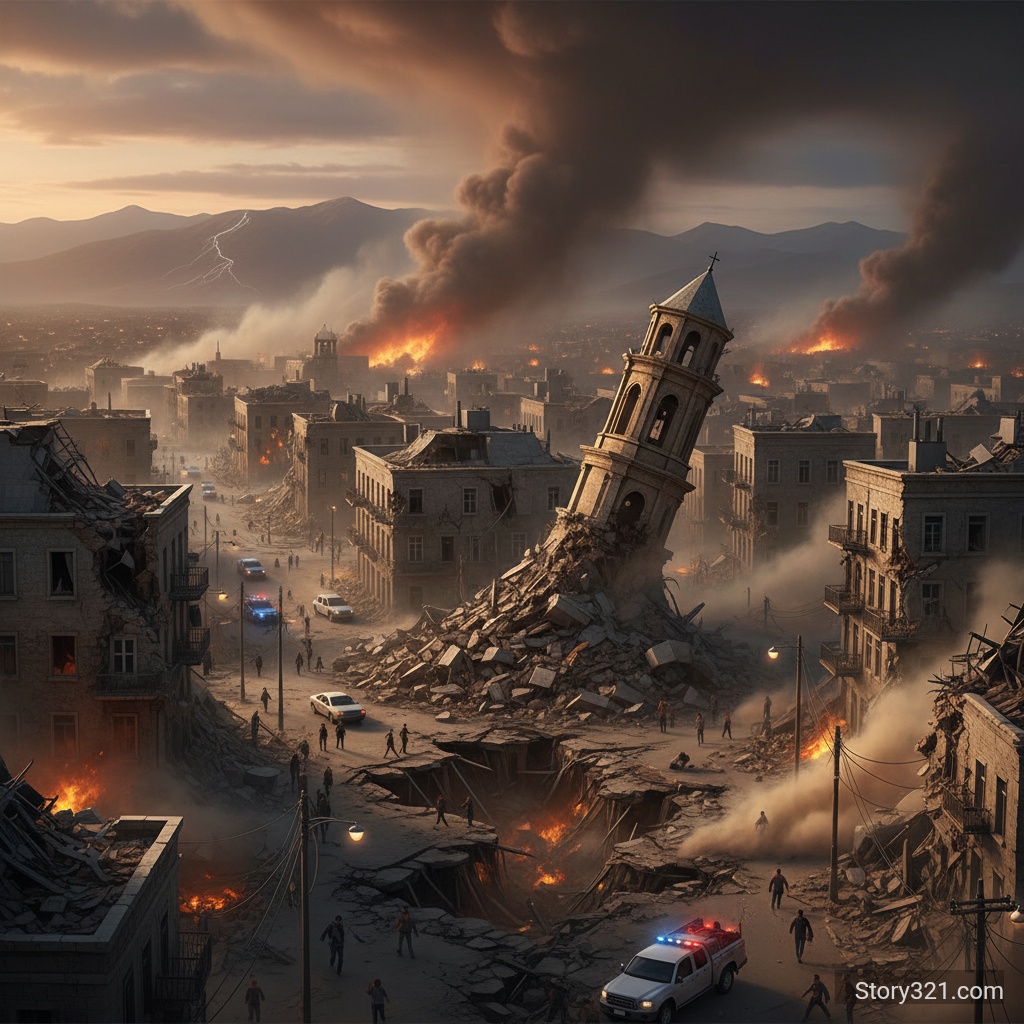
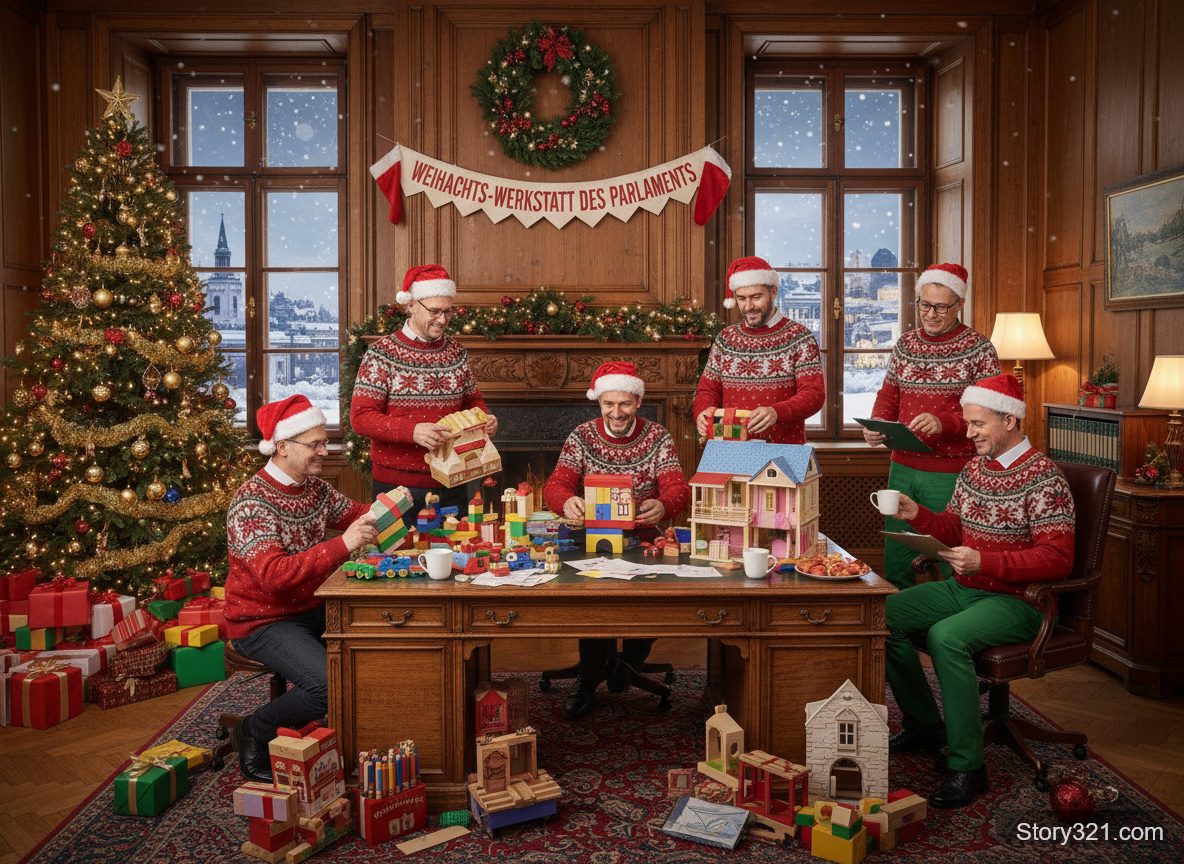
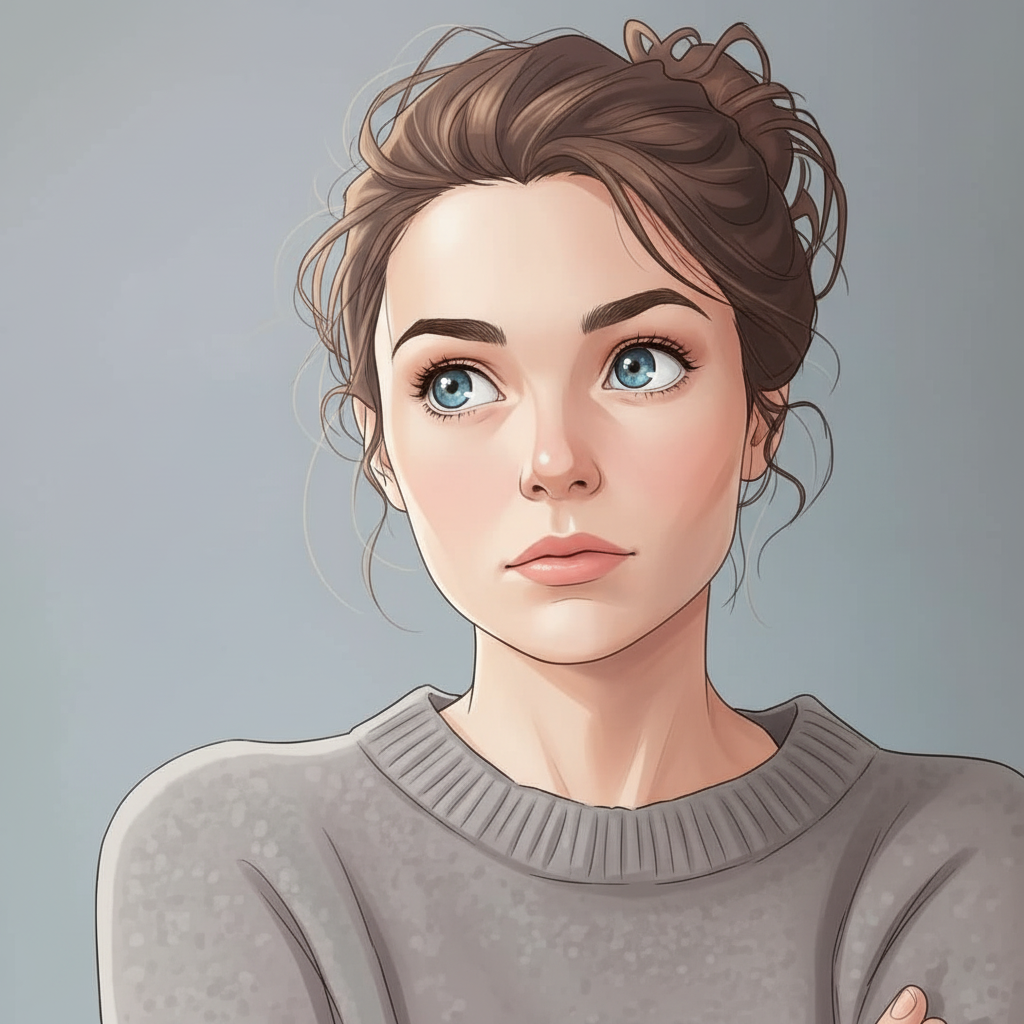
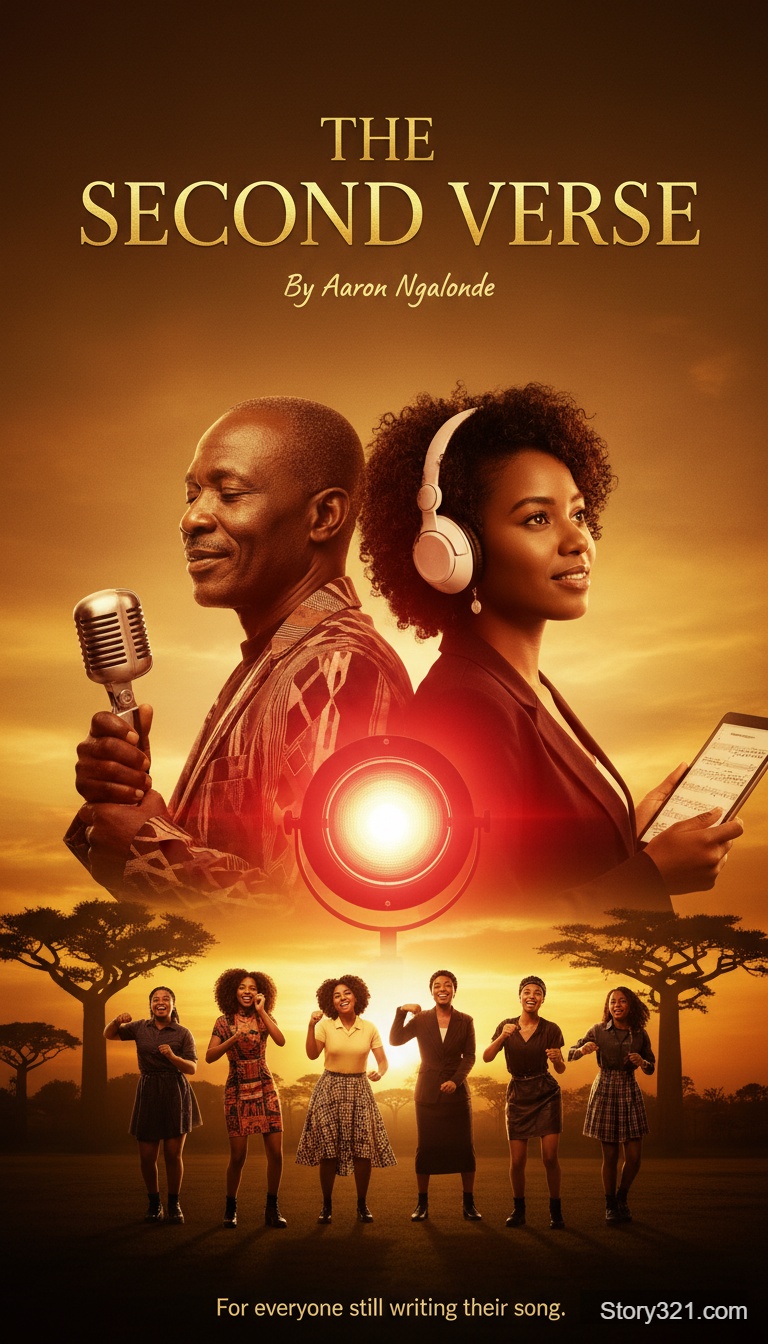
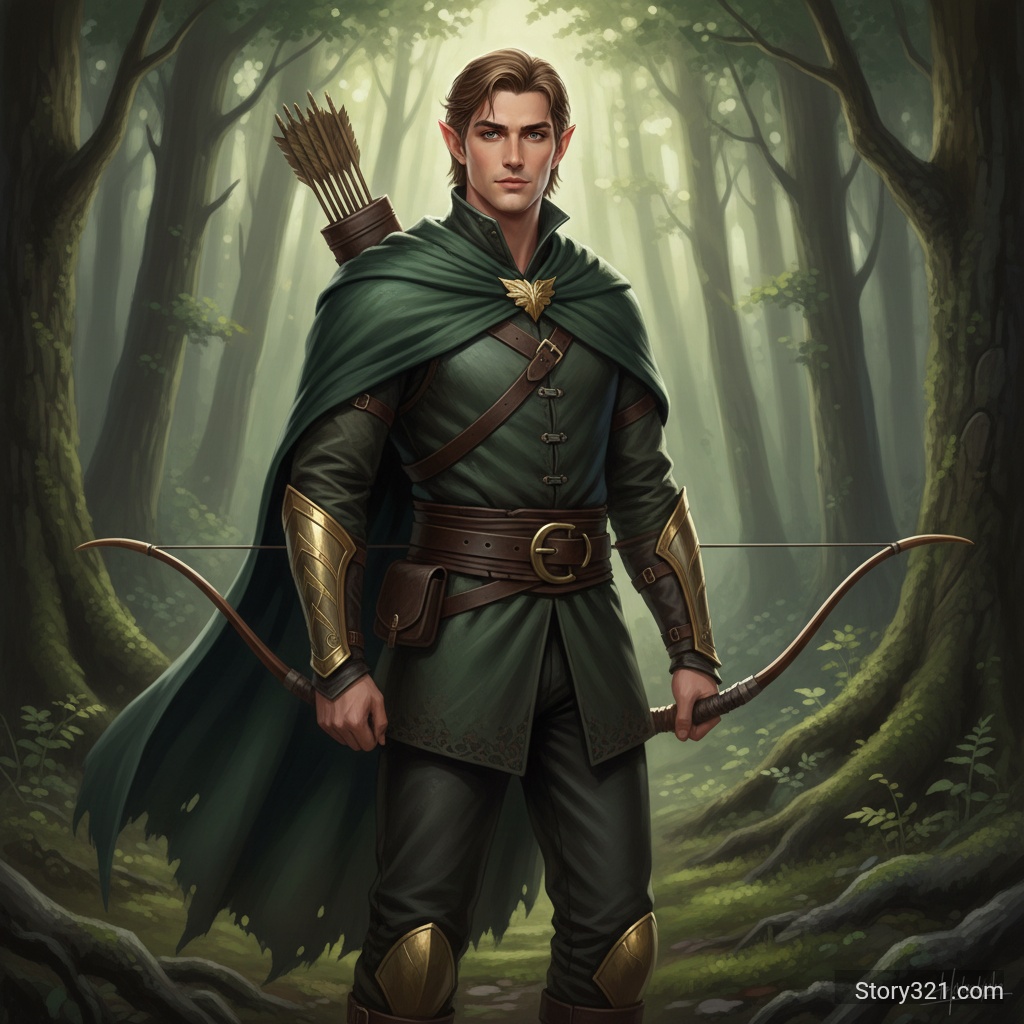
What can Grok Imagine Image 2 help you create?
Grok Imagine Image 2 turns a concise creative brief into visual options you can inspect. Describe the subject, setting, composition, style, lighting, and intended use, then choose a frame and quality level.
Grok Imagine Image 2 Generation Controls
One to Four Grok Imagine Image 2 Outputs
Create one, two, three, or four images from the same prompt. Use one result for a precise direction or several to compare framing, color, subject placement, and style before choosing an idea to develop.
Thirteen Aspect Ratios
Choose wide, landscape, square, portrait, or tall frames, including 2:1, 16:9, 1:1, 4:3, 3:4, and 9:16. Select the ratio before generation so the composition matches its intended placement.
1K or 2K Output
Use 1K for standard exploration or 2K for a higher-resolution direction. Resolution changes output size, not the need to check text, numbers, logos, hands, proportions, and factual claims before publishing.
Format and Quality Choices
Choose Low or Medium quality plus JPEG, PNG, or WebP output. Pick the format that fits your next step, from a quick concept to a lightweight web-ready image.
Why Use Grok Imagine Image 2?
Make a Brief Easier to Evaluate
Put the main subject first, add the environment and composition, then specify style, lighting, materials, camera viewpoint, color palette, and details that must remain prominent.
Match the First Frame to the Channel
Pick the frame before you generate: wide for a banner, square for a profile or product direction, and vertical for a mobile-first story, cover, or social creative.
Keep Experiments Predictable
The selected resolution and quality cost 9, 14, 14, or 18 credits per image. A four-image request costs four times the selected per-image rate with no batch discount.
Move from Text to a Reviewable Draft
Designers, marketers, writers, and creative teams can test visual language quickly. Treat each result as a draft, state one focused revision, and generate again when the subject, mood, or composition needs a different emphasis.
How to Use Grok Imagine Image 2
- 1
Write the Visual Brief
Start with the subject and action. Add the setting, composition, style, lighting, color, materials, and camera direction before small decorative details.
- 2
Choose the Output Settings
Set an aspect ratio, 1K or 2K, Low or Medium quality, JPEG, PNG, or WebP, and one to four images. The default is a square 1K PNG at Low quality.
- 3
Generate and Review
Compare the results against the brief. Check the subject, hierarchy, crop, readability, anatomy, branding, and requested wording; then change one instruction at a time.
Grok Imagine Image 2 Use Cases
Campaign and Product Concepts
Explore product settings, campaign ideas, package mood boards, launch visuals, and social concepts. Generate variations when you need to compare art direction before final production.
Editorial and Presentation Images
Create a starting visual for a story, article, pitch, slide deck, or cover. A clear prompt establishes subject, mood, and frame for review alongside the written message.
Character, World, and Scene Exploration
Test characters, environments, props, and scene atmosphere. Describe what must be visible in the first frame, then assess whether the selected composition supports the story moment.
What to Review Before Using a Grok Imagine Image 2 Image
- Generated images can miss spelling, numbers, proportions, details, or requested relationships. Review every result before sharing it publicly.
- Use only prompts, references, and output rights that fit your intended use. Check the applicable xAI terms.
- Treat Grok Imagine Image 2 output as a draft when accuracy, legal claims, product specifications, or brand consistency matter.
- Use Image to Image when you need to revise a source image instead of creating a new image from text.
Grok Imagine Image 2 Related AI Tools
Grok Imagine Image 2 Editor
Edit an existing image.
Open editorImage to Image
Compare image editing workflows.
Compare editorsAI Image Tools
Browse image generation workflows.
Browse toolsPricing
Review Story321 credits.
View pricing
Frequently Asked Questions
What is Grok Imagine Image 2?
It is xAI’s text to image model. On Story321, it turns a prompt into one to four images with selectable aspect ratio, 1K or 2K resolution, Low or Medium quality, and JPEG, PNG, or WebP output.
How many images can Grok Imagine Image 2 generate at once?
It supports one to four images per request. Use one result for a focused test, or several variations to compare composition, subject placement, lighting, and style from the same prompt.
Which aspect ratios does Grok Imagine Image 2 support?
It supports 13 ratios: 2:1, 20:9, 19.5:9, 16:9, 4:3, 3:2, 1:1, 2:3, 3:4, 9:16, 9:19.5, 9:20, and 1:2. Choose the final frame before generating.
What is the difference between 1K and 2K?
1K is standard resolution and 2K is higher resolution. Choose the smallest useful setting, then inspect details carefully. Higher resolution does not guarantee exact text, factual accuracy, or perfect consistency.
How much does Grok Imagine Image 2 cost?
It costs 9 credits for 1K Low, 14 for 1K Medium, 14 for 2K Low, and 18 for 2K Medium per image. Multiple images use the selected rate for every result.
Can I edit an existing image with Grok Imagine Image 2?
This page creates new images from text. To revise an uploaded source image with a written instruction, use Story321’s separate Image to Image editor.
Grok Imagine Image 2 Pricing
Choose the resolution and quality that fit the current creative round.
- 1K Low (default)
- 9 credits per image
- 1K Medium
- 14 credits per image
- 2K Low
- 14 credits per image
- 2K Medium
- 18 credits per image
- Batch quantity
- 1-4 images per request; charged per image
Grok Imagine Image 2 Technical Specifications
| Input | Text prompt |
|---|---|
| Images per request | 1-4 |
| Aspect ratios | 13 options from 2:1 to 1:2 |
| Resolution | 1K or 2K |
| Quality | Low or Medium |
| Output formats | JPEG, PNG, or WebP |
| Model | Grok Imagine Image 2 by xAI |
Official Sources
Image generation“The API supports batch generation, aspect ratio, and resolution control.”
Model documentation“Grok Imagine Image accepts text and image modalities.”
Create Your Next Visual with Grok Imagine Image 2
Use Grok Imagine Image 2 to create a visual direction you can review and refine.
Generate an image