FLUX.2 [flex] - Text to Image
Generate high-quality images from text prompts using FLUX.2 [flex] AI model from Black Forest Labs. Features adjustable settings for fine-tuned control and enhanced typography capabilities.
Save Your Creations
Login to save, manage and share all your generated images
Community Showcase
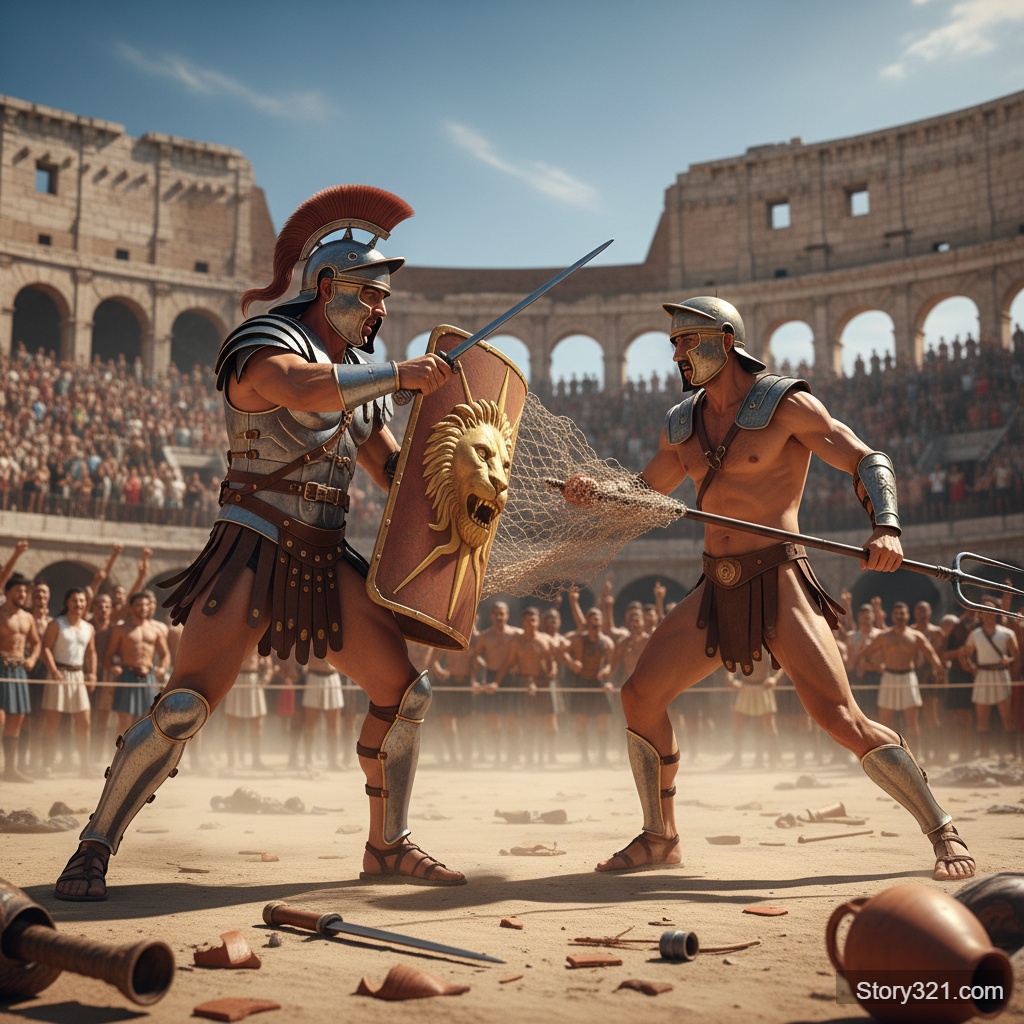
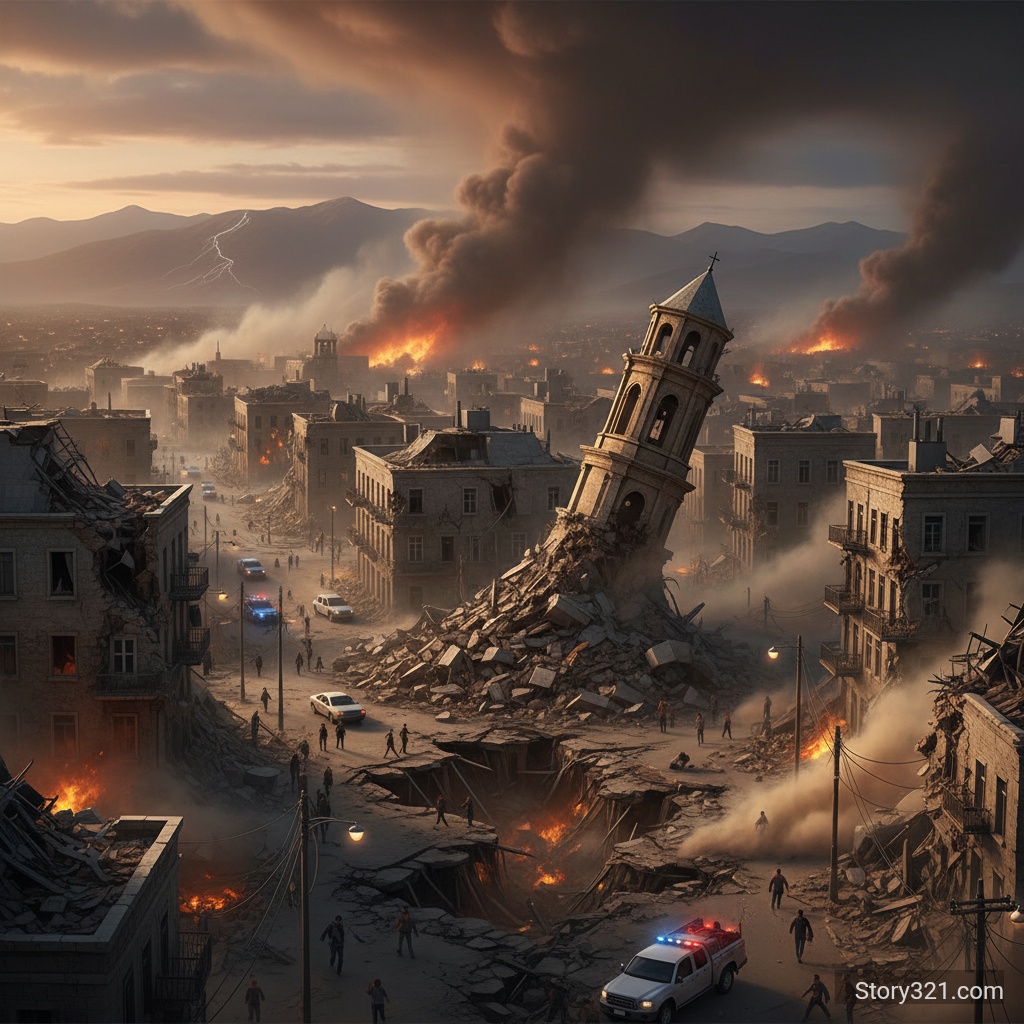
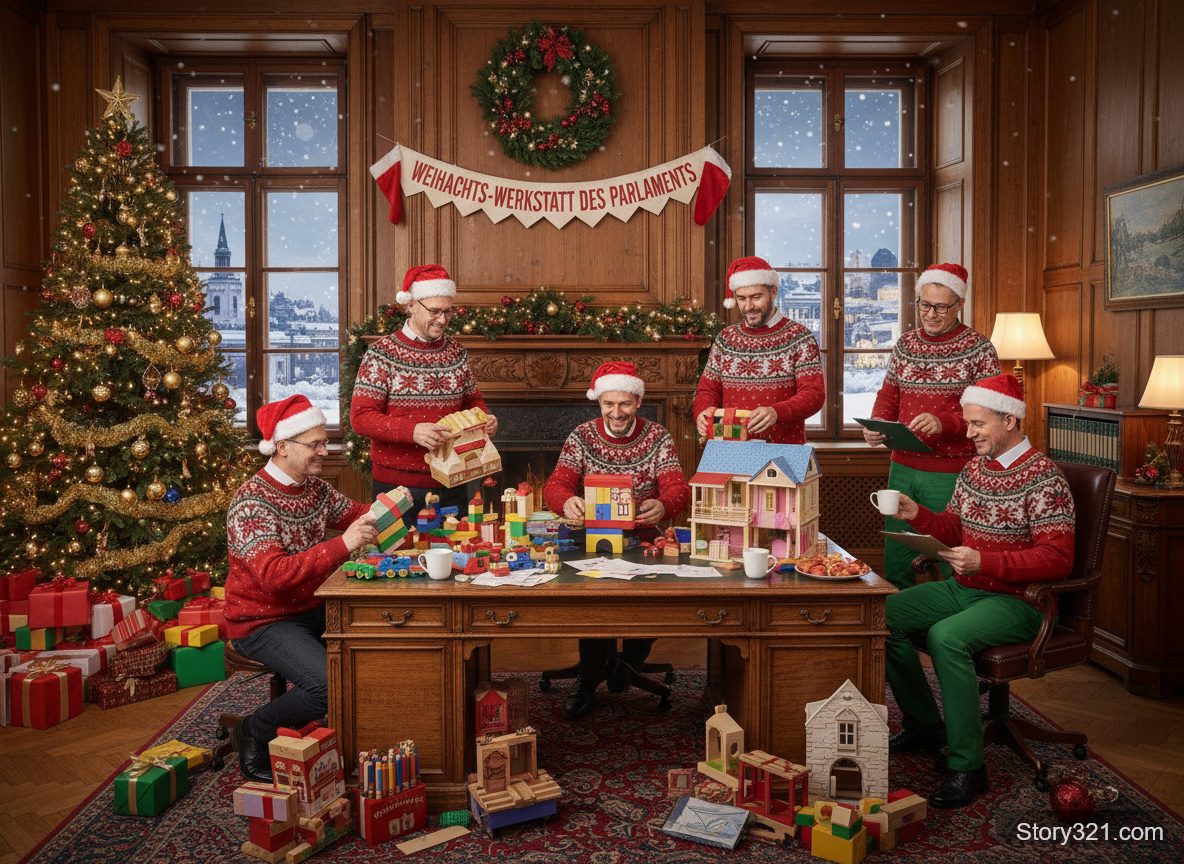
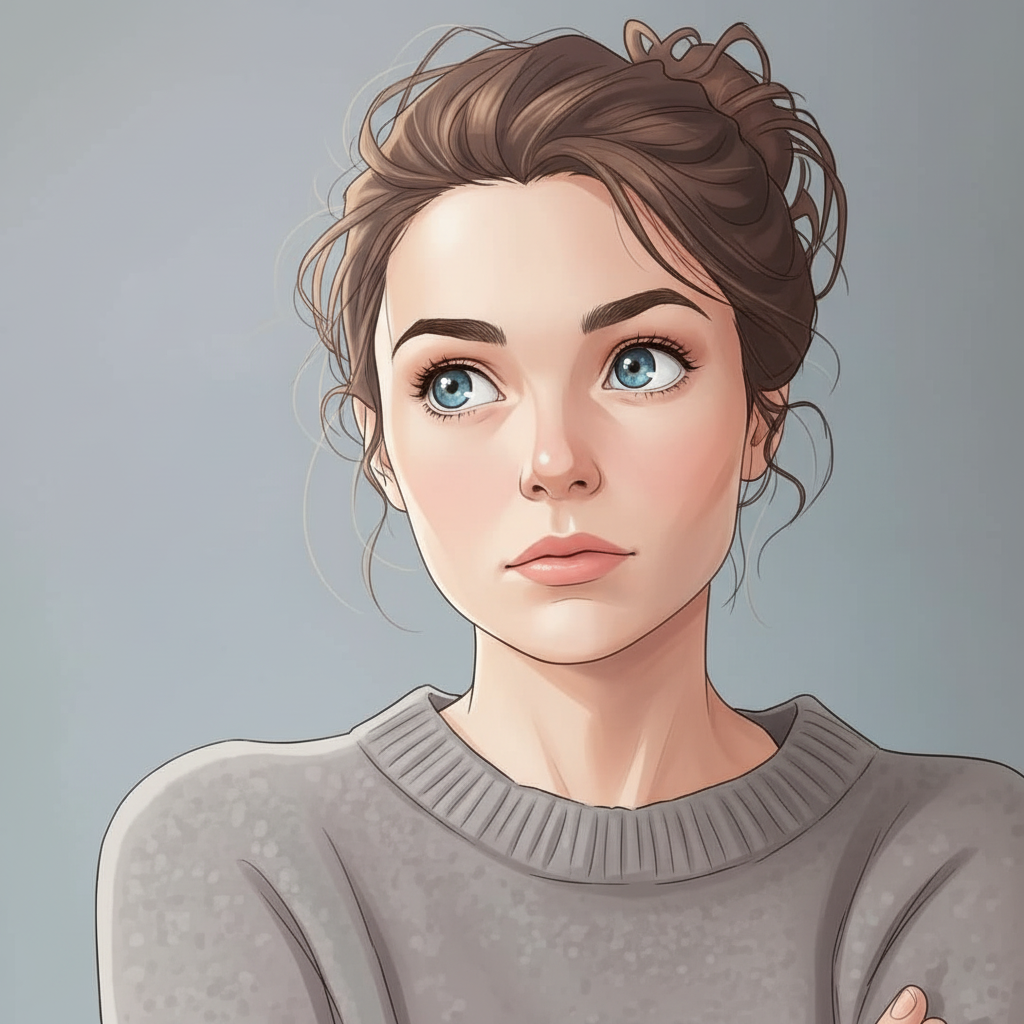
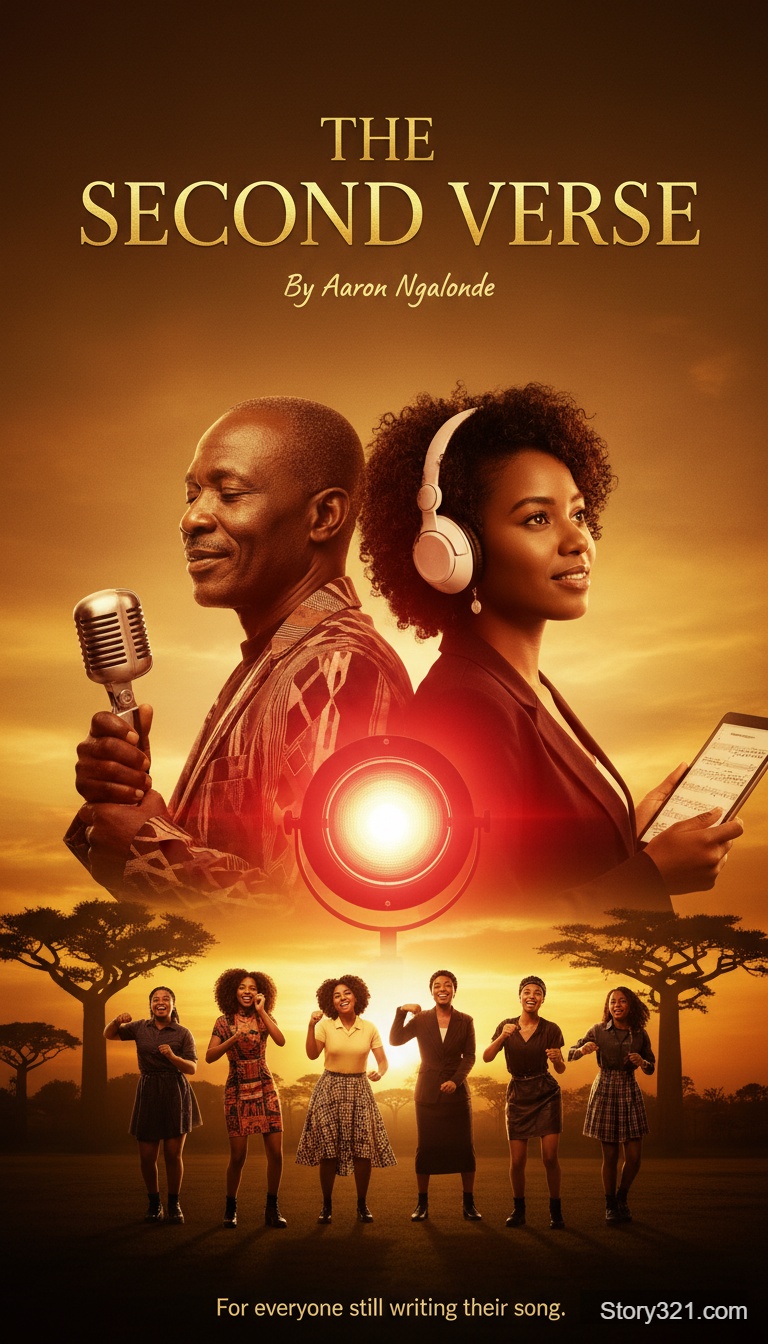
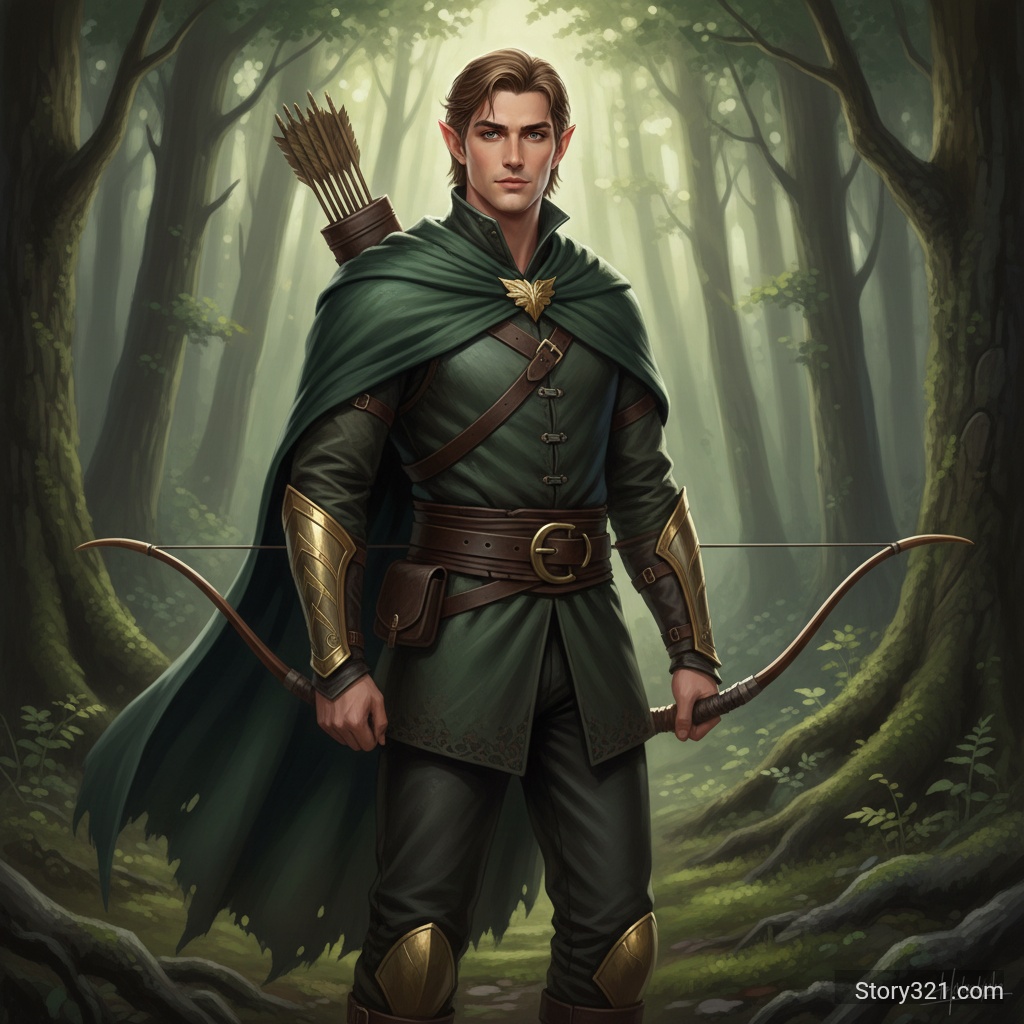
What can FLUX.2 [flex] - Text to Image help you create?
FLUX.2 [flex] - Text to Image turns a written brief into an image draft you can inspect and refine. State the main subject first, then add the setting, composition, visual style, lighting, and final placement. Pick only settings that support the decision you are testing, and revise one clear instruction after each result.
What Can FLUX.2 [flex] Do?
Superior Image Quality
Black Forest Labs' FLUX.2 [flex] delivers exceptional image quality with photorealistic detail and artistic flexibility.
Enhanced Typography
Industry-leading text rendering capabilities for images containing words, logos, and typography elements.
Smart Prompt Expansion
Automatic prompt enhancement helps achieve more detailed and refined results from simple descriptions.
Flexible Aspect Ratios
Support for square, landscape, and portrait orientations with multiple preset sizes.
How to get more useful FLUX.2 [flex] - Text to Image results
Write for the decision you need to make
Use FLUX.2 [flex] - Text to Image to make a visual decision concrete. Name the audience, focal subject, required objects, and intended destination before adding decorative style. This gives every generation a clear purpose and makes feedback easier to apply in the next prompt.
Keep iterations comparable
Change one major variable at a time: framing, light, palette, subject detail, or style. A stable prompt makes it easier to see what caused a useful result. Save the wording that worked, then build a new version from that controlled baseline.
Review important output details
AI images can introduce unexpected text, visual inconsistencies, or factual errors. Check labels, spelling, product details, accessibility needs, and brand requirements before using any output in a customer-facing asset or a published document.
How to Use FLUX.2 [flex]
- 1
Describe Your Vision
Write a detailed prompt describing the image you want to create.
- 2
Select Format
Choose your preferred aspect ratio (1:1, 4:3, 3:4, 16:9, or 9:16).
- 3
Generate
Click Generate and watch FLUX.2 [flex] create your masterpiece.
Practical FLUX.2 [flex] - Text to Image use cases
Creative direction
Turn a campaign, editorial, presentation, or product brief into a visual reference that a team can discuss. Use the result to agree on mood, framing, and hierarchy before committing to a detailed production process.
Concept comparison
Generate controlled alternatives for a single idea: vary composition, atmosphere, setting, or color direction while keeping the subject stable. Compare the options against the channel and audience instead of choosing only by visual novelty.
Prompt-led production planning
Use a generated image as a planning aid for a shoot, illustration, design handoff, or storyboard. Treat it as a draft; validate claims, typography, licensed assets, and final brand elements in the production workflow.
What to review before using an image
- Generated images can miss spelling, numbers, proportions, or small details. Review the result before sharing it publicly.
- Use only prompts, references, and output rights that fit your intended use. Check your organization’s policies and the applicable model terms.
- Treat a generated image as a creative draft when accuracy, accessibility, legal claims, or brand consistency matter.
Related AI tools
Image to Image
Edit an existing image with a written instruction.
Open Image to ImageAI Image Tools
Browse Story321 image workflows.
Browse image toolsPricing
Review Story321 credits before generating.
View pricing
Frequently Asked Questions
What makes FLUX.2 [flex] special?
FLUX.2 [flex] excels at generating high-quality images with excellent text rendering capabilities, making it ideal for designs requiring typography or detailed elements.
What aspect ratios are available?
FLUX.2 [flex] supports 1:1 (Square HD), 4:3 (Landscape), 3:4 (Portrait), 16:9 (Landscape), and 9:16 (Portrait) aspect ratios.
How long does generation take?
FLUX.2 [flex] typically generates images in 20-40 seconds depending on complexity and server load.
Can FLUX.2 [flex] generate text in images?
Yes, FLUX.2 [flex] has enhanced typography capabilities and can generate readable text, logos, and other typographic elements within images.
Pricing
Free tier available
- Text to Image
- 20 credits
Technical Specifications
| Output format | PNG, JPEG |
|---|---|
| Aspect ratios | 1:1, 4:3, 3:4, 16:9, 9:16 |
| Prompt expansion | Available |
| Processing time | 20-40 seconds |
| Model | Black Forest Labs FLUX.2 [flex] |
Official sources
Read Black Forest Labs documentation“Black Forest Labs documents the FLUX.2 image-generation family.”
Try FLUX.2 [flex] - Text to Image
Start with a focused brief, choose the settings that fit the output, and refine the result with one clear change at a time.
Generate an image