Meshy 6 Text to 3D Generator for Production-Ready Models
Generate a GLB 3D model from a text description with Meshy 6 text to 3D. Choose preview or full mode, standard or low poly geometry, topology, and PBR materials.
Save Your 3D Models
Login to save, manage and share all your generated 3D models
Community 3D Models
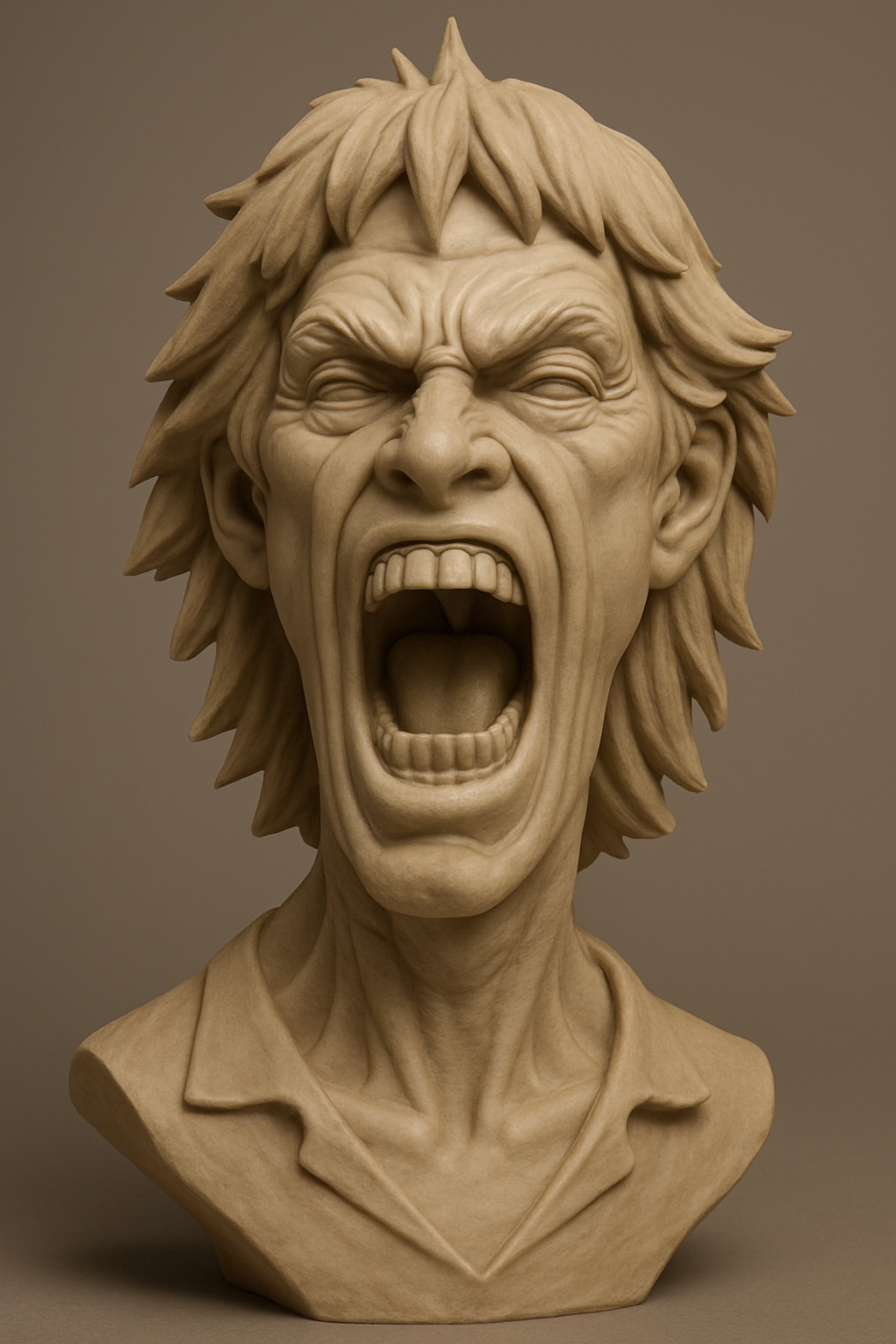
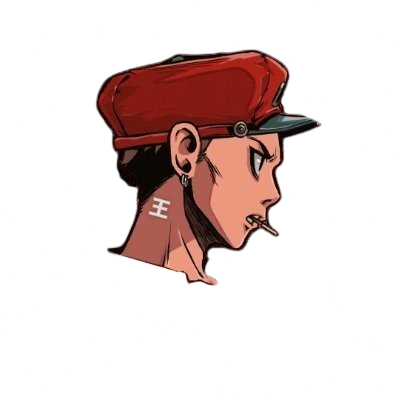
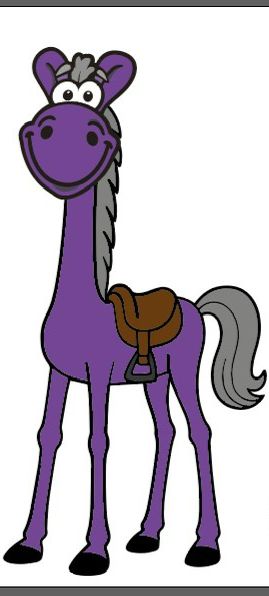
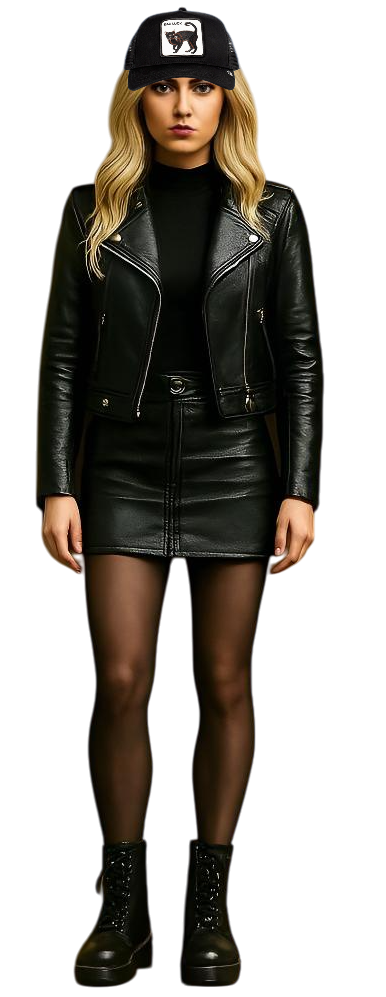
What is Meshy 6 Text to 3D?
Meshy 6 text to 3D turns a written description into a downloadable 3D model. Type a prompt, choose preview or full mode with standard or low poly geometry, and receive a GLB asset.
Meshy 6 Text to 3D Controls
Prompt-Driven Generation
Meshy 6 text to 3D follows a detailed text description when you have an idea but no reference image. Describe shape, style, materials, and details up to 600 characters.
Preview or Full Mode
Select Preview to check untextured geometry first, or Full to generate a textured model in one step. Your mode choice changes the Meshy 6 text to 3D cost.
Standard or Low Poly Mesh
Choose Standard for a high-detail mesh or Low Poly for cleaner geometry. Standard adds topology and polygon count controls.
PBR and Prompt Expansion
Enable PBR maps in Full mode, and let prompt expansion add detail while keeping your original intent.
Why Use Meshy 6 Text to 3D on Story321?
Durable Generation
A signed-in Meshy 6 text to 3D job gets a Story321 record when accepted. In 3D history, follow pending, processing, completed, or failed work.
Interactive Review
Open a completed asset in the browser to rotate, zoom, and auto-rotate before you download it.
Saved GLB Workflow
Story321 saves completed GLBs to your account history, so you can return later and use the secure download.
Transparent Credits
Each saved record shows its model name, creation date, and credit cost.
How to Create a Meshy 6 Text to 3D Model
- 1
Write a detailed prompt
Describe shape, proportions, style, materials, and features. Meshy 6 text to 3D accepts up to 600 characters.
- 2
Choose preview or full mode
Pick Preview to check untextured geometry first, or Full to generate a textured model directly.
- 3
Set geometry and materials
For Standard, choose triangle or quad topology and a polygon count from 100 to 300,000. Enable PBR in Full mode.
- 4
Track, review, and export
Submit the Meshy 6 text to 3D job, then track it in history. When complete, preview, download, or share the GLB.
Meshy 6 Text to 3D Use Cases
Game Asset Creation
Generate props, weapons, and scene objects from prompts. Use Low Poly for real-time assets and Standard for more surface detail.
Concept Visualization
Turn written ideas into starting models for pitches, mood boards, and reviews.
3D Printing Projects
Describe custom figurines or functional parts, then convert the GLB output to a printable format after checking scale.
AR, VR, and Web Previews
Use a GLB asset in browser viewers after testing file size, materials, and lighting.
Meshy 6 Text to 3D Limitations
- Output is GLB only; convert to OBJ, FBX, or STL in your own software when needed.
- Prompts are limited to 600 characters.
- Preview mode returns untextured geometry only.
- Target polygon count ranges from 100 to 300,000.
- Treat the generated GLB as a starting point - review geometry, hidden surfaces, UVs, textures, scale, and file size.
- Rigging and animation are not generated.
Continue Your 3D Workflow
AI 3D Studio
Explore Story321's 3D creation workspace and its image, text, and texture tools.
Open AI 3D StudioImage to 3D
Compare Meshy 7, Trellis 2, and Hunyuan 3D V3 from one image workflow.
Open Image to 3DText to 3D
Create a starting model when you have an idea but no prepared reference image.
Open Text to 3DPricing
Review Story321 credits before generating.
View Pricing
Frequently Asked Questions
What is Meshy 6 text to 3D used for?
It creates a 3D starting asset from a written description when you have no reference image. Meshy 6 text to 3D generates geometry with optional textures.
What is the difference between Preview and Full mode?
Preview returns untextured geometry only, which is faster and good for checking shape. Full returns a textured model in one step.
Should I choose Standard or Low Poly?
Choose Standard for a high-detail mesh with topology and polygon count controls. Choose Low Poly for a cleaner, lighter real-time model.
What does PBR materials do in Meshy 6 text to 3D?
PBR adds metallic, roughness, and normal maps alongside base color for physically based renderers.
What is prompt expansion?
Prompt expansion uses an LLM to add details to your prompt while keeping the original intent. It is off by default.
How detailed should my prompt be?
Be specific about shape, proportions, style, materials, and features. Meshy 6 text to 3D accepts up to 600 characters.
How much does Meshy 6 text to 3D cost on Story321?
Preview mode costs 160 credits, a textured model costs 240 credits, and Full with PBR costs 280 credits.
Is the generated GLB ready to ship?
Treat the GLB as a starting point. Review geometry, hidden surfaces, UVs, textures, scale, and file size.
Can I leave the page while Meshy 6 is generating?
Yes. After a signed-in Meshy 6 text to 3D job is accepted, Story321 keeps a durable 3D record. Return to 3D history to follow processing, completed, or failed status.
Meshy 6 Text to 3D Pricing
Credits match the final generation mode: preview, textured, or PBR. The form shows the Meshy 6 text to 3D cost before submission.
- Preview (untextured)
- 160 credits per model
- Textured model
- 240 credits per model
- Full with PBR materials
- 280 credits per model
Meshy 6 Text to 3D Specifications
| AI model | Meshy 6 Text to 3D |
|---|---|
| Input | Text prompt up to 600 characters |
| Generation modes | Preview (untextured) or Full (textured) |
| Model types | Standard or Low Poly |
| Standard topology | Triangle or Quad |
| Target polygon count | 100–300,000; 30,000 by default |
| PBR materials | Optional in Full mode |
| Prompt expansion | Optional LLM prompt enhancement |
| Durable job | Persistent status record after signed-in submission |
| Web preview | Rotate, zoom, and auto-rotate viewer |
| Download and sharing | GLB download, share link, optional password, and embed code |
| Output | GLB model saved through Story321's durable 3D workflow |
| Not exposed in this form | Rigging, animation, and texture image controls |
Official Meshy 6 Sources
Read the Meshy Text to 3D API documentation“Text to 3D uses a two-step workflow: create a preview task to generate a mesh without texture, then pass the completed preview to a refine task to apply texture.”
Read the Meshy Text to 3D web app guide“Describe the object you want in a prompt and Meshy generates a 3D model you can download.”
Create Your Meshy 6 Text to 3D Model
Write a prompt, choose the mode and material options that fit your workflow, then save, inspect, download, or share a Meshy 6 text to 3D GLB asset.
Generate a 3D Model