Introduction#
If you want to add effects to video without spending hours in a traditional editor, AI can dramatically speed up your workflow. In this step-by-step guide, you’ll learn exactly how to add effects to video using an AI-powered, prompt-based editor so you can enhance clarity, color, transitions, motion, and audio in minutes. Whether you’re a video creator, designer, writer, or voice actor building social content, you’ll learn how to go from raw footage to a shareable, stylized result with minimal clicks.
By the end, you’ll know how to:
- Import footage and add effects to video with text prompts
- Choose resolution/aspect ratio for your platform
- Generate, preview, download, and share results
- Troubleshoot common issues and iterate toward a look you love
Throughout the tutorial, we’ll focus on a clear, repeatable process that helps you add effects to video in a way that supports your story—not distracts from it.
Prerequisites/Preparation#
Before you add effects to video, make sure you have:
- A computer with a modern browser (Chrome, Edge, Safari, or Firefox)
- A stable internet connection
- A video file to edit (MP4/MOV recommended, H.264 or HEVC)
- Optional: A short list of desired styles or references (e.g., “cinematic teal‑orange grade,” “smooth zoom transitions,” “background blur,” “stabilize handheld shots”)
- Basic comfort with drag-and-drop and file management
- Optional: Headphones for evaluating audio effects and sound quality
Nice-to-have knowledge (helpful but not required):
- Basic video terms (resolution, frame rate, aspect ratio)
- Platform requirements (e.g., vertical 9:16 for TikTok/Reels, horizontal 16:9 for YouTube)
Step-by-Step Instructions#
Follow these steps to add effects to video using AI. After each key step, you’ll get a quick “You will see…” or “At this point you should…” confirmation to help you verify progress.
-
Go to the AI editing page 1.1 Open your browser and go to: https://story321.com/video/ai-edit
1.2 If prompted, sign in or create a free account to save results.
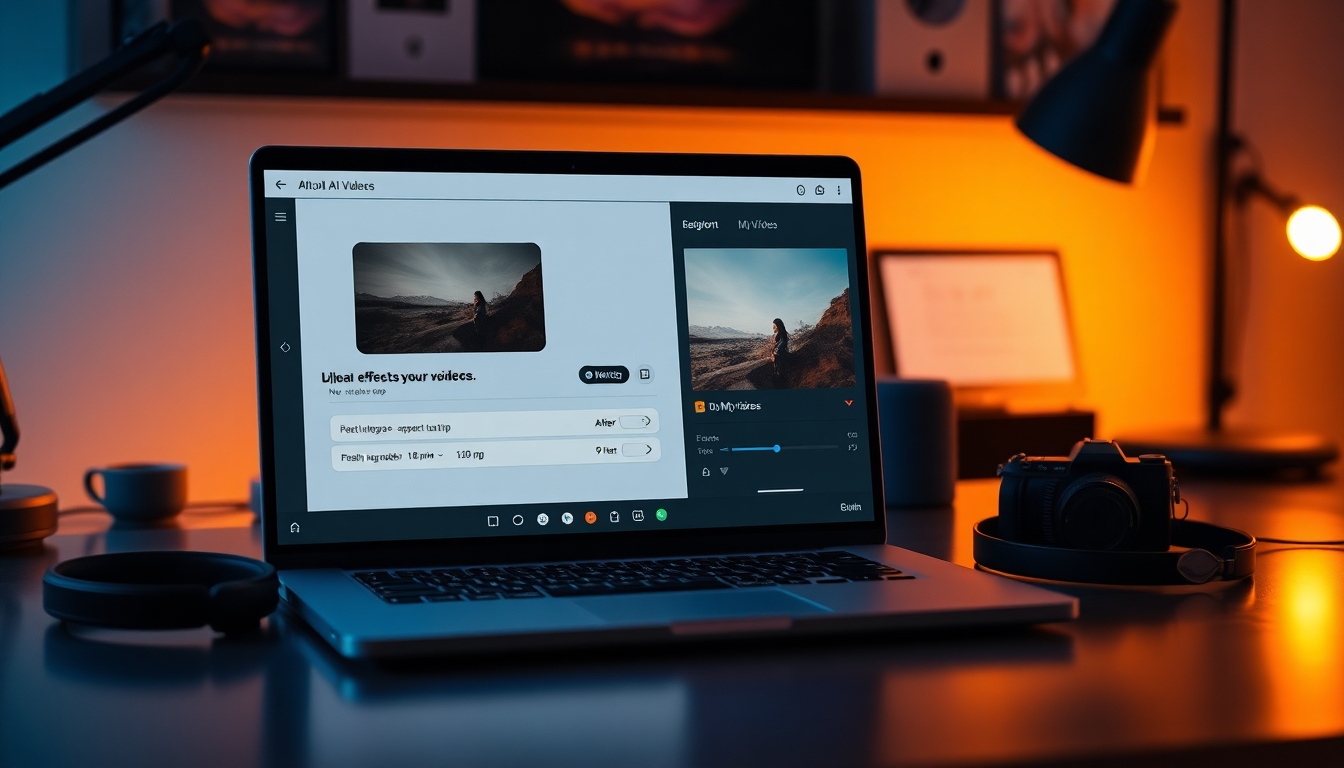
1.3 Familiarize yourself with the interface: you’ll typically see an upload area, a prompt field, resolution/aspect ratio options, a Generate button, and a “My Videos” list on the right.You will see the main editor screen with an upload panel, a text prompt box, and a sidebar titled “My Videos” on the right for generated results.
-
Select or upload your video 2.1 Click the upload area or drag and drop a video file into the window.
2.2 For best results, upload high-quality footage (1080p or higher). Keep clips under a few minutes if you want faster AI processing.
2.3 If you have multiple clips, start with one clip to keep your first pass simple. You can combine clips later or run the process multiple times.At this point you should see your video filename on screen with a small thumbnail or confirmation that the upload succeeded.
-
Enter a prompt describing the effects you want This is where you’ll add effects to video with plain language. The AI reads your prompt and applies a sequence of visual and audio adjustments. Be specific about mood, style, and the exact effects you want.
3.1 Start with a clear goal: - “Add effects to video that make it clean and cinematic. Balance exposure, add subtle teal‑orange color grade, mild sharpening, and gentle film grain.” - “Add effects to video for a vlog: stabilize handheld motion, boost vocal clarity, reduce background noise, add dynamic zooms on key sentences.”
3.2 Specify visual enhancements: - Color and contrast: “Auto color correct, boost contrast, warm skin tones, protect highlights.” - Stylized looks: “Soft film look, pastel palette, matte blacks, low saturation, warm highlights.” - Transitions: “Smooth cross-dissolves and speed ramps between scenes.” - Motion: “Stabilize shaky footage, add slight motion blur to fast pans.” - Background/subject: “Light background blur (simulated depth), keep face sharp.” - Text overlays (if supported): “Minimal lower-third with my name, clean sans-serif style.”
3.3 Specify audio enhancements: - “Reduce noise, balance levels, add gentle compression on voice, remove harsh sibilance.” - “Add subtle ambience under b-roll at -20 dB; no music over dialogue.”
3.4 Add constraints: - “Keep edits natural, avoid heavy saturation.” - “Do not crop essential framing. No lens distortion effects.” - “Keep duration unchanged.”
3.5 Example prompts to copy/paste: - “Add effects to video for YouTube. Correct exposure, cinematic teal‑orange, stabilize handheld shots, gentle film grain, tasteful zoom cuts, compress vocals, reduce noise, export 1080p 16:9.” - “Add effects to video in a pastel, airy style. Soften contrast, reduce saturation, maintain skin tones, add smooth dissolve transitions, light background blur, mild reverb reduction.” - “Add effects to video for product demo: crisp, neutral color, bright whites without clipping, sharpen text on screen, remove hum, light background music at -26 dB.”
You will see your prompt text in the prompt field. The platform may offer suggestions or templates you can click to auto-fill commonly used styles.
-
Select Resolution and Aspect Ratio Choosing the right output is critical when you add effects to video for a target platform.
4.1 Resolution: - 1080p (1920×1080): Best balance of quality and speed for most creators. - 4K (3840×2160): Highest detail, longer processing and export times. - 720p: Faster drafts, acceptable for quick social posts.
4.2 Aspect ratio: - 16:9 (landscape): YouTube, web embeds. - 9:16 (vertical): TikTok, Reels, Shorts (vertical-first content). - 1:1 (square): Some Instagram and LinkedIn posts.
4.3 Frame rate and audio (if available): - Match your source footage (e.g., 24, 30, or 60 fps). - Audio: 48 kHz sample rate is standard for video.
At this point you should see your selected resolution and aspect ratio highlighted or confirmed in the interface.
-
Click Generate 5.1 Review your prompt and settings, then click Generate.
5.2 The AI will process your footage in the cloud. This is where it uses your instructions to add effects to video automatically—color grading, stabilization, transitions, audio cleanup, and any stylization you requested.
5.3 Keep the tab open while it processes. You can work in another tab, but avoid closing the session.You will see a progress indication or a “Processing…” status. The “My Videos” list on the right will soon update with a new entry.
-
Wait for the result in the “My Videos” list 6.1 Watch the right-hand “My Videos” list for a new thumbnail labeled with your most recent generation.
6.2 Statuses may change from “Queued” to “Processing” to “Ready.” Generation time depends on video length, resolution, and requested effects.You will see your newly generated video appear as the first item in the “My Videos” list once it’s ready.
-
Open, preview, download, and share 7.1 Click the video thumbnail at the top of the “My Videos” list.
7.2 A pop-up window opens to view the result. Play the video end-to-end to confirm the AI did indeed add effects to video as requested.
7.3 Download: Look for the download button in the pop-up to save the MP4 to your computer.
7.4 Share: Use the share option to copy a link or post to your social platform if available.At this point you should have a playable, downloadable video with your requested enhancements applied.
-
Iterate to refine the look (recommended) Great editing is iterative. If your first pass isn’t perfect, update your prompt and regenerate to refine how you add effects to video.
8.1 Identify what to improve: - “Reduce grain strength by 50%.” - “Lower saturation slightly; protect skin tones.” - “Add smoother crossfades; reduce speed ramps.” - “Increase stabilization but avoid warping.”
8.2 Add exact parameters or constraints: - “Target maximum saturation +10%, contrast +5%.” - “Limit zoom transitions to 1.05x–1.15x; no whip pans.” - “Keep background blur radius low; preserve edge detail around subject.”
8.3 Regenerate: - Click Generate again. Save multiple versions so you can compare. - Keep notes on the prompts that deliver your favorite look.
You will see multiple versions in “My Videos.” Compare side-by-side to choose the best.
-
Export with the right settings When you add effects to video, the final export must fit your delivery platform.
9.1 Choose the export quality you need: - 1080p H.264 for YouTube and most social platforms - 4K H.264/H.265 for high-detail uploads - Higher bitrates for complex motion; medium for talking heads
9.2 Check audio: - Stereo, 48 kHz - Dialog around -14 to -16 LUFS integrated for platforms like YouTube
9.3 Save your export to a clearly named folder: - ProjectName_V1_1080p.mp4 - ProjectName_V2_9x16.mp4
You will see your exported file in your chosen location, ready to upload.
-
Optional: Fine-tune in a traditional editor If you want to push the look further after you add effects to video with AI, import the result into tools like Premiere Pro, CapCut, or DaVinci Resolve for final adjustments:
- Subtle tweaks to color wheels and curves
- Keyframed zooms or pans on specific moments
- Adding branded titles, lower-thirds, captions
- Detailed audio mixing and licensed music placement
At this point you should have a finished, share-ready video that matches your creative intent.
Tips & Best Practices#
- Lead with the story: Use effects to support emotion and clarity. When you add effects to video, treat each adjustment as a storytelling aid, not decoration.
- Start subtle: It’s easier to add than subtract. Begin with mild grades, moderate stabilization, and gentle transitions.
- Be specific in prompts: The clearer your instructions, the better the AI will add effects to video. Include stylistic adjectives, constraints, and priorities.
- Match the platform: Choose aspect ratios and resolutions that fit where the video will live. Vertical 9:16 for shorts/reels; 16:9 for YouTube.
- Use references: Describe a reference look (“warm, low-contrast interview style” or “bold, high-contrast commercial look”). This helps the AI add effects to video that match a known aesthetic.
- Mind the audio: Noise reduction and vocal clarity can lift perceived quality more than flashy visuals. Always listen on headphones.
- Keep versions: Save iterations as V1, V2, V3. Document which prompts delivered the best results.
- Test short clips first: Run a 10–20 second segment to quickly validate prompts before processing longer videos.
- Avoid overprocessing: Heavy sharpening, aggressive denoise, or extreme saturation can break footage. When you add effects to video, use moderation.
- Calibrate your screen: Accurate monitors help you evaluate color grades correctly before publishing.
Troubleshooting#
-
Upload fails or stalls
- Possible causes: Large files, unstable internet, unsupported format.
- Fixes: Use MP4 H.264, keep under a few GB, try a different browser, or compress a draft version.
-
Long processing time
- Cause: 4K footage, long duration, complex prompts.
- Fixes: Start with 1080p drafts, shorten the clip, simplify the prompt, then upscale once you lock the look.
-
Over-saturated or unnatural color
- Cause: Prompt requests too aggressive.
- Fixes: Add constraints like “natural skin tones,” “limit saturation,” “protect highlights,” or “reduce grade strength by 30%.”
-
Warpy stabilization or artifacts
- Cause: Strong stabilization on footage with motion parallax.
- Fixes: “Use light stabilization,” “avoid warping,” or stabilize only select segments.
-
Audio sounds hollow or noisy
- Cause: Over-aggressive noise reduction or reverb.
- Fixes: “Reduce noise reduction strength,” “preserve voice detail,” add light EQ and compression only.
-
Effects don’t match your intent
- Cause: Vague prompts.
- Fixes: Be explicit—“soft contrast,” “no heavy grain,” “no speed ramps,” “dissolves only,” “preserve framing.”
-
Cropping or black bars
- Cause: Aspect ratio mismatch.
- Fixes: Choose the correct aspect ratio. Add “fit to frame; avoid cropping subject faces” to your prompt.
-
Banding or crushed blacks
- Cause: Strong grades on highly compressed footage.
- Fixes: Ask for “gentle grade, preserve shadow detail,” or re-upload higher-bitrate source.
-
Export doesn’t play smoothly
- Cause: Bitrate or codec issues on your device.
- Fixes: Re-export at H.264, moderate bitrate. Test playback locally before uploading.
FAQ#
What does it mean to “add effects to video”?#
It means applying visual and audio changes that enhance clarity, style, and storytelling—color grading, stabilization, transitions, text overlays, background blur, and audio cleanup. With AI, you can add effects to video using a prompt instead of manual keyframes.
Can beginners add effects to video with AI?#
Yes. If you can describe what you want, you can add effects to video. The platform reads plain-language prompts and applies the requested enhancements automatically.
What are great starter effects for short-form content?#
Begin with light color correction, mild stabilization, gentle sharpening, and simple cross-dissolve transitions. These add effects to video that feel polished without overwhelming the viewer.
How specific should my prompt be?#
Very specific. State the look, the limits, and what to avoid. For example: “Add effects to video with natural skin tones, gentle contrast, subtle teal‑orange, no heavy grain, stabilize lightly, cross-dissolves only.”
How long does it take to add effects to video?#
Processing time varies with resolution, duration, and complexity. A 30–60 second 1080p clip may take a few minutes. Longer 4K clips with complex prompts take longer.
Can I add effects to video for different platforms from one source?#
Yes. Generate a landscape 16:9 version for YouTube and a vertical 9:16 version for TikTok/Reels. Update your prompt if the platform needs different pacing or transitions.
What if the results look overprocessed?#
Regenerate with constraints: “reduce grade intensity by 40%,” “limit sharpening,” “no vignette,” “preserve shadow detail.” Iteration is normal when you add effects to video.
Can I combine AI edits with manual editing?#
Absolutely. Many creators add effects to video with AI first, then fine-tune in Premiere Pro, CapCut, or Resolve for titles, captions, and precise timing.
Is my footage quality important?#
Yes. Clean, well-lit footage gives the AI more to work with. You can still add effects to video shot on a phone, but good lighting and stable exposure produce better results.
What aspect ratio should I choose?#
- 16:9 for YouTube and web.
- 9:16 for TikTok, Reels, Shorts.
- 1:1 for some feeds.
Choose based on where you’ll publish after you add effects to video.
Will AI add effects to video exactly as I imagine?#
It gets close when your prompt is clear. If the first pass doesn’t match, refine the instructions and regenerate. The iterative loop is how you land the look you want.
Can I speed up my workflow for batch content?#
Yes. Reuse prompts as templates. Once you find a formula you like, apply it to multiple clips to add effects to video consistently across a series.