Introduction: Why the 4k Image Prompt Matters#
If you’ve ever tried to create an AI-generated image for a large display, client pitch, or print layout, you already know the pain of soft, fuzzy results. A strong 4k image prompt and the right settings can be the difference between a portfolio-worthy deliverable and an image that breaks down when scaled. In this guide, we focus on how to design a high-performing 4k image prompt, how to pair it with generator settings, and how to troubleshoot quality issues. We’ll also provide dozens of examples and templates you can paste directly into your favorite tools.
This article is built around the topic “用AI生成4k image prompt的设计规则和例子”—the design rules and practical examples of crafting a 4k image prompt that consistently produces sharp, detailed, professional images.
What you’ll learn:
- The anatomy of a 4k image prompt and why certain phrases matter.
- Which AI tools and settings actually influence 4K results.
- How to avoid artifacts, soft edges, and over-smoothing.
- Proven 4k image prompt templates for portraits, products, landscapes, and more.
What 4K Really Means for AI Generation#
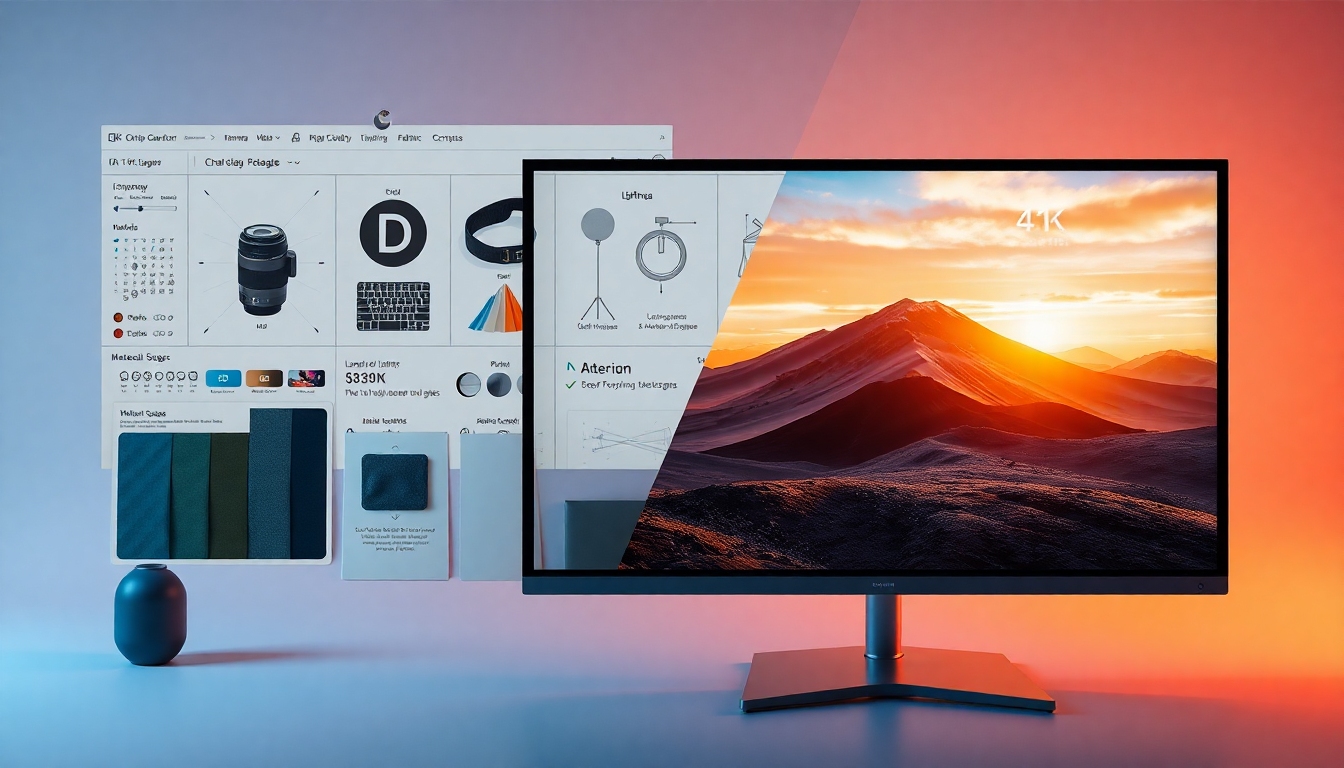
4K typically refers to 3840 × 2160 pixels (UHD). Some creators also target 4096 × 2160 for DCI-4K. When crafting a 4k image prompt, remember:
- Many AI tools ignore resolution words in the prompt. You must set pixel dimensions in the tool’s size settings or upscaler.
- A 4k image prompt helps the model “think” in high detail (microtextures, lighting fidelity, edge sharpness), while the tool’s size and upscaler determine final pixel count.
- Generating directly at 4K can amplify imperfections; a robust 4k image prompt plus a clean upscale pipeline often yields the best results.
The Anatomy of a 4k Image Prompt#
A strong 4k image prompt balances specificity with clarity. Consider this structure:
- Subject and context
- Composition and camera
- Lighting and atmosphere
- Style and material detail
- Resolution intent and quality language
- Negative prompt to remove flaws
Example structure:
- “Ultra-detailed [subject], [action/context], [camera angle/focal length], [lighting/atmosphere], [style/materials], high dynamic range, ultra-sharp details, 4K, photorealistic, clean background — negative prompt: blur, artifact, oversharpen, banding.”
Key elements of a 4k image prompt:
- Resolution intent: include terms like “4K,” “ultra-high resolution,” “high fidelity,” “hyper-detailed.” While some tools won’t change size from the prompt, this influences texture/clarity.
- Subject specificity: facial features, materials (brushed aluminum, satin fabric, glossy ceramic), environment, motion.
- Camera language: 35mm, 85mm, macro, aerial, tilt-shift; “rule of thirds,” leading lines, bokeh, depth of field.
- Lighting: three-point lighting, softbox, golden hour, volumetric light, rim light, global illumination.
- Style: photorealistic, hyperrealism, cinematic, editorial, product photography, matte painting.
- Negative prompt: “blurry, low-res, noise, halos, chromatic aberration, deformed hands, distorted eyes, plastic skin.”
Beyond the Prompt: Settings That Make 4K Work#
A perfect 4k image prompt only shines when paired with the right generator settings.
- Resolution/Aspect ratio:
- Aim for 3840x2160 (16:9) or upscale to it. Many generators create smaller images first (e.g., 1024–2048 px) then upscale 2x–4x.
- Use aspect ratios aligned to deliverables: 16:9 for video frames, 3:2 or 4:5 for photography-style output, 1:1 for thumbnails.
- Steps/iterations:
- More steps usually refine detail and reduce noise. For Stable Diffusion SDXL/SD3, 30–60 steps is common for base; adjust based on sampler.
- Guidance scale (CFG/prominence):
- Higher values force adherence to the 4k image prompt, but can look rigid or overbaked. Typical ranges: 4–9 for SDXL; adjust per model.
- Samplers:
- In SD pipelines, try DPM++ 2M Karras or other high-fidelity samplers for crisp detail.
- Hires fix and tile upscaling (Stable Diffusion/ComfyUI):
- Generate at 1024–1536 px, then do Hires. fix or upscaling with 4x-UltraSharp, R-ESRGAN 4x+, or StableSR. Helps maintain clean microdetail your 4k image prompt asks for.
- Face restoration:
- Use CodeFormer or Face Detailer after the first pass to maintain realism in portraits without plastic sheen.
- Denoise strength during upscale:
- Keep denoise moderate (0.2–0.45) to add detail without changing composition your 4k image prompt defined.
Tool-Specific Notes for a 4k Image Prompt#
Different generators interpret a 4k image prompt in distinct ways:
- Midjourney (v6 and newer):
- Use “--ar 16:9” for widescreen. Start at high-quality, then use upscalers like High or Crisp. Include “4K, ultra-detailed, photorealistic, filmic lighting” in your 4k image prompt to increase texture fidelity.
- Stylize affects creativity vs. specificity; lower stylize can yield more control.
- Stable Diffusion (SDXL, SD 3):
- Best for controllable pipelines. Combine a detailed 4k image prompt with SDXL base + refiner or SD 3, then upscale with Hires fix or ComfyUI’s tile upscalers.
- Add negative prompt packs (e.g., “lowres, jpeg artifacts, extra fingers”) to clean results at 4K.
- DALL·E:
- Strong at composition and semantic understanding; native outputs are smaller. Use a robust 4k image prompt for detail language, then upscale with an external tool (Topaz, Real-ESRGAN, Photoshop Super Resolution).
- Adobe Firefly and Photoshop:
- Generate with rich detail language, then enhance in Photoshop with Super Resolution and Camera Raw’s Texture/Clarity. Your 4k image prompt guides microtexture; the enhancement locks it in at 4K.
- Leonardo, Ideogram, and others:
- Many offer built-in 2x/4x upscalers and sharpening. Create a 4k image prompt emphasizing material realism and lighting, then upscale internally for best sharpness.
The Design Rules: How to Write a Reliable 4k Image Prompt#
Follow these best practices to make your 4k image prompt predictable and repeatable:
- Be unambiguously specific
- Name the subject, environment, intended mood, and camera POV. Avoid vague wording.
- Example: “editorial portrait of a violinist in a dark theater, 85mm lens, Rembrandt lighting, soft haze, 4K, ultra-detailed, skin pores, fine hair strands.”
- Describe light like a cinematographer
- Mention key light, rim light, diffusion, bounce, color temperature.
- In your 4k image prompt, specify “soft key light from camera left, warm 4500K practicals, cool window fill.”
- Use camera and composition language
- “Low-angle shot, symmetrical framing, shallow depth of field, rule of thirds, leading lines.”
- This helps a 4k image prompt lock down framing so the upscaler doesn’t invent geometry later.
- Call out materials and microtextures
- “Brushed steel,” “matte ceramic,” “handwoven linen,” “natural skin texture,” “grain in wood.”
- The right texture vocabulary is the secret sauce of a 4k image prompt.
- Include resolution intent and quality adjectives
- “4K, ultra-high resolution, hyper-detailed, crisp edges, anti-aliased.”
- These terms bias the model toward clarity your 4k image prompt demands.
- Use a strong negative prompt
- “No blur, no over-smoothing, no halos, no banding, no extra fingers, no distorted eyes.”
- A negative pack stabilizes your 4k image prompt under challenging scenes.
- Plan the upscale pipeline
- Generate around 1024–1536 px, then upscale 2x–4x with a quality model. Your 4k image prompt sets the blueprint; the pipeline preserves it.
Common Mistakes That Ruin a 4K Result#
Avoid these pitfalls that weaken even a great 4k image prompt:
- Only writing “4K” in the prompt without setting output size or upscaling.
- Over-stylizing: too many adjectives can conflict; your 4k image prompt should be concise and prioritized.
- No negative prompt: artifacts multiply at high resolutions.
- Aggressive sharpening or denoise: creates halos/plastic textures that contradict a careful 4k image prompt.
- Wrong aspect ratio: stretching to 4K later degrades detail.
- Forgetting lighting: flat light equals flat detail, no matter how good the 4k image prompt is.
Recommended Upscaling Pipelines for a 4k Image Prompt#
- Stable Diffusion + Hires fix:
- Base at 1024–1536 px → Hires fix 2x with 4x-UltraSharp or R-ESRGAN 4x+ → Denoise 0.25–0.4 → optional Face Detailer.
- ComfyUI tile upscale:
- SDXL/SD3 → Tiled Diffusion + Tiled VAE → 2x or 4x → keep denoise modest to preserve the 4k image prompt composition.
- Photoshop Super Resolution:
- Generate at 2048 on the long side → Super Resolution to ~4096 → Camera Raw texture/clarity → subtle Unsharp Mask.
- Topaz Gigapixel:
- Use Standard or Art & CG models; suppress noise before sharpening. Start with a clean 4k image prompt for best results.
4k Image Prompt Templates and Examples#
Use these ready-to-run templates. Replace bracketed words with your specifics. Each example includes a 4k image prompt plus optional negative prompts and settings guidance.
- Cinematic Portrait
- 4k image prompt: “editorial portrait of a [profession], soft Rembrandt lighting, 85mm lens, shallow depth of field, natural skin texture, flyaway hair detail, soft haze, color-graded teal and orange, ultra-detailed, 4K, photorealistic.”
- Negative: “plastic skin, over-smoothing, harsh sharpening, banding, artifacts, extra fingers.”
- Settings: 16:9 or 4:5, 30–50 steps, CFG 6–8, upscale 2x–4x.
- Product Hero Shot
- 4k image prompt: “[brand] [product] on glossy black acrylic surface, studio softbox reflections, rim light, micro-scratches on metal, crisp logo edges, hyperreal, 4K, ultra-high resolution, perfect symmetry.”
- Negative: “dust, fingerprint smudges, warped logo, soft focus.”
- Settings: 3:2 or 16:9, tile upscale for razor edges.
- Landscape Epic
- 4k image prompt: “vast alpine valley at golden hour, volumetric light rays, low-lying mist, detailed wildflowers in foreground, sweeping depth, 4K, high dynamic range, hyper-detailed foliage, cinematic color.”
- Negative: “mushy textures, watercolor smearing, haloing.”
- Settings: 16:9, steps 40+, gentle upscale.
- Architectural Exterior
- 4k image prompt: “modern concrete house with floor-to-ceiling glass, dusk blue hour, interior warm lights, clean reflections, verticals perfectly straight, 4K, ultra-detailed, photorealistic materials.”
- Negative: “tilted lines, warped geometry, excessive noise.”
- Settings: 16:9, perspective-correct; use denoise 0.25–0.35 on upscale.
- Food Macro
- 4k image prompt: “gourmet [dish] on ceramic plate, macro shot, steam rising, glistening sauce highlights, natural crumbs, textured linen, 4K, mouthwatering detail, realistic depth of field.”
- Negative: “plastic shine, desaturated colors, artifacting.”
- Settings: 4:5, face detailer off, subtle sharpening.
- Fashion Editorial
- 4k image prompt: “full-body runway look, soft backlight, subtle motion in fabric, fine stitching detail, 50mm lens, clean background gradient, 4K, high fidelity, magazine editorial style.”
- Negative: “wrinkled backdrop, moiré patterns, jagged edges.”
- Settings: 3:2; upscale 2x with low denoise.
- Sci-Fi Concept Art
- 4k image prompt: “futuristic cityscape at night, neon reflections on wet streets, atmospheric fog, holographic signage, micro-detail in architecture, 4K, cinematic, high contrast.”
- Negative: “overbloom, chaotic clutter, muddy textures.”
- Settings: 21:9 or 16:9; keep CFG moderate.
- Stylized Anime Portrait
- 4k image prompt: “anime-style character, soft rim light, precise linework, glossy eyes with catchlight, hair strand detail, pastel palette, 4K, ultra-clean, studio background.”
- Negative: “messy lines, blurry eyes, color bleed.”
- Settings: consider anime-tuned model; upscale with line-art–friendly method.
- Isometric Illustration
- 4k image prompt: “isometric cozy workspace, finely shaded objects, crisp edges, subtle AO, warm desk lamp, cable management detail, 4K, vector-like clarity, minimal noise.”
- Negative: “jagged lines, over-texture, color fringing.”
- Settings: 16:9, tile upscale for edge integrity.
- Photoreal Car Shot
- 4k image prompt: “[car model] on wet asphalt at twilight, specular highlights, realistic tire tread, studio-grade reflections, 4K, hyperreal, polarizing filter effect.”
- Negative: “warped logos, melted edges, cartoonish paint.”
- Settings: 16:9, sampler tuned for crisp metals.
- Nature Macro (Insect/Plant)
- 4k image prompt: “macro of a dew-covered [flower/insect], delicate bokeh, fine hair and petal microtexture, cross-polarized look, 4K, ultra-detailed, lifelike color.”
- Negative: “over-sharpened halos, chromatic aberration, noise.”
- Settings: 4:5 or 1:1; low denoise upscale.
- UI/Device Mockup
- 4k image prompt: “smartphone on matte desk, soft window light, subtle dust specks, razor-thin bezels, screen content sharp and moiré-free, 4K, product photography realism.”
- Negative: “aliasing on icons, warped screen, banding.”
- Settings: keep stylize low; 3:2 or 16:9.
Advanced Mix-Ins for a 4k Image Prompt#
Add these phrases to enrich any 4k image prompt:
- “global illumination, subsurface scattering, thin-film interference”
- “cinestill grain, slight halation, filmic S-curve”
- “polarized reflections, microfacet BRDF realism”
- “calibrated white balance, true-to-life color”
- “overscan margin, composition-safe area”
Use sparingly—your 4k image prompt should remain focused.
Negative Prompt Pack for Cleaner 4K Outputs#
Paste this after any 4k image prompt:
- “lowres, blur, soft focus, over-smoothing, haloing, banding, noise, jpeg artifacts, deformed hands, extra limbs, distorted eyes, double pupils, bad anatomy, warped text, excessive bloom, clipping highlights, muddy shadows, color fringing, moiré, oversaturated skin, plastic skin.”
Tool Recipes: Turning a 4k Image Prompt into a 4K File#
- Midjourney:
- Prompt with: “4K, ultra-detailed, photorealistic, high fidelity,” add camera/lighting, then “--ar 16:9.” Upscale with High or Crisp upscaler. Light retouch in post.
- Stable Diffusion (Automatic1111):
- Base: SDXL at 1024–1536 px → Hires fix 2x with 4x-UltraSharp → Denoise 0.3 → optional Face Restore. Keep your 4k image prompt intact in both passes.
- ComfyUI:
- SD3/SDXL → Tiled Diffusion + Tiled VAE → ESRGAN/StableSR 2x–4x. Feed the same 4k image prompt into the high-res stage (or keep denoise low).
- Photoshop:
- Generate with a strong 4k image prompt elsewhere → Super Resolution → Camera Raw: Texture +10–20, Clarity +5–10 → output TIFF/PNG.
Troubleshooting: When a 4k Image Prompt Doesn’t Look 4K#
- Looks sharp at 100% but breaks at 200%:
- Your upscale was too aggressive or sharpening created halos. Reduce sharpening, use a better upscaler, and ensure your 4k image prompt emphasizes microtexture.
- Hands/eyes are weird:
- Add explicit anatomy terms or use a face/hands fixer. Strengthen the negative prompt; keep your 4k image prompt constraints tight.
- Banding in skies/gradients:
- Add fine noise or dither in post. In prompt, reference “smooth gradient, no banding.” The 4k image prompt should mention subtle atmospheric grain.
- Plastic skin:
- Remove “smooth skin” terms; add “natural pores.” Your 4k image prompt should avoid conflicting adjectives.
- Jagged edges in line art:
- Use tile upscale, not simple bicubic. Your 4k image prompt can include “vector-like clarity” and “anti-aliased lines.”
Quick 4k Image Prompt Mini-Templates (Copy/Tweak)#
- “cinematic close-up of [subject], shallow DOF, fine skin texture, catchlights, 4K, ultra-detailed, photorealistic — negative: plastic skin, blur, halos”
- “sleek product on gradient backdrop, studio reflections, perfect edge fidelity, 4K, hyperreal — negative: dust, warped logos”
- “foggy forest at sunrise, volumetric light, crisp foliage microdetail, 4K, high fidelity — negative: mushy leaves, banding”
- “architectural interior, soft indirect light, natural materials, straight verticals, 4K, lifelike — negative: distortion, noise”
- “anime key visual, precise linework, glossy eyes, clean background, 4K — negative: color bleed, jagged lines”
- “macro of [object], diffraction-limited sharpness, creamy bokeh, 4K — negative: halos, chromatic aberration”
- “fashion lookbook, controlled studio light, fabric weave detail, 4K — negative: moiré, harsh sharpening”
- “night street scene, neon reflections, wet asphalt microtexture, 4K — negative: overbloom, clutter”
- “food photography, steam and glisten highlights, color-true, 4K — negative: plastic shine, desaturation”
- “UI mockup on device, anti-aliased screen content, 4K — negative: aliasing, warp”
Generator Recommendations for 4K Output#
- Best control and repeatability: Stable Diffusion SDXL/SD3 with Hires fix or ComfyUI tile upscaling. Pair with a precise 4k image prompt and negative prompt.
- Best out-of-the-box aesthetics: Midjourney; upscale internally; craft a focused 4k image prompt to drive material realism.
- Easiest post workflow: DALL·E or Firefly → Photoshop Super Resolution → light retouch; keep the 4k image prompt descriptive about microtexture to survive the upscale.
Final Tips for Content Creators#
- Prototype at smaller sizes, then lock the 4k image prompt and upscale pipeline for finals.
- Version your prompts. Small wording changes in a 4k image prompt can massively alter output.
- Build a personal negative prompt library and a texture vocabulary bank.
- Save seeds and settings for repeatable results across a campaign.
Conclusion#
A carefully engineered 4k image prompt, paired with the right model, sampler, and upscaling pipeline, gives you reliably sharp, professional images for video frames, thumbnails, ads, and print. Use the rules and templates above as your base—then iterate, compare, and refine until your 4K output is as polished as your creative vision.
FAQ#
What is a 4k image prompt?#
A 4k image prompt is a written instruction designed to produce high-fidelity detail suitable for 4K outputs. It emphasizes subject specificity, camera/lighting, material microtextures, and negative constraints, then pairs with proper resolution and upscale settings.
Does adding “4K” in a 4k image prompt guarantee 3840×2160 output?#
No. Most generators need size set in the UI or via parameters. The 4k image prompt shapes detail; the tool’s size and upscaler define pixel count.
Which tool is best for a 4k image prompt workflow?#
For control, Stable Diffusion (SDXL/SD3) with Hires fix or ComfyUI tile upscaling. For speed and strong aesthetics, Midjourney with a concise 4k image prompt and an internal upscaler.
How do I avoid artifacts when using a 4k image prompt?#
Use a strong negative prompt, moderate guidance scale, quality samplers, and conservative sharpening. Keep denoise modest during upscale to preserve geometry your 4k image prompt established.
Should I generate directly at 4K or upscale?#
Often, generate at 1024–2048 px, then upscale 2x–4x. A thoughtful 4k image prompt plus a good upscaler provides cleaner detail than direct 4K in many pipelines.
How can I make portraits look natural with a 4k image prompt?#
Add skin texture terms (pores, fine hair), balanced lighting, and use face restoration sparingly. Avoid “plastic” adjectives and keep your 4k image prompt focused.