Introduction#
If you’re a content creator wondering how to animate image quickly and professionally, AI tools make it easier than ever. Instead of learning complex motion graphics software, you can transform a still photo or illustration into a moving video or GIF—perfect for social media, ads, thumbnails, reels, and storytelling. In this tutorial, you’ll learn how to animate image using Story321’s Image-to-Video tool, plus practical tips for writing effective prompts, choosing settings, optimizing exports, and avoiding common pitfalls.
By the end, you’ll know how to animate image from a single still using an AI-driven workflow, preview and refine your results, and export the final animation for sharing. You’ll also see how to animate image consistently for different platforms and how switching models can change the style or quality of the motion.
Prerequisites/Preparation#
Before you start, gather the following:
- A high-quality still image
- Recommended: 1024 px on the shortest side, JPG/PNG/WebP. Higher resolution helps if you plan to crop or output 1080p.
- A Story321 account
- You’ll use the Image-to-Video page to animate your still.
- A clear idea of your animation
- Think about what you want to move—camera motion (zoom/pan), subject motion (walk/wave), environment (clouds/water), or stylistic effects.
- Prompt notes
- Write a short description of the motion, style, camera behavior, and duration. This will help you learn how to animate image with predictable results.
- Stable internet connection
- Rendering happens in the cloud; a stable connection ensures smooth uploads and downloads.
Nice-to-have (optional):
- Basic understanding of animation principles (keyframes, timing, easing) to guide your prompts.
- An editor like Premiere Pro, DaVinci Resolve, or CapCut for final trims and sound if needed.
- Knowledge of target platform specs (e.g., TikTok vertical 9:16, YouTube Shorts 9:16, Instagram 1:1 or 4:5).
Step-by-Step Instructions#
Follow these steps to learn how to animate image with Story321. The process is beginner-friendly, yet flexible for intermediate creators.
1) Go to Story321’s Image-to-Video page#
1.1 Open your browser and navigate to: https://story321.com/video/image-to-video
1.2 Sign in or create an account if prompted.
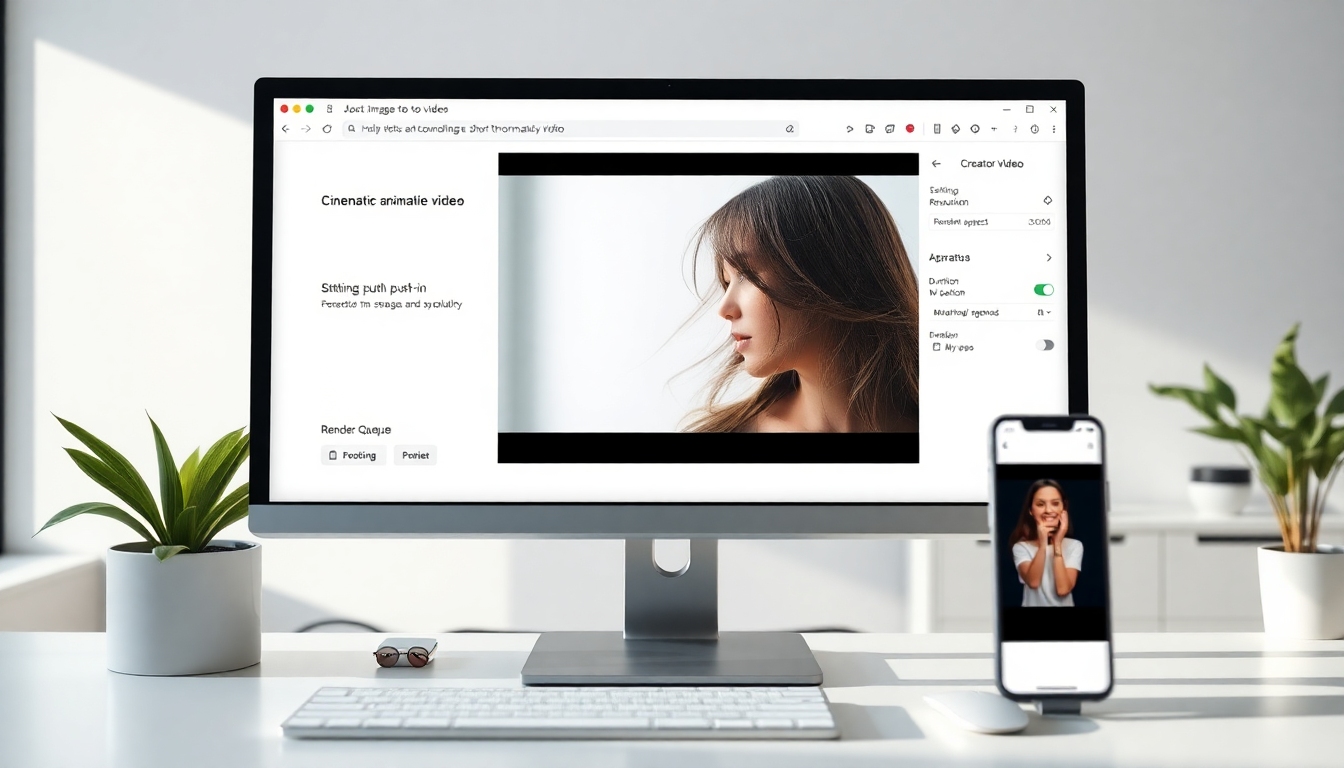
You will see the Image-to-Video interface with options to upload an image, enter a prompt, select a model, adjust resolution, aspect ratio, duration, and audio options. At this point you should recognize the main workspace where you’ll run your first how to animate image test.
2) Select or upload your image#
2.1 Click Upload or drag-and-drop your still image into the upload area.
2.2 Confirm the preview appears correctly. If your image has important details near the edges, consider cropping slightly to avoid edge artifacts during motion.
2.3 Use a clean, high-resolution image for best results. If you’re exploring how to animate image for portraits, choose a well-lit, sharp face shot. For landscapes, ensure there’s foreground/midground/background depth.
You will see your image previewed in the interface. At this point you should be ready to describe the motion in your prompt.
3) Enter a prompt explaining your needs#
3.1 In the Prompt field, clearly describe the movement, mood, and camera behavior. Concise is good, but include specifics. This is the core of how to animate image effectively with AI.
- Subject motion: “subtle hair movement in the wind,” “waves rippling,” “neon sign flickering,” “butterfly flaps its wings,” “eye blink,” “character waves hello”
- Camera motion: “slow cinematic push-in,” “gentle parallax pan right,” “zoom out to reveal background,” “handheld feel with light motion”
- Style/mood: “dreamy and soft light,” “cinematic contrast,” “anime-style motion,” “calm and natural”
- Duration: “5 seconds,” “short loop,” “6s clip with beginning and end”
- Restraints: “keep composition centered,” “do not distort face,” “keep logo readable”
3.2 Example prompts for how to animate image:
- “Slow cinematic push-in on the portrait, subtle hair movement and natural eyelid blink, soft light, 5 seconds.”
- “Gentle parallax across the mountains with drifting clouds and slight water ripples, serene mood, 6s loop.”
- “Handheld-style micro-movements on a city street photo, neon lights flicker slightly, 4s, keep faces natural.”
- “Anime-style character illustration with a light smile and eye blink, floating sparkles in the background, 6 seconds.”
3.3 Avoid overly long or contradictory prompts. Clear, focused instructions improve consistency when learning how to animate image.
At this point you should have a descriptive prompt that sets expectations. You will see your text in the prompt box ready for generation.
4) Select Resolution, Aspect Ratio, Duration, and Generate Audio#
4.1 Resolution
- Choose an output resolution that matches your platform. 720p renders faster; 1080p looks sharper.
- If you’re still exploring how to animate image and iterating quickly, start at a lower resolution to preview motion fast.
4.2 Aspect Ratio
- For TikTok/Shorts/Reels: 9:16 vertical (1080×1920)
- For Instagram feed: 1:1 or 4:5
- For YouTube or websites: 16:9 horizontal (1920×1080)
- Choosing the right aspect ratio is a key part of how to animate image for social media so it looks native.
4.3 Duration
- Typical length: 3–8 seconds for attention-friendly loops.
- Longer durations render slower; start short until you lock the look.
4.4 Generate Audio (optional)
- If available, enable Generate Audio to add background music or ambience.
- Alternatively, keep it silent and add audio later in your editor.
4.5 Model selection
- You can switch between different models to achieve this. Each model may vary in motion realism, stylization, or how it interprets faces and text.
- If you need more conservative motion (e.g., professional branding), pick a stable model. If you’re experimenting with stylized vibes, try an expressive model.
- Knowing how to animate image with the right model choice can dramatically improve your results.
You will see your settings summarized near the preview or in the settings panel. At this point you should double-check the aspect ratio and duration so the animation fits your target platform.
5) Click Generate#
5.1 Once your image, prompt, and settings are ready, click Generate.
5.2 Your job will enter a render queue. Rendering time depends on resolution, duration, model, and system load.
You will see a status indicator or a queued job notification. At this point you should avoid closing the browser tab until the render begins to process. This is the moment when how to animate image turns your still into motion.
6) Wait for the generated result in the “My Videos” list on the right#
6.1 Keep an eye on the “My Videos” panel on the right. Your render appears there once processing starts.
6.2 If the result takes longer than expected, consider starting another test at a lower resolution to iterate faster while you learn how to animate image effectively.
You will see a new item appear with a thumbnail and/or progress indicator. At this point you should be able to select it when the render completes.
7) Open, preview, download, and share your video#
7.1 When the video finishes, it will appear as the first item in the “My Videos” list on the right.
7.2 Click the video thumbnail to open a pop-up window.
7.3 Preview the result. Check for:
- Smoothness of motion
- Subject integrity (faces, hands, logos)
- Framing and crop
- Style consistency with your brand
7.4 Download and share
- Download as MP4 for highest compatibility across platforms.
- If you need a GIF for websites or email, convert your MP4 afterward using a GIF converter—keep it short to control file size.
- Share directly if the platform supports quick sharing.
You will see playback controls and file options. At this point you should have a downloadable animated clip—a successful first pass at how to animate image with AI.
8) Refine with iteration and model switching#
8.1 If the motion isn’t quite what you wanted, iterate:
- Adjust the prompt for more or less motion.
- Add constraints: “do not distort face,” “keep logo readable,” “subtle movement only.”
- Change duration to better match the pace.
8.2 Switch models
- Different models interpret prompts differently. Try a different model if you need crisper parallax, better facial integrity, or more stylized motion.
- This model-switching flexibility is a powerful part of how to animate image with AI.
8.3 Re-render at higher quality
- Once you like the motion, increase resolution to 1080p or your target platform’s spec.
You will see improved results after each iteration. At this point you should feel confident about how to animate image in a controlled, repeatable way.
Tips & Best Practices#
- Start simple
- When learning how to animate image for the first time, use minimal, clear prompts: “slow zoom,” “gentle parallax,” “soft hair movement.”
- Use high-quality images
- The cleaner the source, the cleaner the motion. Avoid low-res, heavily compressed images.
- Protect faces and text
- If your brand or talent is visible, add constraints: “keep face natural,” “keep text crisp,” “no warping.”
- Match aspect ratio to platform
- Critical for reach. How to animate image for TikTok differs from YouTube—set your aspect ratio before rendering.
- Iterate fast at low res
- Nail the motion at 720p or shorter duration first, then scale up.
- Be subtle with movement
- Over-animating can look fake. Small, believable motion often works best.
- Keep consistency in your brand style
- Reuse prompt phrases that match your brand’s tone so your how to animate image results feel cohesive.
- Plan the loop (if needed)
- For looping animations, specify “seamless loop” or design motion that returns to the start.
- Combine with light editing
- Top creators often use a quick timeline edit to trim, add captions, transitions, or sound after they animate.
- Organize versions
- Save variations of prompts/settings so you build a playbook for how to animate image efficiently across projects.
Troubleshooting#
- My upload fails or looks corrupted
- Check file format (JPG/PNG/WebP) and file size limits. Re-export your still at a standard resolution. If necessary, try a different browser. Stable source files are crucial for how to animate image cleanly.
- The motion looks too extreme or unnatural
- Reduce intensity in your prompt: “subtle,” “gentle,” “minimal motion.” Shorten duration. Switch to a more conservative model. Subtlety is a core best practice for how to animate image.
- The face or hands look distorted
- Add constraints to your prompt: “do not distort face or hands,” “keep anatomy natural.” Try a model known for portrait integrity. Use a higher-resolution source image.
- The animation isn’t doing what I described
- Be more explicit: name the subject, direction, speed, and camera behavior. When you learn how to animate image with AI, specificity wins.
- Render is very slow or stuck in queue
- Drop to 720p, shorten duration, or try again later. If possible, switch to another model to see if it processes faster.
- The result crops important parts of my image
- Reframe your input image with more headroom or negative space. In the prompt, say: “keep subject centered,” “maintain full headroom,” “no aggressive crop.”
- Text or logos are unreadable
- Use larger, cleaner source artwork. Add: “keep logo readable,” “preserve text clarity.” Avoid heavy movement near text.
- Colors look different after export
- Check your platform’s color profile and compression. If posting to social media, preview on a mobile device. This isn’t unique to how to animate image—most platforms re-compress video.
- The loop has a visible jump
- Indicate “seamless loop” and limit large camera moves. Keep motion cyclical (e.g., calm waves). Consider post-processing a crossfade at the loop point.
FAQ#
What does “how to animate image” mean in practice?#
It means turning a still photo or illustration into a short video or GIF by adding believable motion—camera zooms, parallax, subtle subject movement, or stylized effects—often powered by AI. With Story321, how to animate image is as simple as uploading your still, writing a clear prompt, choosing settings, and generating.
Which image formats are best when learning how to animate image?#
JPG, PNG, and WebP are commonly supported. Use the highest-quality version you have. If you’re serious about how to animate image with clean results, start with a high-resolution, well-exposed still.
How long should my clip be when I’m testing how to animate image?#
Keep tests short: 3–6 seconds. Shorter clips render faster, so you can iterate quickly on your how to animate image prompts and settings.
Can I add audio when I animate my image?#
Yes. If the Generate Audio option is available, you can add background music or ambience. Many creators still export silent clips during how to animate image tests, then add sound later in a video editor.
How do I avoid warping faces when I’m figuring out how to animate image for portraits?#
Use a high-resolution portrait and add constraints in your prompt: “keep face natural,” “no distortion,” “subtle motion only.” If necessary, switch to a model that’s known for portrait stability while you refine how to animate image.
What aspect ratio should I choose for social media when I’m applying how to animate image?#
- TikTok/Shorts/Reels: 9:16
- Instagram feed: 1:1 or 4:5
- YouTube/web: 16:9 Matching aspect ratio to your platform is a key part of how to animate image professionally.
Is Story321 the only way to learn how to animate image with AI?#
No. Other tools like Kapwing’s AI Animate Image, Haiper AI, or traditional software (After Effects) can help. This guide focuses on how to animate image with Story321 because it’s fast and beginner-friendly, but the principles carry over.
How do I write better prompts for how to animate image?#
Be specific: subject, motion type, camera movement, intensity, style, and duration. Example: “Slow push-in on the café photo, gentle steam rising from the coffee cup, soft morning light, 5 seconds, keep composition centered.” Clear prompts are the backbone of how to animate image reliably.
What file format should I download when I finish how to animate image?#
Download MP4 for broad compatibility and quality. Convert to GIF only when necessary (e.g., email or lightweight web graphics). For professional delivery, MP4 is ideal in most how to animate image scenarios.
Can I switch models to change the look while I explore how to animate image?#
Absolutely. Model switching is one of the most powerful ways to control style, motion, and subject integrity. If you don’t like the first result, trying a different model often improves how to animate image outcomes with minimal extra effort.
How do I make a seamless loop when I learn how to animate image?#
Ask for a “seamless loop,” limit big camera moves, and focus on cyclical or ambient motion (ripples, clouds, blinking lights). If there’s still a jump, create a short crossfade in your editor.
What’s the biggest mistake people make with how to animate image?#
Over-animating. Subtle motion usually looks more natural. Keep it simple, iterate, and increase intensity gradually as you master how to animate image.
By following these steps and best practices on Story321, you now know how to animate image from any still into a polished short video, tailor it for your platform, and iterate quickly with model switching and prompt refinement. Keep your prompts clear, your motion subtle, and your output matched to your audience—and your animations will look professional in no time.