Introduction#
If you create content for a living, you’ll eventually need a clean photo where a stranger, extra actor, or passerby simply isn’t there. Knowing how to remove person from image helps you polish thumbnails, product shots, brand stories, and social visuals without reshoots. In this tutorial, you’ll learn how to remove person from image using Story321’s image-to-image editor. You’ll write effective prompts, choose the right model, refine results, and export a high-quality final image that looks natural—like the person was never there.
We’ll follow a simple, beginner-friendly workflow grounded in the user topic, then layer in tips for complex backgrounds, shadows, reflections, and texture continuity. By the end, you’ll be able to confidently decide how to remove person from image in minutes, not hours.
Prerequisites / Preparation#
Before you start, set yourself up for success with the following:
- A modern web browser
- A reliable internet connection
- An image you own or have the rights to edit (JPG or PNG)
- Optional but recommended: Create or sign in to your Story321 account so your edits appear in the “My Images” panel and remain accessible across sessions
- A clear description of the person you want removed and what should appear behind them (background type, texture, lines, perspective, and lighting)
Quality prep matters when deciding how to remove person from image. Choose the highest-resolution version available and avoid heavily compressed files. If possible, note precise details—clothing color, position in frame, and background description—so your prompt guides the AI cleanly.
Step-by-Step Instructions#
This walkthrough is built around the exact topic outline you provided and optimized to help you learn how to remove person from image the fast, reliable way.
1) Go to Story321’s Image-to-Image Editor#
1.1 Open your browser and go to: https://story321.com/image/image-to-image/
1.2 If prompted, sign in or create a free account so your outputs save in the “My Images” panel on the right.
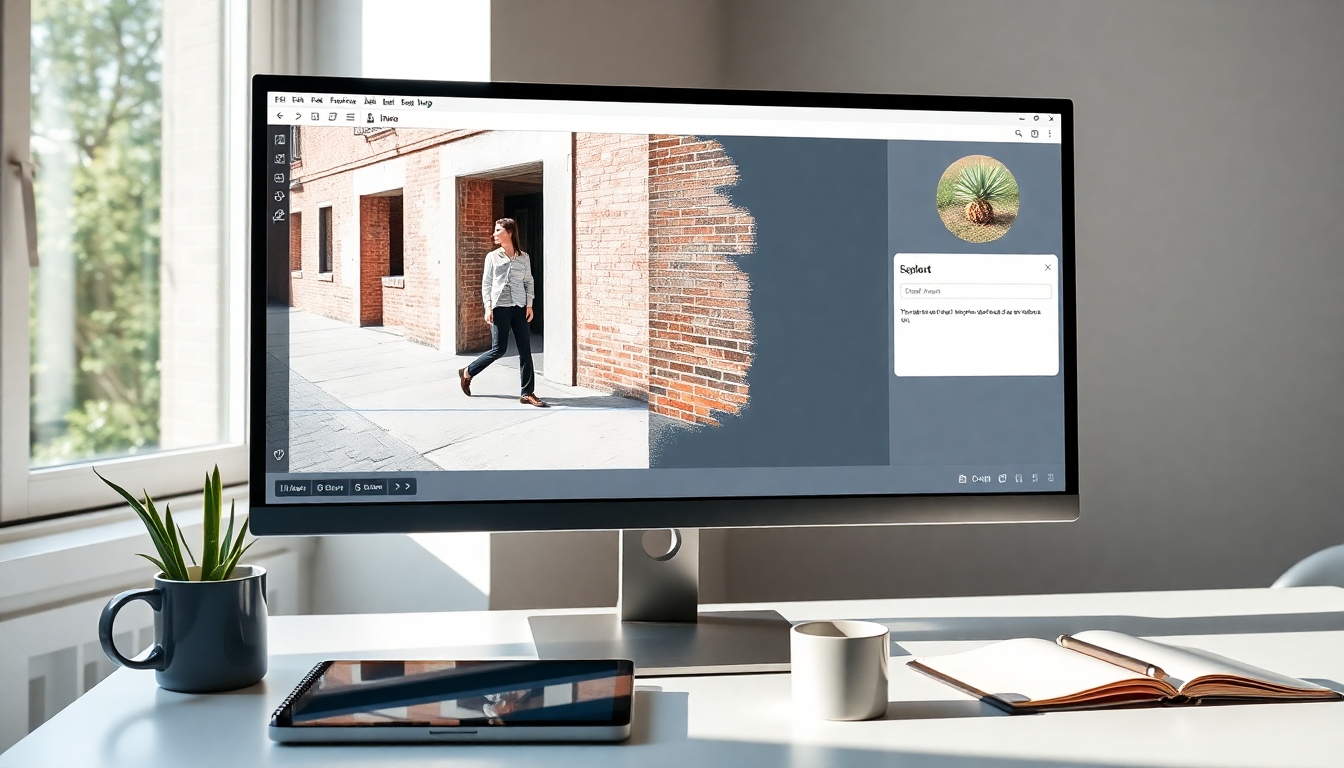
You will see the image-to-image workspace with an upload area, a prompt field, an Edit Image button, and the “My Images” list on the right. At this point you should be ready to start the process for how to remove person from image.
2) Select/Upload Your Image#
2.1 Click to upload or drag-and-drop your photo into the upload area.
2.2 Use the highest resolution file available for better fill-in detail.
2.3 Confirm orientation (landscape/portrait) and crop only if it helps the tool focus on the problem area.
You will see a thumbnail or preview of your photo loaded into the editor. At this point you should verify the image shows the person you want to remove and the surrounding background you expect the AI to reconstruct. This ensures a smoother experience when applying how to remove person from image in Story321.
3) Enter a Prompt That Clearly Describes the Removal#
To nail how to remove person from image with AI, the prompt must be explicit about:
- Who to remove (appearance, clothing, and location in frame)
- What to reconstruct in the background (textures, patterns, perspective, lighting)
- What not to add (avoid extra objects or distortions)
Use this prompt template: “Remove [brief subject description] [where they are in the frame]. Reconstruct the background as [describe background: e.g., continuous brick wall, linear wood fence, ocean horizon], matching the original perspective, lighting, and shadows. Keep all other people and objects unchanged. No artifacts, no blur, no extra limbs, no ghosting.”
Example prompt 1: “Remove the man in a red jacket standing on the left side of the frame. Reconstruct the stone wall and ivy behind him to match texture, grout lines, and lighting. Keep the woman in the center unchanged. No artifacts, no blur, no duplicate faces.”
Example prompt 2: “Remove the child in blue near the bottom-right corner. Extend the sandy beach and waterline naturally, with smooth footprints and soft shadow transitions. Keep the couple by the pier intact. No extra people, no repeating patterns, no warped horizon.”
Example prompt 3 (reflections/shadows): “Remove the person in black on the staircase and their shadow. Continue the stair texture and railing lines, keeping perspective accurate. Remove any reflection on the nearby window. No added objects.”
You will see your prompt entered in the text box. At this point you should reread it to ensure the details make sense for how to remove person from image: clear subject description, background continuity, and constraints to prevent artifacts.
4) Optional: Switch the Image Editing Model (e.g., nano banana)#
4.1 Locate the model selector (if shown) and choose the model best suited to your image.
4.2 The default model is often balanced. If you see options like “nano banana” or other variants, test them:
- nano banana: Often faster and good for straightforward removals or lighter edits.
- Detail-focused models: Better when fine textures, complex patterns, or reflections must be reconstructed.
- Creative/expressive models: Helpful if you need more imaginative background synthesis (use with caution for realism).
You will see the model selection reflected in the UI. At this point you should be confident the chosen model matches your goals for how to remove person from image—speed vs. realism vs. texture fidelity.
5) Click “Edit Image”#
5.1 Confirm your image and prompt are correct, then click Edit Image.
5.2 Stay on the page while the system processes your request.
You will see a processing state. At this point you should expect the job to appear in “My Images” on the right as it generates the result—this is core to how to remove person from image on Story321.
6) Watch for the Generated Result in “My Images”#
6.1 Look at the right-hand “My Images” panel. Your most recent output appears at the top of the list.
6.2 Wait until the status indicates the image is ready.
You will see the edited image become the first item in “My Images.” At this point you should confirm the thumbnail shows the person removed and the background reconstructed.
7) Click the Thumbnail to Review, Download, and Share#
7.1 Click the image thumbnail in “My Images” to open a pop-up viewer.
7.2 Inspect at 100% zoom to check edges, texture continuity, and shadows.
7.3 Download your preferred format (JPG/PNG) and resolution.
7.4 Copy the share link if needed.
You will see the full-size result and controls to download or share. At this point you should have a finished edit that demonstrates how to remove person from image effectively for thumbnails, social posts, or client deliverables.
8) Iterate for Perfection (Optional but Recommended)#
AI edits are fast—run another pass if anything looks off. Iteration is part of how to remove person from image at a professional quality level.
8.1 Prompt refinements:
- Add more context: “Continue the marble floor veining in perspective” or “Match sunlight direction from top-right.”
- Add constraints: “No duplicated hands,” “No repeating tiles,” “No water ripple distortions.”
- Specify preservation: “Keep brand logo on the sign unchanged,” “Keep dog on the right intact.”
8.2 Try a different model (including nano banana) to see if it handles your background better.
8.3 Zoom-crop a trouble area, run a localized pass, then blend back into the full image if your workflow allows.
8.4 Compare versions in “My Images” and pick the cleanest result.
You will see improved continuity, fewer artifacts, and more natural lighting alignment with each iteration. At this point you should feel confident in how to remove person from image even with difficult textures.
9) Export in the Right Format for Your Use Case#
9.1 For web or social: Export JPG at high quality (80–90) in sRGB color space.
9.2 For print or archival: PNG or high-quality JPG at original resolution.
9.3 Keep file names versioned (e.g., sceneA_remove-left-subject_v3.jpg) for easy tracking.
You will see a final image file ready for your project. At this point you should have fully completed how to remove person from image and preserved the best possible quality.
Tips & Best Practices#
These proven tips help you master how to remove person from image with cleaner, more realistic results:
- Write prompts like a director: Describe the person to remove and the exact background reconstruction, including perspective lines, textures, and lighting direction.
- Mention shadows and reflections: State if the shadow or reflection should also be removed or kept/reconstructed.
- Use preservation cues: “Keep the central subject and signage untouched,” helps avoid accidental edits.
- Fight repetition: If tiling or repeating patterns appear, add “no repeating patterns” and specify “continue [texture] with natural variation.”
- Control lighting: Include “match original lighting and white balance” for consistency.
- Scale matters: Work at the image’s native resolution to avoid blurry fills; upscale only after you’re satisfied.
- Iterate intentionally: Small prompt changes can make big differences. Save versions so you can revert.
- Model matching: If you’re stuck, try a different model (e.g., nano banana for speed, other models for texture fidelity). This experimentation is central to how to remove person from image with confidence.
- Ethics matter: Avoid deceptive edits that misrepresent reality in news or sensitive contexts. Obtain consent when needed.
Troubleshooting#
Even with a solid workflow for how to remove person from image, tricky scenes can require extra care. Use these fixes:
-
Ghosting or faint outlines remain
What to try: Add “remove all traces of the subject, no ghosting” to the prompt. Reiterate background details: “continue brick mortar lines, natural grime.” Try a different model for more assertive cleanup. -
Wrong person was removed
What to try: Sharpen the subject description—clothing color, pose, location (“left third of frame”), and add “keep [other person] unchanged.” -
Pattern misalignment (brick, tile, lattice)
What to try: Specify “continue [pattern] with accurate perspective and non-repeating variation.” If necessary, crop tighter around the problem area and run another pass. This is a common hurdle in how to remove person from image when backgrounds are geometric. -
Shadow looks unnatural after removal
What to try: “Reconstruct floor/wall shadows consistent with light from [direction].” Or explicitly “remove shadow cast by the person and maintain ambient lighting continuity.” -
Reflection still visible in glass or water
What to try: “Remove person and their reflection in glass/water; preserve background scene behind reflections with realistic highlights.” -
Halos or blur around edges
What to try: Add “no soft halos, no blur at edges; maintain sharp transitions matching native focus.” Re-run at original resolution. -
Overly smooth or plastic-looking fill
What to try: Include texture cues: “maintain stone grain, mortar pitting, chipped paint,” and “natural variation; no smudging.” -
Artifacts on important details (logos, faces you want to keep)
What to try: “Keep logo and central subject unchanged; do not alter [object].” This specificity often resolves accidental edits when learning how to remove person from image on complex scenes. -
Nothing appears in “My Images” or it doesn’t update
What to try: Refresh the page, ensure you’re logged in, check connection, and verify the file size is within limits. Try a different browser if the panel fails to load. -
Colors shift after edit
What to try: Add “match original color grading and contrast.” Export in sRGB and compare in a color-managed viewer.
FAQ#
What is the easiest way for beginners to learn how to remove person from image?#
Using Story321’s image-to-image editor is beginner-friendly: upload, write a clear prompt, click Edit Image, and get results in “My Images.” Precise prompting is the key skill in how to remove person from image.
Can I remove multiple people at once?#
Yes. In your prompt, list each person and location. For tricky scenes, run multiple passes—one removal at a time—to refine how to remove person from image cleanly.
How do I handle complex backgrounds when learning how to remove person from image?#
Describe textures and perspective explicitly: “Continue hex tile with grout, no repetition; match vanishing lines.” Iterate if patterns misalign.
What about shadows and reflections?#
Always specify whether to remove or rebuild them. Shadows and reflections can betray edits, so clear instructions are crucial in how to remove person from image without telltale artifacts.
Will quality degrade after multiple edits?#
Minimize passes and work at the original resolution. If you must iterate, keep source copies. Good prompts reduce the number of runs required for how to remove person from image.
Is “nano banana” a good model for this task?#
It’s useful for faster, straightforward removals. If texture fidelity matters, test other models too. Switching models is a practical part of how to remove person from image.
Can I do this on mobile?#
Yes, through a mobile browser. Ensure a stable connection and enough screen space to review details. The workflow for how to remove person from image is the same.
What file format should I export?#
For web/social, high-quality JPG in sRGB. For print, PNG or high-quality JPG at full resolution. Proper export preserves the realism achieved in how to remove person from image.
What if the AI removes things I want to keep?#
Add “keep [object/person] unchanged.” Specific constraints help the model. This is common when you’re still learning how to remove person from image with prompt-based control.
How do I avoid repeating textures or tiled patterns?#
Include “no repeating patterns; natural variation.” Mention how the texture should continue. This guidance dramatically improves how to remove person from image in patterned environments.
Is this ethical and legal?#
Use images you own or have permission to edit. Avoid edits that mislead audiences in sensitive contexts. Ethical practice is part of professional how to remove person from image workflows.
Can I batch process images?#
For now, run images individually. You can duplicate prompts to speed up how to remove person from image across a series, then spot-fix outliers.
Can I keep the person but remove their shadow, or vice versa?#
Yes. Clarify in your prompt. Precision like this makes how to remove person from image (or just their shadow/reflection) more controllable.
How do I get cinematic or brand-consistent results?#
Add references like “match soft daylight, neutral tones, retain brand color balance.” Consistency elevates how to remove person from image for professional content.
What if my result still looks edited?#
Zoom in to find the giveaway (edges, pattern seams, color shifts). Iterate with a more descriptive prompt, try a different model, or run a localized second pass. Mastery of how to remove person from image comes from tight prompt control and quick iterations.
Recap#
You’ve just learned a practical, repeatable workflow for how to remove person from image using Story321’s image-to-image editor:
- Open the editor
- Upload your photo
- Write a clear, detailed prompt
- Optionally pick a model (try nano banana for simple cases)
- Click Edit Image
- Retrieve your result from “My Images”
- Review, iterate, and export at high quality
Whether you’re refining a thumbnail, cleaning a product photo, or protecting privacy, this approach keeps your visuals professional and believable—all while saving time.