Trellis 2 - Image to 3D
Generate high-quality 3D models from images using Microsoft's Trellis 2 model. Create detailed GLB models with customizable resolution and texture quality.
Save Your 3D Models
Login to save, manage and share all your generated 3D models
Community 3D Models
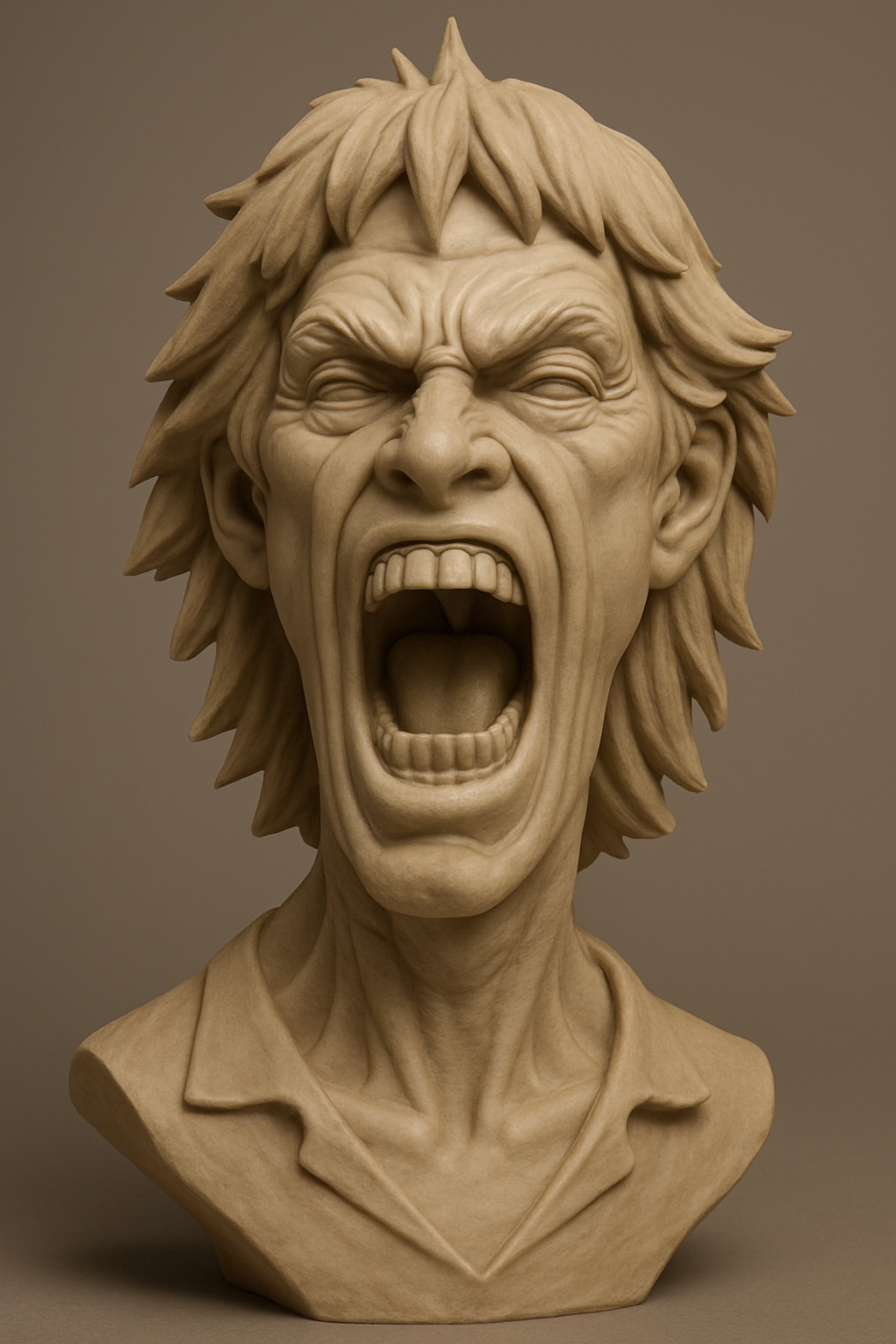

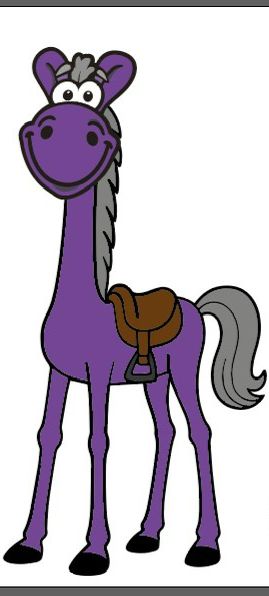
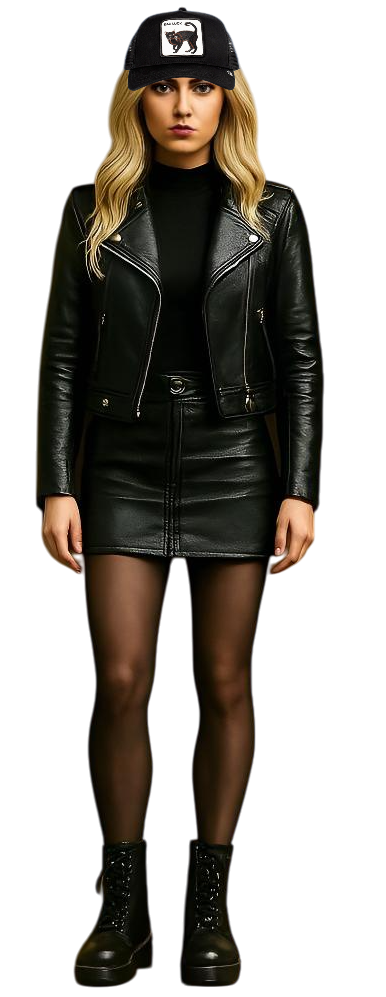
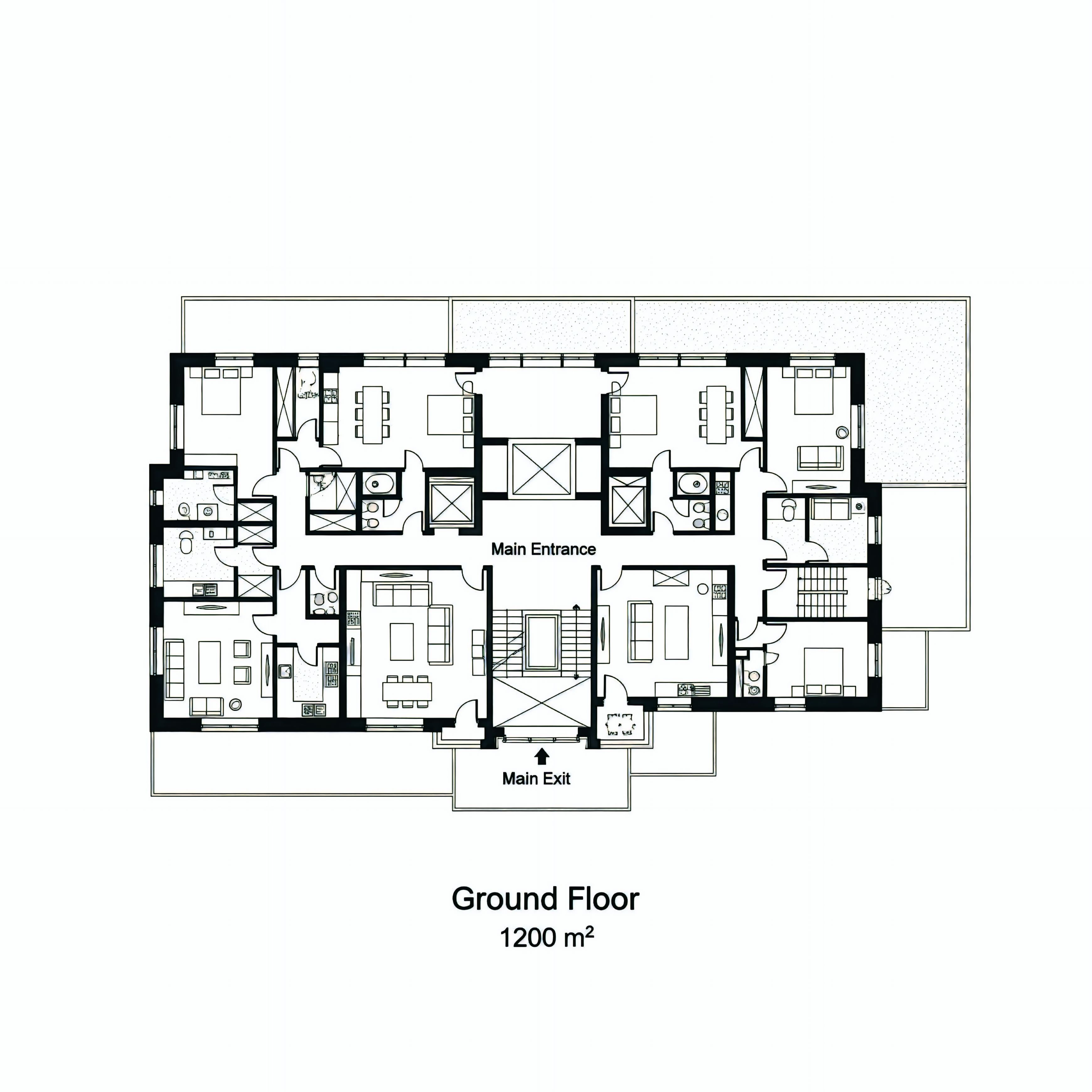
What is Trellis 2 image to 3D?
Trellis 2 image to 3D turns a single picture into a three-dimensional model with Microsoft's Trellis 2 AI. You upload a photo, choose a resolution and texture size, and download a GLB 3D model with automatically refined mesh topology. The credit cost is shown before you generate.
Trellis 2 Key Features
Microsoft Trellis 2 Model
Powered by Microsoft Research's advanced Trellis 2 AI model, specifically designed for superior 3D reconstruction from single images with exceptional geometry accuracy.
Customizable Quality Settings
Choose from multiple resolution options (512/1024/1536) and texture sizes (512/1024/2048) to perfectly balance quality, detail level, and processing speed for your needs.
Automatic Mesh Refinement
Trellis 2 automatically applies mesh refinement to every image to 3D conversion, producing clean, uniform topology that is ideal for 3D printing, game assets, and professional workflows.
Universal GLB Export
Export 3D models in industry-standard GLB format, ensuring compatibility with Blender, Unity, Unreal Engine, Three.js, web viewers, and all major 3D platforms.
Fast Single-Image Conversion
Convert one image to a 3D model in 30-90 seconds. Trellis 2 needs only a single photo, with no multi-view capture required, making it ideal for quick prototyping and batch workflows.
Why Choose Trellis 2?
Microsoft Research Quality
Trellis 2 is developed by Microsoft Research, leveraging cutting-edge AI technology and rigorous scientific validation. Benefit from enterprise-grade reliability and consistent high-quality 3D reconstruction results.
Superior Geometry Reconstruction
Trellis 2 excels at understanding depth cues and spatial relationships, producing more accurate 3D geometry compared to other models. Better surface details, cleaner edges, and more realistic proportions.
Flexible Quality Control
Fine-tune your output with granular control over resolution and texture quality. Whether you need fast previews or production-ready assets, Trellis 2 adapts to your workflow requirements.
Clean Topology Out of the Box
Automatic mesh refinement delivers clean, uniform geometry on every generation, so models are ready for 3D printing, animation, and further editing without manual cleanup.
How to Generate 3D Models with Trellis 2
- 1
Upload Your Image
Select a clear, well-lit image in JPG, PNG, or WebP format. Trellis 2 works best with front-facing photos of objects, products, or characters. Images with plain backgrounds and good contrast produce optimal results.
- 2
Configure Trellis 2 Settings
Choose your desired resolution (512 for speed, 1024 for balance, 1536 for maximum quality) and texture size (512-2048). Mesh refinement is applied automatically for clean topology on every conversion.
- 3
AI Generates Your 3D Model
Trellis 2 analyzes your image, estimating depth, geometry, and surface details. The AI reconstructs a complete 3D model with textures in 30-90 seconds depending on your quality settings.
- 4
Download and Use Your GLB
Download your 3D model as a GLB file ready for immediate use. Import into Blender, Unity, Three.js, or any 3D software. Convert to STL for 3D printing, use in AR/VR experiences, or integrate into your projects.
Trellis 2 Use Cases
E-commerce Product Visualization
Transform product photos into interactive 3D models for online stores. Let customers view products from every angle, increasing engagement and reducing returns. Trellis 2's accurate geometry ensures realistic product representation.
Game Asset Creation
Rapidly generate 3D game assets from concept art or reference photos. Use Trellis 2 to create props, characters, and environmental objects for Unity, Unreal Engine, or web-based games, dramatically accelerating your development pipeline.
3D Printing Preparation
Convert images into 3D-printable models with Trellis 2's clean, refined mesh topology. Create custom figurines, replicas, prototypes, or decorative objects. Export GLB and convert to STL for immediate printing.
AR/VR Content Development
Build immersive AR and VR experiences using Trellis 2's GLB outputs. Create virtual showrooms, 3D product catalogs, interactive museum exhibits, or training simulations. The optimized models ensure smooth performance on mobile and headset platforms.
Frequently Asked Questions
What is Trellis 2?
Trellis 2 is an advanced AI model developed by Microsoft Research that specializes in converting 2D images into detailed 3D models. It uses state-of-the-art deep learning to understand depth, geometry, and surface details from single images, producing high-quality GLB files suitable for games, AR/VR, 3D printing, and visualization.
What makes Trellis 2 different from other image-to-3D models?
Trellis 2 stands out with superior geometry reconstruction, better understanding of spatial relationships, and cleaner mesh topology. Developed by Microsoft Research, it offers more accurate depth estimation and surface details compared to other models. Mesh refinement is applied automatically, so every output has clean, professional topology.
What resolution should I choose in Trellis 2?
Resolution 1024 is recommended for most users, offering an excellent balance of quality and speed. Choose 512 for faster previews or 1536 for maximum detail and quality when you need the best possible output. Higher resolutions produce more detailed geometry but take longer to process and use more credits.
Does Trellis 2 refine the mesh topology automatically?
Yes. Mesh refinement is applied automatically to every Trellis 2 image to 3D conversion for the best possible quality. This produces clean, uniform topology that is ideal for 3D printing, animation, and further editing in 3D software, without any manual cleanup.
What types of images work best with Trellis 2?
Trellis 2 works best with clear, well-lit photos of single objects, products, or characters taken from a frontal angle. Images with plain backgrounds, good contrast, and minimal occlusion produce optimal results. Avoid complex scenes with multiple overlapping subjects, extreme angles, or poor lighting for best 3D reconstruction quality.
Can I use Trellis 2 output for 3D printing?
Yes! Trellis 2 generates GLB files with refined, clean topology that can be imported into Blender or other 3D software and converted to STL format for 3D printing. You may need to adjust wall thickness and add supports in your slicing software depending on model complexity.
How should I choose texture size in Trellis 2?
Texture size controls the resolution of surface details and colors. Use 1024 for most applications (good balance), 512 for web/mobile use where file size matters, or 2048 for high-quality renders and close-up views. Larger textures increase file size but provide sharper details. Match texture size to your resolution setting for best results.
How much does Trellis 2 image to 3D cost?
Trellis 2 costs 50-70 credits per model depending on resolution: 50 credits at 512, 60 credits at 1024, and 70 credits at 1536. The exact cost is shown in the form before submission, and new users get 10 free credits to try.
Trellis 2 Image to 3D Pricing
- Resolution 512
- 50 credits
- Resolution 1024
- 60 credits
- Resolution 1536
- 70 credits
Trellis 2 Technical Specifications
| AI Model | Trellis 2 (Microsoft Research) |
|---|---|
| Input Formats | JPG, PNG, WebP |
| Resolution Options | 512 / 1024 / 1536 |
| Texture Size Options | 512 / 1024 / 2048 |
| Mesh Refinement | Automatic (always enabled) |
| Output Format | GLB (Binary glTF) |
| Processing Time | 30-90 seconds (varies by settings) |
| Maximum Image Size | 10 MB |
| Compatible Software | Blender, Unity, Unreal, Three.js, all GLB viewers |
| 3D Printing Ready | Yes (clean refined topology) |
Official Trellis Sources
Read the Microsoft TRELLIS.2 project page“Native and Compact Structured Latents for 3D Generation”
Read the Microsoft TRELLIS project page“Structured 3D Latents for Scalable and Versatile 3D Generation”
Create Your Trellis 2 Model
Upload one image, choose a resolution and texture size, review the credit cost, and generate a GLB 3D model you can preview, download, and share.
Generate a 3D Model