Introduction#
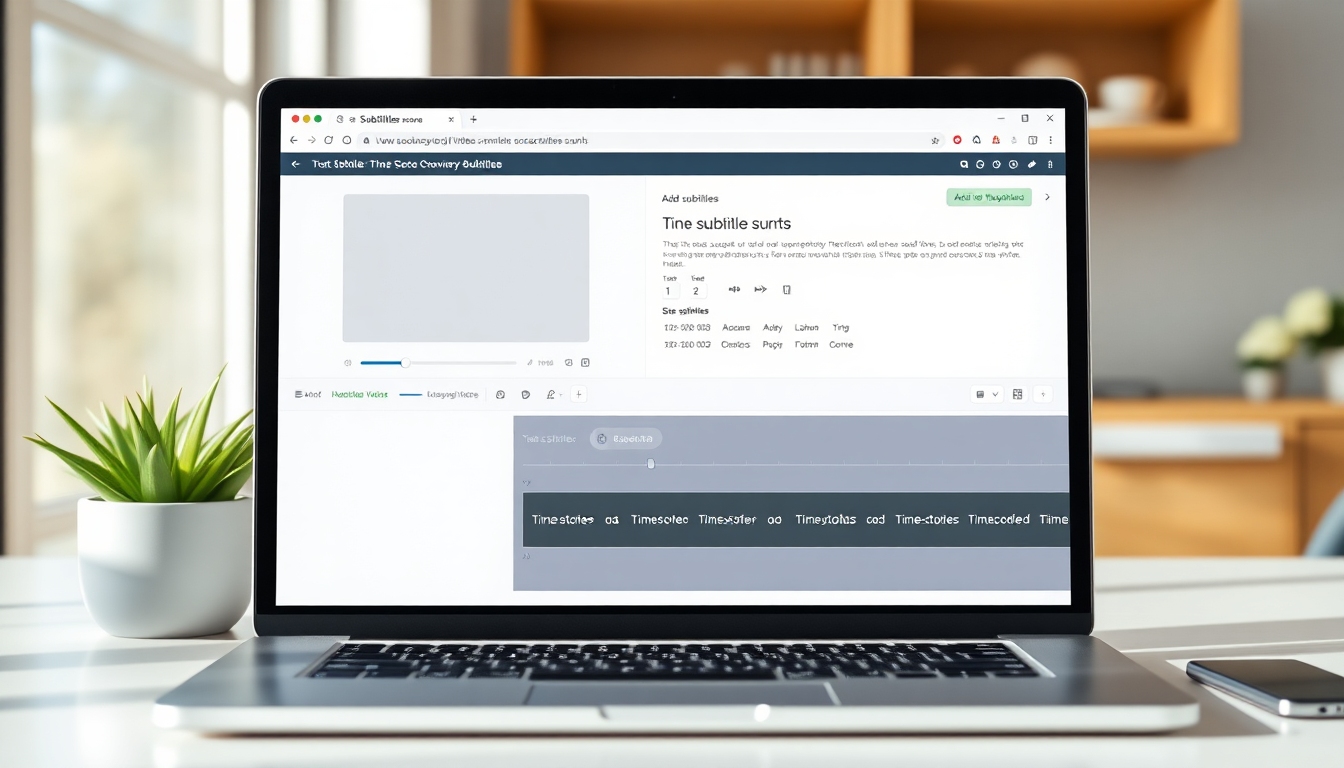
Subtitles expand your video’s reach, improve accessibility, and boost engagement—especially for viewers who watch on mute or speak a different language. In this tutorial, you’ll learn how to Add Subtitle to Video using studio.story321.com, an AI-powered workflow that automatically transcribes your audio, places timecodes, and lets you customize the look and placement of subtitles. You’ll also learn how to review and edit for accuracy, synchronize timing, export your video with burned-in subtitles or as separate caption files, and test the final output.
Whether you’re a beginner or an intermediate creator, this guide shows you every step to Add Subtitle to Video cleanly and confidently. We’ll cover three common paths—automatic generation, uploading an existing subtitle file, and manual editing—so you can choose what fits your project and timeline.
By the end, you’ll have a polished video with precise, readable subtitles that match your brand and platform standards.
Prerequisites/Preparation#
Before you Add Subtitle to Video, prepare the following:
- A video file: Common formats such as MP4 or MOV are typically supported.
- A stable internet connection: For uploading and processing.
- A studio.story321.com account: Sign up or sign in to access the Add Subtitle to Video tool.
- Clear audio: Better audio means more accurate AI transcription when you Add Subtitle to Video.
- Your subtitle plan:
- Automatic AI subtitles (fastest),
- Upload a subtitle file (.srt or .vtt),
- Manual creation and fine-tuning.
- Language details: The spoken language in your video and any target languages for translation, if applicable.
- Style decisions: Font, size, color, background/box, and position you want to apply when you Add Subtitle to Video.
- Platform requirements: If you publish to platforms like YouTube, TikTok, Instagram, or a corporate LMS, note their subtitle specifications (e.g., file type, character-per-line limits, and whether to burn in or upload a sidecar file).
Step-by-Step Instructions#
Follow these steps to Add Subtitle to Video with studio.story321.com. Each step includes a confirmation so you know you’re on track.
1. Decide How You Want to Add Subtitle to Video#
Choose the workflow that matches your needs and timeline:
1.1 Automatic AI generation
- Best for speed and convenience.
- The AI transcribes your audio, places timecodes, and generates a subtitle track that you can edit before export.
1.2 Upload a subtitle file
- Use this if you already have a properly timed .srt or .vtt file. You’ll upload your video and the subtitle file, then preview and style it.
1.3 Manual subtitling
- Type subtitles yourself and set in/out times. This is useful for special cases or when you want total control.
At this point you should have selected the primary method you’ll use to Add Subtitle to Video.
You will see a smoother workflow once you choose your approach, because it determines whether you rely on AI, bring in an existing file, or build subtitles from scratch.
2. Open studio.story321.com and Start a New Project#
2.1 Go to studio.story321.com in your browser and sign in. 2.2 From the dashboard or tool list, choose the option labeled for adding subtitles or captions. 2.3 Click to create a new project dedicated to your video.
At this point you should be in a fresh project workspace to Add Subtitle to Video.
You will see a clean interface with an upload area and controls relevant to subtitle creation and editing.
3. Upload Your Video#
3.1 Drag and drop your video into the upload area or click to browse your files. 3.2 Wait for the upload to complete. Larger files or slower connections will take longer. 3.3 Once uploaded, the tool will process the video and prepare it for subtitle work.
At this point you should see your video thumbnail, a timeline or playback area, and controls for subtitling.
You will see a player you can scrub through, making it easy to Add Subtitle to Video and preview changes in real time.
4. Use AI to Automatically Add Subtitle to Video#
If you chose automatic generation:
4.1 Select the spoken language in your video or use auto-detect if available. 4.2 Click the option to generate or auto-create subtitles. The AI will analyze your audio and produce a subtitle track. 4.3 Wait for processing to finish. Progress indicators will show status.
At this point you should see a subtitle track aligned to the audio, with timecodes for each line.
You will see your subtitles appear inside the video preview, allowing you to play, pause, and confirm the sync as you Add Subtitle to Video.
5. Review and Edit for Accuracy and Sync#
To ensure quality when you Add Subtitle to Video:
5.1 Play your video and watch each subtitle line. Edit text where needed to correct spelling, names, or specialized terms. 5.2 Adjust timing by dragging subtitle edges on the timeline, or use time-in/time-out controls. Aim for natural reading rhythm. 5.3 Keep lines readable:
- 1–2 lines per subtitle.
- Around 32–42 characters per line for comfortable reading.
- Consider characters per second (CPS). Try to keep CPS under roughly 17 to avoid rushing viewers. 5.4 Add meaningful non-speech elements in brackets when appropriate (e.g., [music], [laughter], [applause])—especially if you’re using captions for accessibility. 5.5 Ensure speaker changes create new subtitle entries so viewers can follow the conversation.
At this point you should have a clean, accurate, and synced subtitle track ready for styling.
You will see improved readability and timing, which is critical when you Add Subtitle to Video for accessibility and engagement.
6. Style Your Subtitles for Readability and Brand Fit#
Styling helps your subtitles look professional when you Add Subtitle to Video:
6.1 Open the subtitle style or appearance panel. 6.2 Choose a font that’s clear at small sizes (sans-serif is common). 6.3 Set font size for mobile readability. Consider a subtle shadow or background box for contrast. 6.4 Pick colors with strong contrast. White or light text on a semi-transparent dark box is a popular, accessible choice. 6.5 Position subtitles in the lower safe area, centered, unless your content requires a different placement. 6.6 Save style presets if your workflow supports it, so you can reuse the same look across videos.
At this point you should see styled subtitles that are legible, on-brand, and consistent.
You will see an instant preview of style changes applied, verifying your choices before you finalize and Add Subtitle to Video at export.
7. Optional: Translate While You Add Subtitle to Video#
If your goal includes multiple languages:
7.1 Duplicate your subtitle track and choose Translate (if available in your account). 7.2 Select the target language and let the tool produce a translated track. 7.3 Review for proper names, idioms, and domain-specific terms. 7.4 Provide localized punctuation and line breaks appropriate for the target language.
At this point you should have one or more translated subtitle tracks in addition to your original.
You will see separate tracks you can export as distinct files or burn into localized video versions when you Add Subtitle to Video for international audiences.
8. Choose Export Type: Burned-In vs Sidecar Files#
When you Add Subtitle to Video, decide how viewers will see them:
8.1 Burned-in (hardcoded) subtitles
- Subtitles are permanently embedded in the video and cannot be toggled off.
- Best for social platforms that auto-play muted and for guaranteed visibility.
- Export your video with subtitles burned in. Confirm resolution, frame rate, and quality settings.
8.2 Sidecar files (.srt, .vtt)
- Subtitles are separate files you upload alongside your video.
- Viewers can toggle captions on/off where the platform supports it.
- Export subtitle files in the format your target platform expects (e.g., .srt for many platforms, .vtt for web players).
8.3 Platform-specific considerations
- YouTube supports multiple caption tracks and languages. Upload the video, then upload .srt/.vtt files in YouTube Studio if you didn’t burn in.
- Some platforms auto-caption, but you can replace or supplement with your own for accuracy.
At this point you should have your final video (with burned-in subtitles) or separate subtitle files ready for upload.
You will see a downloadable file or package, confirming you successfully used the tool to Add Subtitle to Video.
9. Test Your Output on Real Devices#
Testing is essential after you Add Subtitle to Video:
9.1 Play your exported video locally and check sync, line breaks, and readability. 9.2 Upload to your platform and preview on different devices (desktop, phone, tablet) and orientations. 9.3 Verify toggling subtitles on/off if you used sidecar files and ensure the correct language displays. 9.4 Confirm contrast and position aren’t blocked by watermarks, lower-thirds, or UI elements.
At this point you should be confident your subtitles display correctly in real-world conditions.
You will see dependable, consistent captions—proof your Add Subtitle to Video workflow is production-ready.
10. Save Your Workflow for Next Time#
Create a repeatable setup so it’s faster every time you Add Subtitle to Video:
10.1 Save your style preset so all future videos match your brand. 10.2 Maintain a project template: track names, export settings, and file naming conventions. 10.3 Keep a glossary of names and terms to improve AI accuracy. 10.4 Document your review checklist (spelling, timing, CPS, speaker changes, non-speech cues).
At this point you should have a streamlined process to quickly Add Subtitle to Video for all future projects.
You will see time savings and consistency, especially across series or brand channels.
Tips & Best Practices#
Use these tips whenever you Add Subtitle to Video:
- Keep it readable: 1–2 lines per subtitle, 32–42 characters per line, and a CPS under roughly 17–20 for most content.
- Time for comfort: Display each subtitle long enough to read naturally; add 100–200 ms of lead-in and lead-out where it helps.
- Avoid clutter: Don’t cover important on-screen text or speaker names. Shift position temporarily if needed.
- Contrast matters: White or light text on a semi-transparent dark box usually passes accessibility checks.
- Consistent punctuation and case: Choose sentence case or title case and stick to it.
- Identify speakers sparingly: Use names or initials only when needed for clarity.
- Include important non-speech cues for accessibility: [music], [siren], [laughter], [applause], [door closes], etc.
- Verify names and jargon: Proper nouns and technical terms often trip up auto-captioning; always review.
- Use a glossary: Feeding the AI with a list of terms (where supported) improves accuracy when you Add Subtitle to Video.
- Maintain brand consistency: Save style presets so all videos align with your brand.
- Platform-specific exports: Burn in for social feeds that auto-play muted; sidecar files for platforms with caption toggles.
- Test on mobile: Most viewers watch on phones; ensure font size and contrast survive bright environments.
- Back up your files: Keep a master video without burned-in subtitles and separate caption files for later updates.
- Version control: Name files with language and version tags (e.g., myvideo_en_v2.srt) to avoid confusion.
- Audio quality first: Cleaner audio equals better AI transcription and faster edits when you Add Subtitle to Video.
Troubleshooting#
If you run into issues while you Add Subtitle to Video, try the following:
-
Subtitles out of sync
- Symptom: Lines appear too early or too late.
- Fix: Nudge the entire track by a global offset if everything is consistently early/late. For isolated lines, adjust those timecodes individually.
-
AI mishears names or jargon
- Symptom: Incorrect spellings or terms.
- Fix: Manually correct text and consider creating a term list or glossary for future projects.
-
Subtitles are hard to read
- Symptom: Small text, poor contrast, or busy background.
- Fix: Increase font size, add a semi-transparent background box, or move subtitles higher on the screen. Keep to 1–2 lines.
-
Exported video doesn’t show subtitles
- Symptom: You expected burned-in subtitles, but they’re missing.
- Fix: Re-export with the burned-in option enabled, or ensure the subtitle track was toggled on before export.
-
Platform won’t accept .srt/.vtt
- Symptom: Upload fails or captions don’t display.
- Fix: Check file encoding (UTF-8 is common), ensure timecode format matches platform requirements, and verify language codes.
-
Subtitles overlap on-screen text
- Symptom: Captions cover lower-thirds or UI elements.
- Fix: Adjust position or add vertical margins. Temporarily move subtitles higher when necessary.
-
Characters per second too high
- Symptom: Viewers can’t read fast enough.
- Fix: Split long lines, paraphrase, or slow down the lines’ display time. Maintain a comfortable CPS target.
-
Multiple languages needed
- Symptom: You need English and another language.
- Fix: Create separate tracks and export a burned-in version for social plus sidecar files for platforms with toggles.
-
Export quality issues
- Symptom: Blurry text or compression artifacts.
- Fix: Export at the source resolution with ample bitrate. If burning in, ensure font size is adequate for the target resolution.
-
Audio quality problems
- Symptom: AI transcription is inaccurate due to noisy audio.
- Fix: Clean the audio if possible, reduce background noise, and re-run auto-generation. Future recordings: use a good mic and quiet environment.
FAQ#
-
What’s the difference between subtitles and closed captions?
- Subtitles assume the viewer can hear the audio and primarily display spoken dialogue, often used for translation. Closed captions include dialogue plus non-speech sounds and speaker identifiers for accessibility. When you Add Subtitle to Video, choose the approach that fits your audience and platform.
-
Should I burn in subtitles or use a sidecar file?
- Burned-in subtitles ensure everyone sees them everywhere. Sidecar files (.srt/.vtt) let viewers toggle captions and allow multiple languages. Many creators Add Subtitle to Video as burned-in for social, and upload sidecar files for platforms like YouTube.
-
Which subtitle format should I export?
- .srt is widely supported; .vtt is common for web players. If you Add Subtitle to Video for broadcast or advanced styling, you might consider other formats as needed by your platform.
-
How accurate is AI when I Add Subtitle to Video?
- AI is fast and usually very accurate with clear audio. Always review for proper names, technical terms, and punctuation, then correct timing where needed.
-
Can I edit the subtitles after auto-generation?
- Yes. You can review, correct text, and adjust timing to refine results before export. This is a standard step when you Add Subtitle to Video with AI.
-
Can I translate subtitles into other languages?
- Many workflows support translating subtitle tracks. If translation is available in your account, you can Add Subtitle to Video in multiple languages by creating separate tracks, then exporting them.
-
What if my platform auto-generates captions?
- Platform captions are convenient but not always accurate. You can Add Subtitle to Video yourself for brand consistency and quality, then upload your own caption files or burn in.
-
How long should each subtitle stay on screen?
- Generally, 1–6 seconds depending on length. Keep CPS comfortable. When you Add Subtitle to Video, aim for balanced timing that matches natural reading speed.
-
Can I reuse my style across videos?
- Yes. Save style presets so every time you Add Subtitle to Video, your captions match your brand without redoing design decisions.
-
What if my video is vertical or square?
- Ensure subtitles sit within the safe area and don’t overlap key visuals. Always test after you Add Subtitle to Video for non-standard aspect ratios.