Introduction#
If you create videos, podcasts, tutorials, or voice-over content, learning how to transcribe YouTube video to text can dramatically boost your creative efficiency. A great transcript lets you repurpose spoken content into blogs, newsletters, captions, social posts, ebooks, and SEO-friendly web pages. It also improves accessibility, helps you search your own content, and provides raw material for summaries or show notes.
In this step-by-step guide, you’ll learn how to transcribe YouTube video to text using an AI-powered workflow inside Story321, alongside alternatives like YouTube’s built-in transcript and professional transcription tools. By the end, you’ll be able to produce clean text, summaries, and optionally, timestamps or captions to fit your needs.
Prerequisites/Preparation#
Before you begin, gather the following:
- A computer or mobile device with a modern web browser and reliable internet.
- The YouTube video URL you want to transcribe.
- A Story321 account (free or paid), to use the AI Apps workflow.
- Optional: A text editor (Google Docs, Word, Notion) to format and store your transcript.
- Optional: Headphones for manual cleanup and accuracy checks.
- Optional: Permission from the video owner if you’re republishing or distributing the transcript.
Tip about permissions: While you can learn how to transcribe YouTube video to text for your own notes or internal use, always ensure you have the right to republish, share, or monetize the resulting text if it’s not your original content.
Step-by-Step Instructions#
Below is the primary, AI-first workflow using Story321, followed by two alternative methods. This approach is ideal for content creators who want speed, accuracy, and optional summaries on demand.
Method 1: Transcribe with Story321 AI Apps (Recommended)#
This is the fastest way to learn how to transcribe YouTube video to text while also generating a concise summary for blogs, show notes, and social content.
-
Prepare your YouTube URL and decide what you need
- Copy the full URL of the video you want to transcribe. Decide whether you need:
- A full transcript (verbatim or lightly edited).
- A summary (key points, highlights).
- Both (common for creators who repurpose content).
- You will see: A single YouTube link and a clear goal (transcript, summary, or both).
- At this point you should: Know exactly how you’ll use the result (blog post, captions, notes, SEO).
- Copy the full URL of the video you want to transcribe. Decide whether you need:
-
Go to your Story321 dashboard
- Open your browser and navigate to https://writing.story321.com/dashboard.
- Sign in or create an account if needed.
- You will see: The Story321 dashboard with your workspace.
- At this point you should: Be logged in and ready to create a note where your transcript will live.
-
Create a new note
- Click “New Note” (or similar) to create a blank document.
- Give your note a clear title like “YouTube Transcript – [Video Title].”
- You will see: An empty editor where you can insert your transcript and summary later.
- At this point you should: Have a dedicated space ready to capture text.
-
Click “AI Apps” on the left
- Look at the left sidebar and click “AI Apps.”
- This opens the toolbox for AI-powered tasks, including how to transcribe YouTube video to text.
- You will see: A list of AI Apps options.
- At this point you should: Be inside the AI Apps section.
-
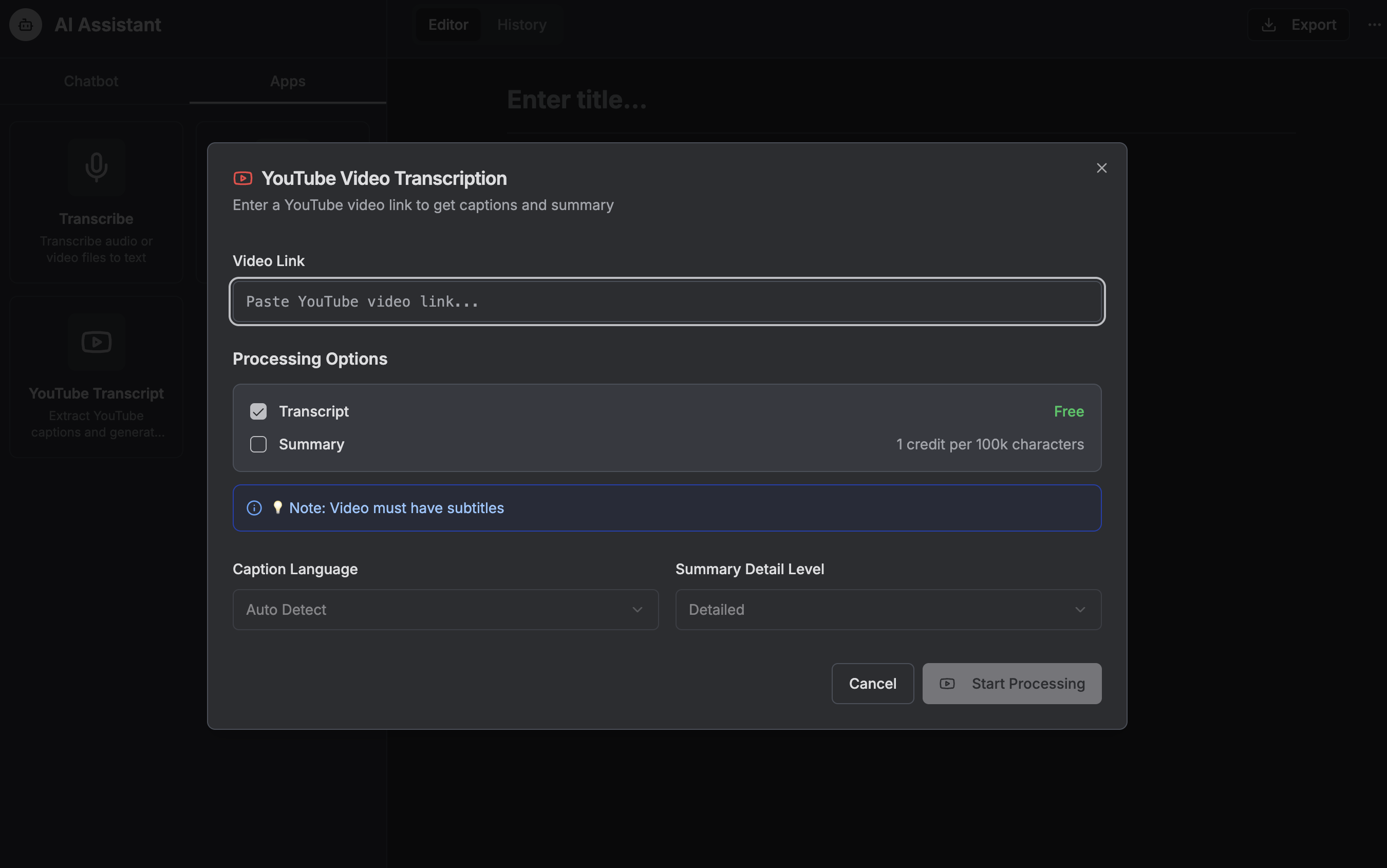
Select “YouTube Transcription”
- In the AI Apps list, click “YouTube Transcription.”
- You will see: A pop-up window for YouTube transcription options.
- At this point you should: Be ready to paste a URL and configure preferences.
-
Enter the URL and choose Transcription, Summary, or both
- Paste your YouTube URL into the input field.
- Choose one or both options:
- Transcription: Produces the full text of the audio.
- Summary: Generates a structured summary (ideal for blog intros, show notes, social posts).
- If available, set the language or select “Auto-detect.”
- You will see: Your URL recognized and options selected.
- At this point you should: Confirm the correct video and the desired outputs.
-
Click Start
- Click the “Start” button to begin.
- The system will fetch the audio, process the speech, and assemble the transcript (and summary if requested).
- You will see: A progress indicator or a “Processing…” message.
- At this point you should: Wait until processing completes; avoid closing the browser tab.
-
Review the results
- Once finished, Story321 will display the transcript (and summary if selected) in the pop-up or results panel.
- Skim a few lines in the beginning, middle, and end for accuracy, speaker changes, and special terms (brand names, technical jargon).
- You will see: A full transcript and optional summary ready for insertion.
- At this point you should: Be confident that the output aligns with your needs before inserting it into your note.
-
Insert the content into the editor
- Click the “Insert” button to add the transcript/summary into your open note.
- Content creators often insert both: the transcript at the top and the summary below (or vice versa).
- You will see: The text appear inside your document, ready for editing and formatting.
- At this point you should: Have your transcript in a safe place where you can refine it.
-
Clean up and format the transcript
- Correct any misheard words, add punctuation, and break text into paragraphs.
- If the tool includes timestamps and you don’t need them, remove them. If you want timestamps but they aren’t present, you can add section markers (e.g., [00:00], [02:15]) for key moments.
- Add speaker labels if more than one person is talking (e.g., Host:, Guest:).
- You will see: A polished transcript suitable for publication or internal use.
- At this point you should: Have an accurate, readable transcript ready to repurpose.
-
Save and export
- Copy the final text into your preferred editor or export as needed (e.g., .txt, .docx, .md). If you need captions, convert to .srt using a captioning tool or a simple template (see Tips below).
- You will see: A saved document in your chosen format.
- At this point you should: Have a clean file you can publish, share, or archive.
That’s the fastest way to learn how to transcribe YouTube video to text with AI, minimizing manual cleanup and giving you optional summaries for repurposing.
Method 2: Use YouTube’s Built-in Transcript (Free)#
If you prefer a free approach or want a quick draft, YouTube’s transcript can work—though it may require more editing.
-
Open the YouTube video
- Go to the video page on YouTube.
- You will see: The title, description, and player controls.
- At this point you should: Confirm the video is publicly available.
-
Reveal the transcript
- Click the three-dot icon (More actions) beneath the video or within the player options.
- Select “Show transcript.”
- If you don’t see this option, the video may not have an auto-caption or the owner has disabled transcripts.
- You will see: A transcript panel on the right with lines of text and timestamps.
- At this point you should: Verify the transcript language is correct.
-
Toggle timestamps (optional)
- In the transcript panel, look for the timestamp toggle to switch on/off timecodes.
- If you want a clean text document, turn timestamps off before copying.
- You will see: The transcript lines with or without timecodes.
- At this point you should: Decide whether you want raw text or timed sections.
-
Copy and paste into a text editor
- Select the transcript text, copy it, and paste it into your editor (Google Docs, Word, Story321 note).
- You will see: The raw transcript, often without punctuation.
- At this point you should: Prepare to add punctuation and fix spacing/formatting.
-
Clean up the text
- Add punctuation, paragraph breaks, and speaker labels.
- Correct names and jargon; check proper nouns (products, brands).
- You will see: A readable transcript that’s ready for use.
- At this point you should: Have a complete text version of the video content.
This approach is straightforward if you’re learning how to transcribe YouTube video to text without extra tools, but it can be less accurate and lacks summaries.
Method 3: Use Professional Transcription Software/Services#
When accuracy, multiple speakers, or specialized terminology matter, consider dedicated tools.
-
Descript (software):
- Import the YouTube link or the video/audio file.
- Let Descript transcribe automatically.
- Edit the transcript directly; remove filler words and export text or captions (.srt).
- You will see: A studio-like environment that links text and audio for easy edits.
-
Camtasia (software with captions):
- Import video.
- Generate captions/transcription.
- Edit, then export captions and text.
- You will see: A video-editing interface with transcription options.
-
Professional services (e.g., human transcription):
- Upload the file or provide a link.
- Choose turnaround time and accuracy level.
- Receive a polished transcript and captions.
- You will see: High-accuracy text, often with speaker labels and timestamps.
Use this route when learning how to transcribe YouTube video to text for broadcast-quality deliverables or when your content will be widely distributed.
Tips & Best Practices#
-
Clarify your goal before you start
- If your main goal is content repurposing (blog or newsletter), request both a transcript and a summary in Story321. This is the most efficient way to learn how to transcribe YouTube video to text while also getting an instant, publish-ready outline.
-
Optimize for accuracy
- Choose the correct language in the AI app.
- For technical topics, scan and correct key terms right after insertion; you’ll avoid repeated mistakes later.
- If audio quality is poor, consider downloading the video and boosting clarity before transcription.
-
Format for readability
- Add headings and bullet points to long segments.
- Use speaker labels for multi-speaker content. This is essential for interviews and podcasts.
-
Create captions from your transcript
-
To make an .srt from your text, split content into short 1–2 line chunks (max ~42 characters per line), add timestamps like: 1 00:00:00,000 --> 00:00:04,000 Intro text line here.
2 00:00:04,001 --> 00:00:08,000 Next caption line here.
-
Use a caption editor (Aegisub, Subtitle Edit) to automate timing if needed.
-
-
Keep a style guide
- Decide on punctuation style, capitalization of brand names, and how to handle filler words. Consistency matters across transcripts.
-
Repurpose efficiently
- Highlights from your transcript can become short videos, carousels, email bullet points, and SEO snippets. This is a core benefit of mastering how to transcribe YouTube video to text.
-
Respect rights
- Get permission to publish or monetize transcripts of videos you didn’t create.
Troubleshooting#
-
I don’t see “Show transcript” on YouTube
- Cause: The video owner disabled transcripts, or auto-captions aren’t available.
- Fix: Use Story321’s YouTube Transcription or a professional tool that processes the video audio directly.
-
Story321 processing is stuck or very slow
- Cause: Network hiccup, long video, or high server load.
- Fix: Refresh your dashboard, retry later, or split the video into parts and transcribe in segments.
-
The transcript has lots of errors
- Cause: Background noise, heavy accents, specialized jargon.
- Fix: Re-run transcription with the correct language; fix proper nouns during cleanup; consider a professional service for critical content.
-
The video is private or age-restricted
- Cause: Access limitations.
- Fix: You’ll need permission or a direct file upload to a tool that supports it. If you’re the owner, temporarily unlist for processing.
-
I need timestamps but don’t see them
- Fix: In YouTube transcript, keep timestamps toggled on before copying. In Story321, insert the transcript, then add timestamps at section breaks or use a captions tool to auto-generate .srt timing.
-
My mobile app won’t copy the transcript
- Cause: YouTube mobile UI limitations.
- Fix: Use a desktop browser or Story321 on desktop to complete the workflow.
-
The language looks wrong
- Cause: Auto-detection misfired.
- Fix: Manually select the correct language in Story321’s YouTube Transcription.
-
Exported text lost formatting
- Cause: Copy/paste into a plain-text editor.
- Fix: Export as .docx or paste into a rich text environment (Google Docs, Word), then re-apply headings and bold.
-
I need a summary for social posts
- Fix: In Story321, select both Transcription and Summary. The summary provides ready-made bullets, hooks, and takeaways.
FAQ#
-
What’s the fastest way to learn how to transcribe YouTube video to text?
- Use Story321’s YouTube Transcription in AI Apps. Paste the URL, choose Transcript and/or Summary, click Start, and insert the results into your note for quick editing.
-
Is it legal to transcribe videos I don’t own?
- You can learn how to transcribe YouTube video to text for personal use, study, or internal notes. For publishing, repurposing, or monetizing someone else’s video transcript, obtain permission from the copyright holder.
-
Will I get timestamps automatically?
- YouTube’s transcript can include timecodes. Story321 may provide structured text; you can add timestamps during cleanup or with a captioning tool if you need a strict .srt format.
-
How accurate are AI transcripts?
- For clear audio and a single speaker, accuracy can be high. Complex audio, multiple speakers, or technical jargon require a pass of human cleanup or a professional service.
-
Can I transcribe private or members-only videos?
- Only if you have access and the necessary rights. Some tools require a direct upload of the media file when a URL won’t work.
-
Can I get a summary and a transcript together?
- Yes. In Story321, choose both options. This is a highly efficient way to learn how to transcribe YouTube video to text and immediately get condensed talking points.
-
What file formats can I save?
- Most creators export to .txt or .docx for editing and to .srt for captions. You can also keep everything inside your Story321 note.
-
How long does it take?
- Often just a few minutes for standard-length videos in Story321. Longer videos and busy servers may take more time.
-
Can I batch transcribe multiple videos?
- Depending on your plan and tool limits, you can repeat the Story321 workflow or use batch features in professional tools. Keep an organized note per video.
-
What’s the difference between a transcript and captions?
- A transcript is the full text of spoken audio. Captions are the same text, timed to the video for on-screen display. You can convert a transcript into captions by adding timestamps in .srt format.
Recap: Your Workflow at a Glance#
- For most creators, the best path to learn how to transcribe YouTube video to text is:
- Go to https://writing.story321.com/dashboard
- Create a new note
- Click AI Apps
- Select YouTube Transcription
- Paste the URL and choose Transcription/Summary
- Click Start
- Insert, edit, and export
If you need a completely free option, YouTube’s built-in transcript is handy—just expect more cleanup. For mission-critical accuracy, consider a dedicated transcription tool or human service.
By mastering how to transcribe YouTube video to text, you’ll save hours, scale your content output, and make your work far more accessible and discoverable.
- ImagePrompt: A clean, modern workspace scene featuring a laptop open to a dashboard with an “AI Apps” panel and a “YouTube Transcription” module visible. On the left, a sidebar menu with items resembling “AI Apps,” and on the main area, a pop-up showing a field with a YouTube URL and options for “Transcription” and “Summary,” plus a prominent “Start” button. On the laptop screen, parts of a transcript are visible as simple lines of text. Soft natural lighting, minimalist desk setup with headphones, a notepad, and a cup of coffee. High-resolution, editorial style, neutral color palette, no text overlays.